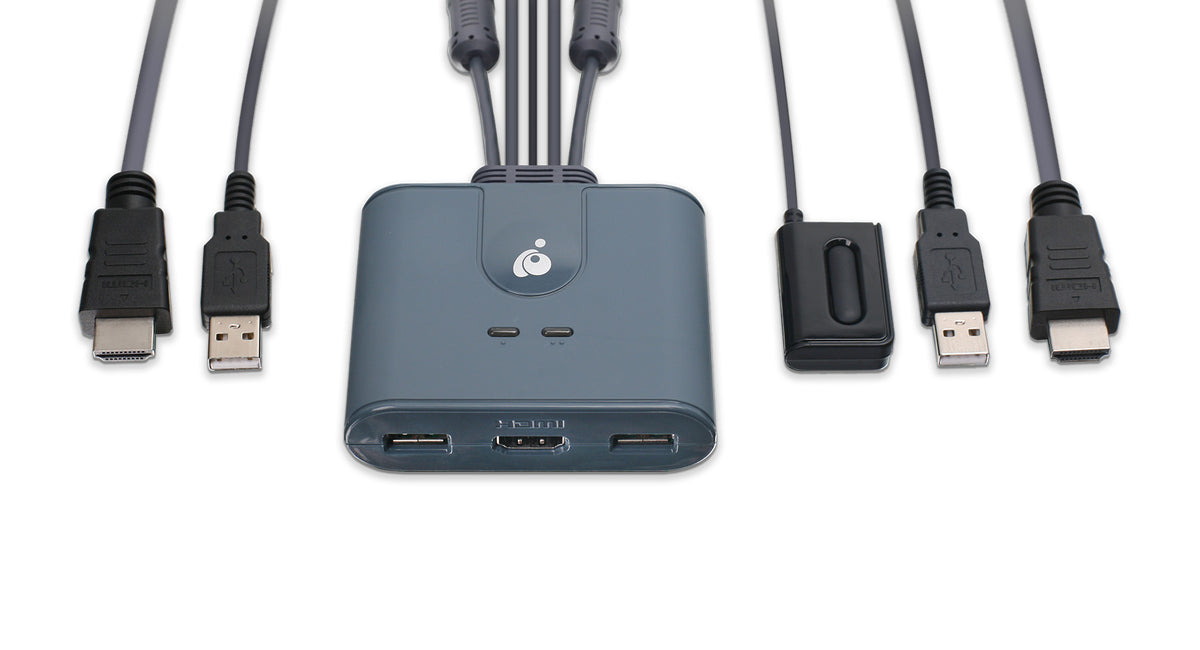
IOGEAR 2-Port HDMI KVM Switch (GCS32HU)
A two-host option for one HDMI screen up to 1920 × 1200 at 60 Hz, with built-in cables and a wired selector.
Check current price
View on Amazon ↗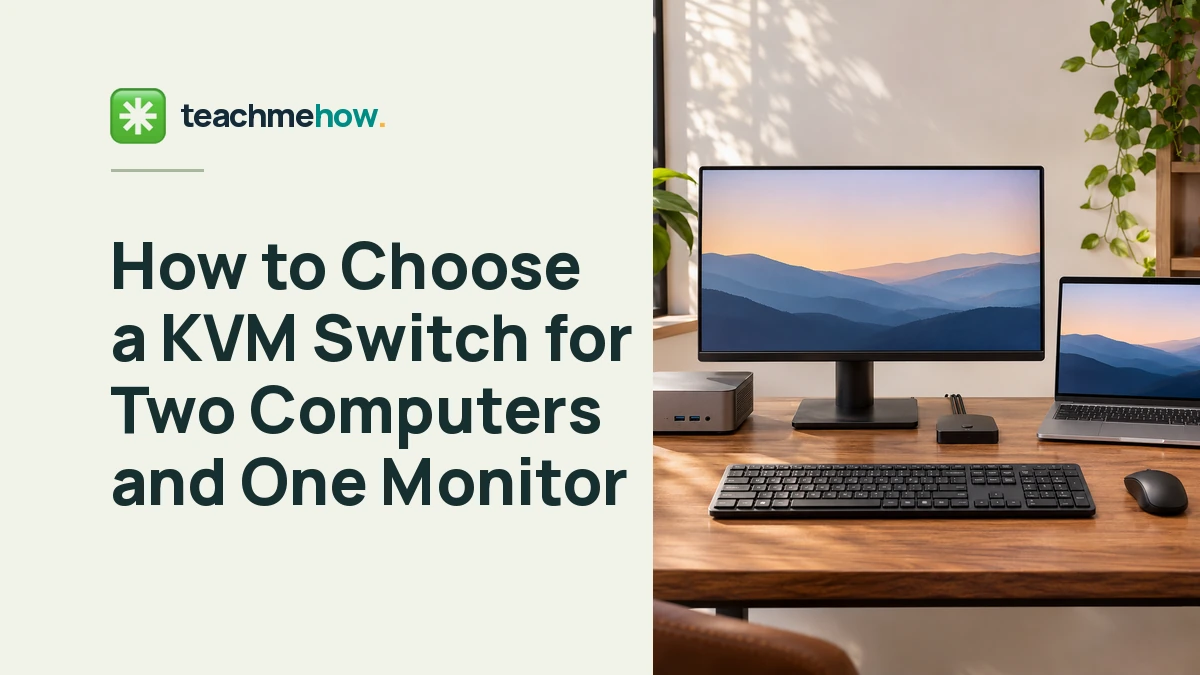
Choose a two-computer KVM for one monitor. Match video modes, USB upstream ports, keyboard controls and EDID behavior, then test the switch at your desk.
Follow these steps at your own pace. Check product terms and prices directly with providers before purchasing.
Switching the monitor from a work laptop to a home desktop takes one press. Then the mouse still moves the laptop pointer, the webcam belongs to the wrong meeting and the keyboard is connected to the computer you can no longer see. A KVM switch can move those connections together. The right model depends on exactly which signals you want to follow the button.
Quick AnswerFor two computers and one monitor, choose a two-host, single-display KVM that supports the monitor’s actual resolution and refresh rate from both hosts. Draw a video path and a USB upstream path for each computer. Count the keyboard, mouse and other USB devices you need to share, including any that require a faster general-purpose USB port. Check how you select the active host, what cables come in the box and whether either laptop still needs its own charger.
Start with the setup that already works. Connect computer A directly to the monitor, set it as you like, then record the input, resolution and refresh rate. Repeat for computer B. If a laptop already works through a dock, use that known-working output as its starting point. Photograph the labels of the sockets in use. The purchase should preserve a specific result you can test later.
A 2560 × 1440 monitor at 144 Hz is a different requirement from 3840 × 2160 at 30 Hz. A listing that says only “supports 4K” leaves too much unanswered. Look for exact modes in the switch’s technical sheet and check the monitor’s per-input mode table. A monitor might accept its highest refresh rate over DisplayPort while its HDMI connection has a different limit. For Windows, check the selected screen’s actual refresh rate before writing the shopping list.
If HDR, variable refresh rate, high color depth or a particular audio format matters, add it as a separate line. A claim for resolution and refresh alone does not establish every optional feature. For an office monitor used chiefly for documents, keeping legible native resolution, a smooth pointer and predictable waking may matter more than paying for features neither machine will use.
| Desk setup | What to buy and what to do at the desk |
|---|---|
| Monitor already has a built-in KVM and enough suitable inputs | The documented upstream cables for the monitor. At the desk. Assign each USB upstream port to its corresponding video input in the monitor menu. |
| Both computers feed a single HDMI or DisplayPort monitor input | External two-host, single-monitor KVM matching both sources. At the desk. Separate chargers or adapters if they are outside the KVM’s features. |
| Monitor has separate inputs and you can switch its source yourself | USB peripheral-sharing switch for keyboard and mouse. At the desk. Select monitor input and USB host separately. |
| Displays stay separate and you only want one keyboard/mouse set | Multi-device keyboard and mouse or a USB switch. At the desk. No video routing is needed. |
An ordinary HDMI switch selects a picture and audio. A USB switch moves USB devices. You can combine those functions yourself, but there will be two selections to keep in step. An external KVM puts them under one control. A docking station generally expands one computer’s ports. If the real problem is connecting one laptop to a permanent desk setup, the laptop docking station guide is the closer match.
A monitor with its own KVM can eliminate a box. BenQ, for example, documents arrangements that use USB-C on one computer and HDMI or DisplayPort plus a separate USB upstream connection on the other. The monitor’s input assignment tells it where to route the keyboard when video changes. Look up the instructions for the exact monitor before buying another switch. A monitor described only as having a USB hub may not support two USB hosts. BenQ’s monitor KVM setup guidance.
Label two pieces of paper A and B. Under A write the path from its video output to the corresponding input on the KVM. Below it write the path from a data-capable USB port on that same computer to the KVM’s matching USB upstream connection. Do the same for B. Then draw one path from the switch’s video output to the monitor and one from each shared peripheral to the switch’s console side.
Here is a common combination. A desktop graphics card supplies HDMI and a separate USB-A port supplies data through the upstream cable specified for input A. A laptop uses its dock’s HDMI connector plus an available USB connection from the same dock for input B. The monitor stays set to the KVM’s output. The laptop continues to use its usual charger or powered dock. With that arrangement, pressing A or B changes which computer receives keyboard and mouse input along with the picture.
On a desktop with a discrete graphics card, start from the card output that works when connected directly. On a USB-C laptop that lacks HDMI, verify video output support before assuming an adapter will help. Some adapters convert in only one direction. “DisplayPort to HDMI” for a DisplayPort source and HDMI display answers a different problem from sending an HDMI source into a DisplayPort input. Count the required cables and adapters in both directions on the drawing. A box that looks cheaper can become the expensive choice after you buy four missing leads.
A USB-C KVM may combine video, USB data and laptop power for a designated host. Check the diagram for each host. Some models provide one full USB-C input plus a conventional video-and-USB pair for the second computer. Some require you to supply a power adapter. If a listing mentions power delivery, read the wattage that reaches the host and which host receives it. Merely switching an HDMI picture will not charge a laptop.
Write a small list of what actually needs to move. A basic wired keyboard and mouse may work in dedicated keyboard/mouse ports. Those ports can support keyboard shortcuts for switching, sometimes by presenting a simple emulated input device to each computer. A wireless combination receiver, keyboard with media controls or mouse with programmable buttons may behave differently there. Read the model’s compatibility guidance and check for a general-purpose USB port if special functions matter.
A webcam, microphone, scanner or USB headset is a separate requirement. Count general-purpose downstream ports and their data rates. A model with two dedicated input-device sockets does not necessarily offer a suitable webcam port. If you add a hub, read the KVM maker’s hub and power guidance. An external camera that works alone may use more bandwidth when you ask it to run a higher resolution alongside other devices. A laptop’s built-in camera stays physically attached to the laptop.
Treat an external drive as a special case. Switching the host can disconnect a mounted disk mid-write. Keep important storage attached to its owning computer or finish transfers and eject it before making a switch. The same interruption can disconnect a USB headset from an active meeting. If the work computer must keep its call audio when you briefly select the home desktop, leave the headset on the work computer or look for explicitly supported independent USB/audio switching.
Some switches offer a physical button, a wired remote or a hotkey. A front button works even when the computer has not yet loaded its software. A remote lets you keep the switch and cables behind the monitor while the selector stays on the desk. A hotkey is convenient until it conflicts with your keyboard shortcuts or a special keyboard fails to pass it through. Check whether the physical control is accessible and whether the status light plainly identifies A or B. You should be able to tell which computer will receive a password before typing it.
The term EDID refers to the display information a computer reads, including supported display modes. When a basic switch disconnects the monitor from the inactive computer, the computer may treat the screen as removed and rearrange windows. Some KVMs keep display information available to inactive hosts through EDID emulation. StarTech’s single-display SV231HU34K6, for example, documents 4K at 60 Hz, EDID emulation, general USB ports and dedicated input-device ports. Check the specific model’s matrix if retaining a higher refresh rate is important. StarTech’s single-monitor specifications.
EDID support can improve consistency, but sleep and wake behavior also depend on both computers and their ports. It is worth testing the sequence you really use: lock computer A, select B, work there, then select A and wake it. If the desktop layout moves, first compare against a direct disconnect/reconnect test. In Windows, check window placement when reconnecting a display before deciding the switch is faulty.
The picture changes, but typing still goes to the other computer. Trace the USB upstream cable for the selected video input. A monitor can happily show B while the keyboard plugged into its USB hub still belongs to A. On a monitor KVM, check the input-to-upstream assignment. On an external unit, make sure you paired the cables marked for the same host. Test with a simple wired keyboard.
Both computers show a picture, but one is stuck at a lower refresh rate. Test the same computer, output and cable directly into the same monitor input. If the desired mode appears, reinsert the KVM and verify its documented mode and the extra cable. If the direct test fails, revisit the laptop dock, adapter and source port. A known-good slow mode is useful for restoring the picture while you isolate the limiting link.
The monitor returns but Windows rearranges applications. Check the KVM’s EDID settings and test with the monitor left on. If the problem also appears during ordinary docking, follow the monitor-disconnect troubleshooting guide. A brief blackout during input negotiation is different from the monitor repeatedly losing signal during steady use.
A conventional KVM gives one selected computer access to the shared display and peripherals. Use an approved file-transfer or cloud-sharing method for documents. A connected USB drive changes owners when switched and should be ejected first. Check workplace device policies before attaching shared peripherals to a managed laptop.
Usually it describes the number of hosts the product can select. Read the input and output diagram. A two-host single-monitor switch has a different port layout from a two-host dual-monitor model. For this desk you need two complete host connections and one monitor output.
When you test a laptop with the lid open, a picture on both screens and a taskbar on only one can be normal. If you want app buttons on the shared screen too, set Windows 11 to show the taskbar on both displays while that laptop is selected. Then switch away and back to check whether the desktop arrangement survives.
Follow each connection from the computer to the device that uses it. When both the picture and the keyboard have a documented path for A and B, one button can do its job. The best evidence after installation is switching twice and finding the right window, cursor and peripherals waiting on each computer.
As an Amazon Associate, TeachMeHow earns from qualifying purchases.
A two-host option for one HDMI screen up to 1920 × 1200 at 60 Hz, with built-in cables and a wired selector.
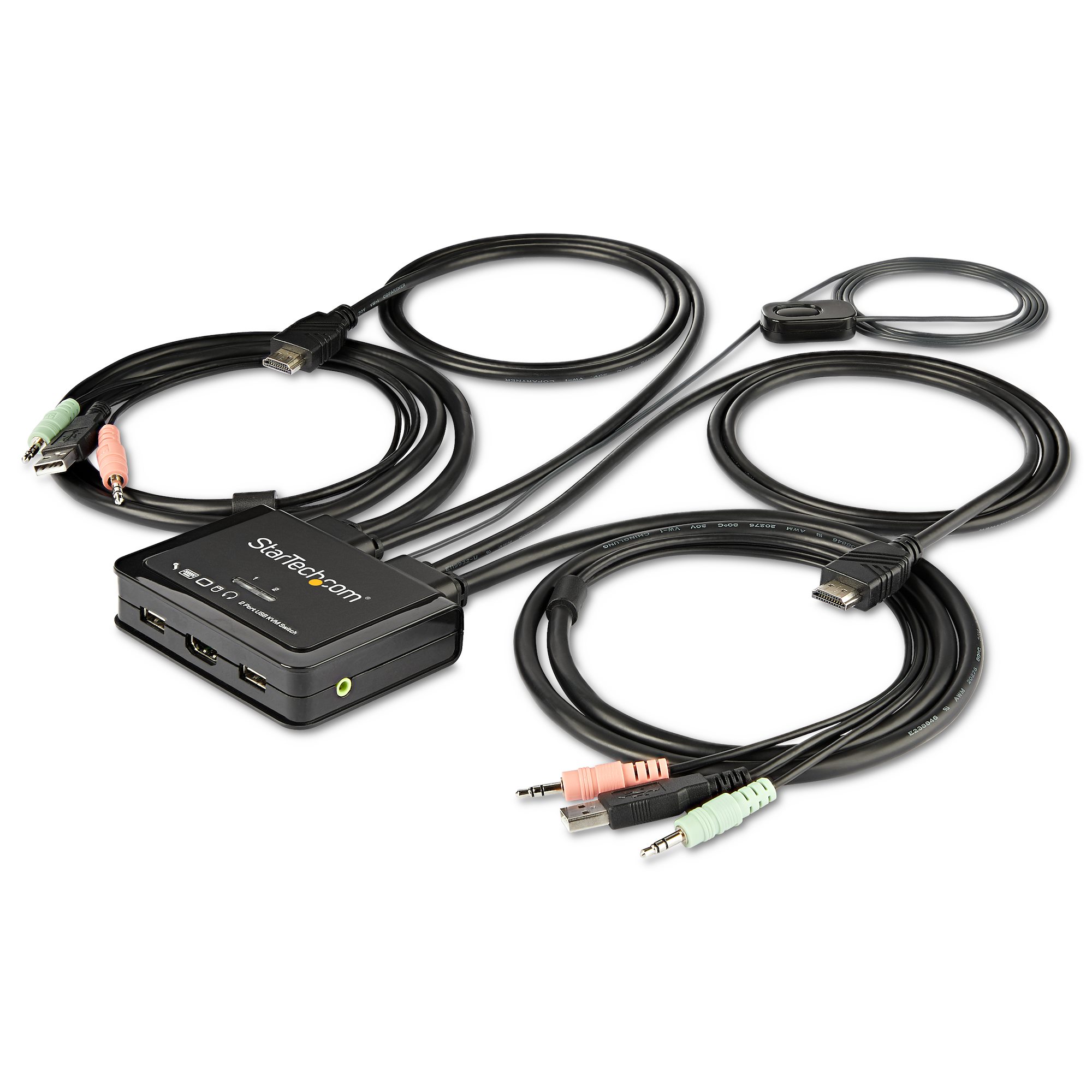
Compare this model if the shared HDMI display needs 4K at 60 Hz. Check each host’s video output and USB connection.
Prices may change. Check the retailer for the current price and availability. We may earn a commission from qualifying purchases at no additional cost to you. Learn more.
Comments
Read or join the discussion.