How to Keep Windows in Place When You Reconnect a Laptop to a Dock
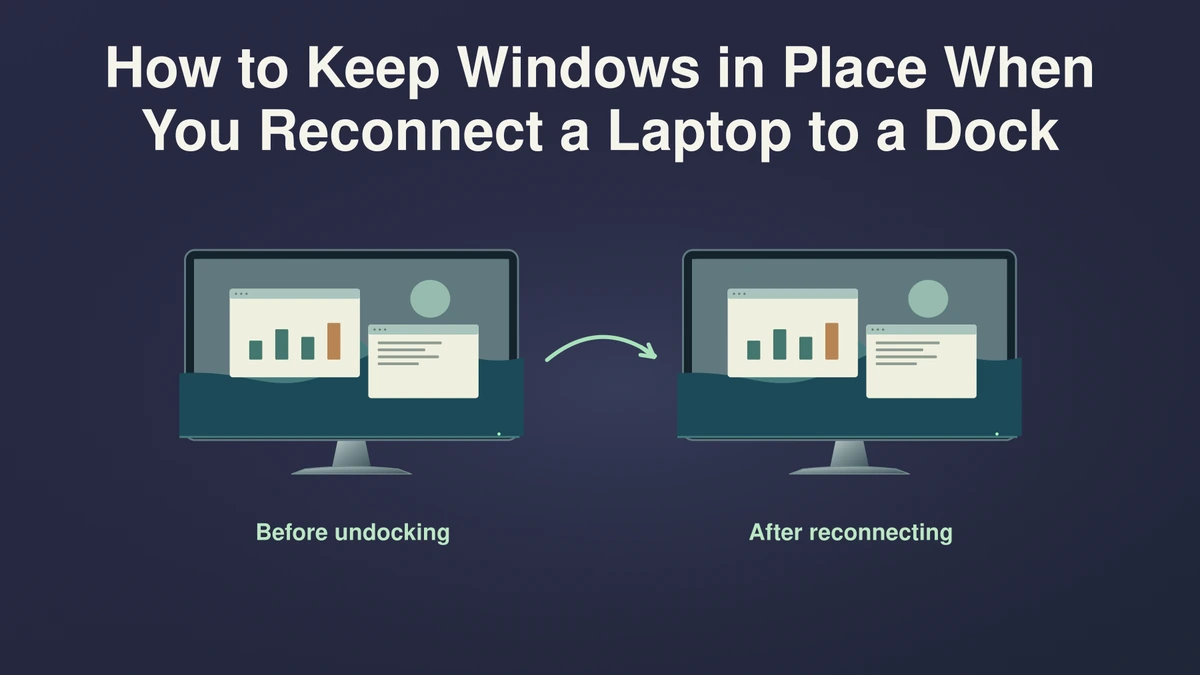
Make Windows 11 remember where open apps belong when you return to your dock. Set display preferences, test a dock cycle, and recover misplaced windows.
Follow these steps at your own pace. Check product terms and prices directly with providers before purchasing.
You leave a spreadsheet on the big monitor and your notes on the laptop. After a meeting you plug the dock back in and find everything piled onto one screen. Windows 11 has separate settings for what should happen when a monitor leaves and what it should remember when that monitor comes back. Set those preferences at the desk, then run a short test with two windows you can recognize.
Quick Answer. With the dock and screens connected, choose Windows + P → Extend. Open Settings → System → Display → Multiple displays and enable Remember window locations based on monitor connection. Choose whether you want windows minimized when a monitor disconnects. Put two open windows on different screens, undock, then reconnect the same setup and check where each returns.
What you need for a fair test
Use the laptop, the dock, and the external monitors in their normal working arrangement. Keep the laptop lid in the position you use at this desk and note whether its built-in screen is active. Start with two ordinary, resizable app windows. File Explorer and Notepad work well because you can tell them apart immediately. If you use a real document, save it. Finish transfers and safely eject external storage connected to the dock before unplugging its host cable.
The goal is to restore windows that are already open when a known display connection returns. Closing an app, restarting Windows and expecting it to recreate an entire workspace is a different test. An app can also decide where to create a new window or display a dialog. Keep those variables out of the first attempt. Once Windows restores your two samples, you can try the more complicated programs you actually use.
1. Establish the desk layout Windows should remember
Connect the dock normally, turn on the monitors and wait for the desktop to settle. Press Windows + P and choose Extend. When the displays show copies of a single picture, there is no separate place to put a spreadsheet. Extend gives each active screen a portion of the desktop.
Open Settings → System → Display and select Identify. Read the number on each monitor and match it to its tile. Arrange the tiles like the screens on your desk and select Apply if you move them. If the pointer travels in the wrong direction or crosses only at one corner, first align the display tiles with the physical monitors. This makes it much easier to tell the difference between a misplaced window and one that is exactly where Windows believes your right-hand monitor sits.
If you prefer the largest screen as the main workspace, set that preference before the test. The main display instructions cover choosing the correct screen. Write down your arrangement in words: “Laptop left, writing monitor middle, spreadsheet monitor right; middle is main.” This is easier to recognize after reconnecting than a list of monitor numbers alone.
2. Set the two Multiple displays preferences
In Settings → System → Display, scroll to Multiple displays and expand the section. Turn on Remember window locations based on monitor connection. This is the setting that associates window placement with the connected monitor arrangement. Leave the screens connected while you choose it so you can immediately establish and test the layout you want.
Find Minimize windows when a monitor is disconnected in the same section. Choose the behavior you prefer while the laptop is away from the desk. If you use the laptop for short meetings and want a clean screen, minimizing external windows can keep them out of the way. If you need one of those windows while undocked, restore it from the taskbar or switch to it with Alt + Tab. Someone who does most of their work away from the dock may prefer to leave the minimize option off and test how their apps behave.
| Setting or situation | What to check |
|---|---|
| Remember window locations | Enable this to test whether open windows return to the reconnected screen. |
| Minimize windows when a monitor is disconnected | Choose whether external windows should be minimized when you leave the desk. |
| Choose main display | Sets a display preference. It does not assign every app to a fixed screen. |
| An app was closed and launched again | Its own launch behavior may determine where the new window opens. |
Other controls in that part of Settings, including Detect, solve different problems. If an expected screen is missing from the diagram, restore its connection first. Window placement only becomes testable once Windows can see the display you want it to use.
3. Give the test windows two unmistakable positions
Open Notepad and write a disposable line such as “desk test — right monitor.” Save it if you want to keep it. Put it on the external screen, away from the edges, as a medium-sized floating window. Open File Explorer and place it on the laptop display, or on the other external screen if you normally work with the lid closed. Leave Explorer and Notepad visibly different sizes. This gives you two independent facts to check later: which screen receives the app and roughly where it lands.
For the first run, avoid full-screen apps, remote sessions and utility programs that automatically place windows. A normal floating window has fewer moving parts. If your desk uses two identical displays, put two temporary paper labels on their stands. “Monitor beside the printer” is a much better test observation than “I think that was display 2.”
Before you undock, note where each window is and which monitor is the main display. An optional phone photograph of the desk or a note saying “Explorer on laptop, Notepad halfway down right screen” is sufficient. There is no need for a screenshot containing actual documents, client details or messages.
4. Run one round trip without rearranging the apps
Disconnect the dock’s host cable once it is safe to do so. Wait for the laptop to finish switching displays. If the minimize option is enabled, an app from a disconnected screen may be minimized. That is expected behavior. For this first test, leave both app windows open and resist the temptation to drag them into a new arrangement while undocked.
Reconnect the same dock to the same laptop port. Let the external screens wake and check that all expected displays are present. Compare the sample windows with the plain-language layout you wrote down. Did Notepad return to the expected physical monitor? Did Explorer stay on the laptop or return to its original external screen? Repeat once with the same setup before adding your daily applications.
Next, test an intentional change. Undock, choose Notepad from the taskbar, move it somewhere you can use it in a meeting, then reconnect. Observe what your version of Windows and that app do after you actively moved it. This result is valuable even when it differs from the untouched-window test: it tells you whether a meeting-time change is the source of the surprises back at the desk.
5. Find out what changed when a window stays on the laptop
Check the physical screens first. Open Display settings and select Identify. Confirm you have the original number of active screens, in Extend mode, with the expected one as main. If one monitor stayed asleep or connected a little later than the others, let it appear fully before moving any windows. If it remains missing altogether, troubleshoot the monitor connection first; changing a window preference cannot bring back a missing display.
Reproduce the desk you originally tested. A different dock, output socket, screen arrangement, lid position or display mode can present a different arrangement to Windows. For a fair comparison, return to the original ports and lid position. Then change just one condition, such as using another desk, and see which windows move. Two workplaces with identical monitor models can still behave differently because the connections and the set of active displays differ.
Separate an app that moved from a window that no longer exists. If the two test windows return correctly but your accounting app does not, check whether it stayed running. Some software closes a child window or opens a new one on a particular monitor. Compare the app’s main window and its separate dialogs. Open a fresh session of that app while already docked, put its main window in place and repeat. A new invoice dialog always opening on the main monitor is different from the app’s existing main window moving at every reconnect.
Retrieve a window you need immediately. With two active monitors, select the app using Alt + Tab, then press Windows + Shift + Left Arrow or Windows + Shift + Right Arrow to send the focused window to the adjacent display. With only one screen available, use the off-screen window recovery instructions, which also cover a hidden dialog. To see running apps more easily at your desk, show a taskbar on both monitors.
Common questions
Must the monitors have the same resolution?
No. Use normal settings for each monitor. For this test, keep those values and the number of active screens consistent between undocking and reconnecting. A different effective desktop size may change where a large window fits even if it returns to the correct screen.
Will this reopen files after I shut the laptop down?
The display preference concerns window locations as monitors disconnect and reconnect. A restart ends the original run of many applications. Whether a program reopens its documents afterward depends on that program and its session behavior. Test docking separately from restarting Windows.
Why test with Notepad instead of my work apps?
A simple test gives you a useful comparison. If two ordinary windows return to their monitors across several dock cycles, the screen arrangement and Windows setting are probably functioning. You can then spend your time on the one application, dialog or change of desk that behaves differently.
If the monitor actually disappears while the cable stays connected, isolate the cause of the repeated disconnect before adjusting where apps reopen.
Final checklist
- Verify the desk uses Extend and each expected screen is active.
- Enable the remember option, then choose the minimize behavior you prefer.
- Test the same dock and ports with two open windows before changing anything else.
- Repeat once with your usual meeting workflow and one daily-use application.
Bottom Line
Configure the desk while all its displays are present, then test one ordinary trip away and back. That simple comparison tells you which placements Windows can restore and which behaviors belong to a particular app or a different docking arrangement. The settings and tests require no purchase.
Technical references: Microsoft’s docking and multiple-monitor settings and Microsoft’s keyboard shortcuts for moving the active window.
Comments
Read or join the discussion.