How to Show the Taskbar on Both Monitors in Windows 11
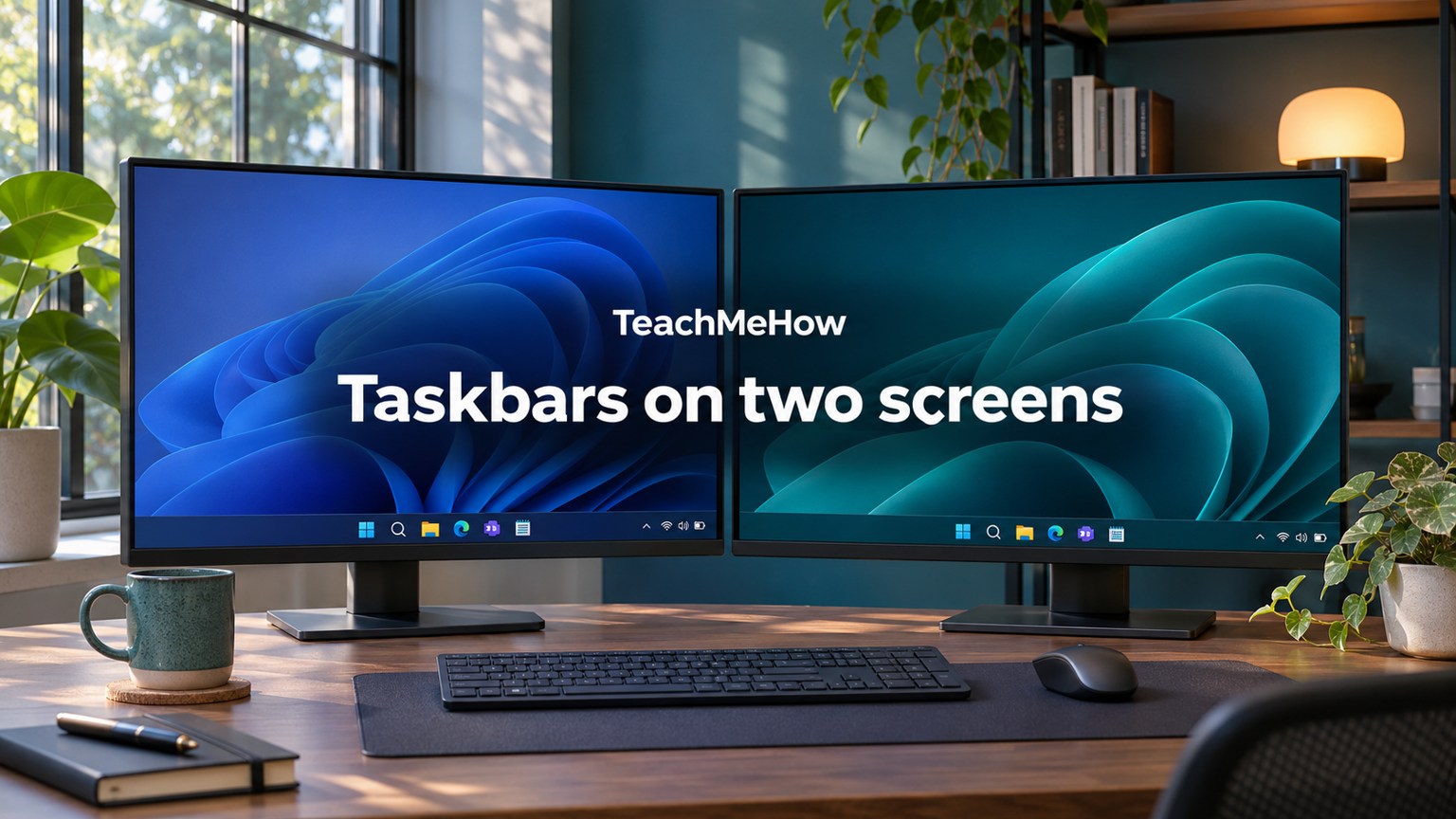
Show the taskbar on a second screen and choose whether running apps appear on every taskbar or only where their windows are open.
Follow these steps at your own pace. Check product terms and prices directly with providers before purchasing.
Quick answerOpen Settings → Personalization → Taskbar → Taskbar behaviors. Select Show my taskbar on all displays. Then choose where Windows should show the buttons for open apps. Both screens must be active as an extended desktop for separate taskbars to be useful.
Start with two visible desktops
Place one app on each screen. If each monitor shows exactly the same app and pointer, press Windows key + P and choose Extend. If one stays black, work through setting up an extended desktop before troubleshooting the taskbar. A taskbar drawn on a duplicated picture can look correct without giving the second monitor its own working area.
Right-click an empty space on the taskbar and choose Taskbar settings, or open Settings and go through Personalization. Expand Taskbar behaviors near the bottom. Enable Show my taskbar on all displays. If you have set Windows to hide the taskbar automatically, move the pointer to the bottom of each screen to reveal it during the test.
Choose where running apps appear
| Button placement | What you get | Example |
|---|---|---|
| All taskbars | A running app can be reached from either taskbar. | Find a browser without remembering which screen it is on. |
| Main taskbar and taskbar where window is open | The main screen collects running apps. The other screen shows its own. | Use the large screen as a central place to switch tasks. |
| Taskbar where window is open | Each screen shows buttons for windows running there. | Keep a crowded reference screen separate from the screen used for writing. |
Look for the setting beginning When using multiple displays, show my taskbar apps on. Choose the option that matches how you switch windows. If you choose the main-taskbar option, confirm which monitor Windows treats as primary. You can make the external monitor your main display if that is where you want the collection of running apps.
Test with an app that has one window
Open Notepad or another simple app that has one window. A browser with five windows spread across two monitors makes a poor first test. Start the window on the laptop, note where its running indicator appears, then move it to the external monitor. Check the button again. A pinned shortcut can still be visible when its app has no window on that screen, so look for the running indicator as well as the icon.
Now try an actual work layout. Keep a video meeting on the laptop and your notes on the monitor. With buttons limited to the screen that contains the window, you can use the monitor taskbar to return to your notes. With All taskbars, you can switch back to the meeting from the monitor too.
Keep track of two windows from the same app
Once the single-window test works, open two separate browser windows and put one on each screen. Under the per-screen option, a browser button can legitimately appear on both taskbars because each monitor has a browser window. Close the extra blank window and watch the running indicators again. This quick experiment distinguishes expected behavior from a misplaced app window or a pinned shortcut that remains visible.
If the second taskbar still looks different
Check whether you are judging the app buttons or the notification area. The all-displays option controls showing a taskbar. It does not promise identical system icons or notification controls on each screen. Also test outside full-screen video, which can cover the taskbar even when the setting is enabled.
If the secondary taskbar disappears after undocking and reconnecting, first verify that the second screen is showing an independent desktop again. If the taskbar button is visible but clicking it brings up no visible window, bring an off-screen window back. See the illustrated Windows 11 taskbar settings to compare the controls with your build.
Comments
Comments are reviewed before they become public.
Sign in with Google to leave a comment.
Sign in with GoogleNo approved comments yet. Be the first to start the discussion.