How to Choose the Right Laptop Docking Station
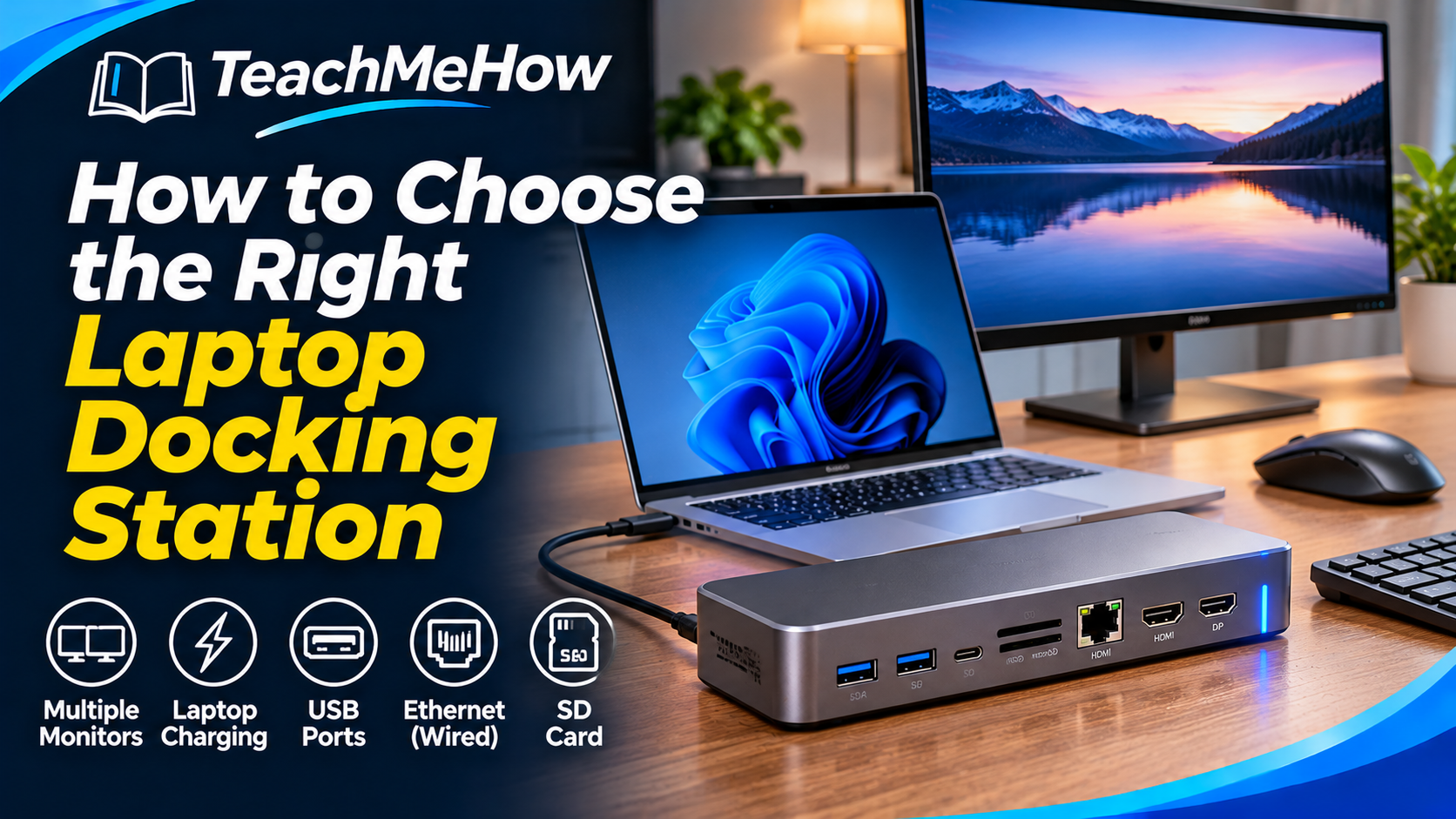
Learn how to choose the right laptop docking station based on USB-C, Thunderbolt or USB4 support, monitor connections, charging power, Ethernet, ports, and laptop compatibility.
Follow these steps at your own pace. Check product terms and prices directly with providers before purchasing.
How to Choose the Right Laptop Docking Station
A laptop docking station can turn a portable computer into a much more complete desktop workstation. Instead of connecting a monitor, keyboard, mouse, charger, Ethernet cable, storage drive, and other accessories individually every time you sit down, a dock can connect many of them through a single cable.
The idea sounds simple, but docking stations are surprisingly easy to buy incorrectly. Two docks may use the same USB-C connector while supporting very different monitor configurations, charging speeds, and data-transfer rates. The most important step is understanding what your laptop can actually support before comparing docks.
Start With Your Laptop's Connection Type
USB-C describes the physical connector, but it does not tell you everything the port can do. Some USB-C ports support charging and data only, while others also support video output, USB4, or Thunderbolt.
Before purchasing a dock, check the specifications for your exact laptop model. Look for terms such as DisplayPort Alt Mode, USB4, Thunderbolt 3, Thunderbolt 4, or Thunderbolt 5.
A dock cannot add video capabilities that the laptop itself does not support through the connected port.
USB-C Versus Thunderbolt
Standard USB-C docks can be excellent for office setups and may provide displays, charging, USB ports, Ethernet, and card readers at a reasonable price.
Thunderbolt docks generally offer more bandwidth and are often better suited to multiple high-resolution displays, very fast external storage, and more demanding workstation setups.
If your laptop supports Thunderbolt and you expect to connect several high-bandwidth devices at once, paying more for a Thunderbolt dock can make sense. If you only need one monitor and basic peripherals, a simpler USB-C dock may be all you need.
USB4 Is Becoming More Important
USB4 can provide high-speed data and advanced display support through USB-C, although specific capabilities still vary by laptop and dock.
Do not assume that every USB4 device supports every possible feature. Check the actual bandwidth, display support, and Power Delivery specifications.
How Many Monitors Do You Need?
Monitor support is one of the biggest reasons people buy docking stations. Decide whether you need one external display, two displays, or a larger multi-monitor setup.
The number of physical HDMI or DisplayPort connectors on a dock does not necessarily tell you how many displays your laptop can use simultaneously.
Your laptop's graphics hardware, operating system, and connection standard can all impose limits.
Resolution and Refresh Rate Matter
A dock may advertise support for 4K displays, but check the refresh rate as well. A 4K monitor running at 30 Hz feels noticeably less smooth than the same display operating at 60 Hz.
If you use a high-refresh gaming monitor, ultrawide display, or professional 5K or 6K screen, verify the exact resolution and refresh-rate combinations supported.
With multiple monitors connected, maximum resolution may decrease because several displays must share the available bandwidth.
HDMI or DisplayPort?
Most docking stations include HDMI, DisplayPort, or a combination of both.
Choose connections that match your existing monitors whenever possible. Adapters can work, but direct connections usually make the setup simpler.
If you plan to buy new monitors later, having both HDMI and DisplayPort can provide more flexibility.
Pay Close Attention to Laptop Charging
One of the biggest benefits of a docking station is the ability to charge the laptop through the same cable used for monitors and accessories.
This feature is usually described as USB Power Delivery, or USB-PD.
Check how much power your laptop normally receives from its original charger. A thin productivity laptop may need 45 W or 65 W, while larger professional laptops can require 90 W, 100 W, or more.
If the dock supplies less power than the laptop expects, the computer may charge slowly, lose battery during heavy workloads, or display a low-power warning.
Do Not Confuse Dock Power With Laptop Power
A dock may advertise a large total power figure, but that does not mean all of it goes to the laptop.
Part of the power may be reserved for USB devices, the dock itself, and other connected equipment.
Look specifically for the maximum Power Delivery output to the host laptop.
Count the USB Ports You Actually Need
Think about the accessories you normally connect. These may include a keyboard, mouse, webcam, external hard drive, microphone, printer, phone, security key, or other device.
Make sure the dock has enough USB-A and USB-C ports so you do not immediately need another hub.
Also check port speeds. A keyboard does not need a high-speed connection, but external SSDs and other storage devices can benefit from faster USB ports.
Ethernet Can Improve Reliability
A wired Ethernet connection can provide more consistent network performance than Wi-Fi, particularly for large file transfers, video conferencing, cloud backups, and business environments.
Many docking stations include Gigabit Ethernet. Newer premium models may offer 2.5 Gigabit Ethernet or faster.
If you already have a high-speed wired network, make sure the dock can take advantage of it.
SD and microSD Card Readers
Photographers, videographers, and creators may appreciate a built-in SD or microSD card reader.
Card-reader speeds vary. If you regularly transfer large photo or video files, check the supported card standard rather than assuming every built-in reader is equally fast.
Audio Connections
Some docks include a 3.5 mm headphone or headset connection. This can be useful if your laptop has very few ports or stays closed while connected to external monitors.
If you use professional audio equipment, you may prefer a separate USB audio interface instead.
Operating-System Compatibility
Not every dock behaves the same way with Windows, macOS, ChromeOS, and Linux.
Monitor support deserves particular attention. Some laptops and operating systems have limits on the number of external displays they support natively.
Some docks use DisplayLink technology to provide additional monitor support through software. This can be useful, but it requires drivers and works differently from native graphics output.
What Is DisplayLink?
DisplayLink docks compress display information and send it through USB, allowing additional monitors to operate even when the laptop has limited native display outputs.
This can be very useful for office work, spreadsheets, web browsing, and productivity applications.
However, because DisplayLink relies on software and compression, it may not be ideal for gaming, color-critical video production, or other workloads where native display performance is important.
Docking Station Versus USB-C Hub
A small USB-C hub and a full docking station can look similar but are usually intended for different purposes.
A compact hub is convenient for travel and may add HDMI, USB, and a card reader without requiring a large power adapter.
A docking station is generally designed to remain on a desk and may include its own power supply, more ports, stronger charging, multiple display outputs, and faster networking.
If you want a permanent one-cable desktop setup, a full dock is usually the better choice.
Consider Where the Dock Will Sit
Some docks sit horizontally on the desk, while others stand vertically to save space.
Pay attention to where the laptop connection cable exits. A cable that is too short or positioned on the wrong side can make an otherwise good dock awkward to use.
Also consider whether frequently used USB ports and memory-card slots are located on the front where they are easy to reach.
Heat and Build Quality
Docking stations can become warm because they handle power delivery, displays, networking, and high-speed data simultaneously.
A sturdy enclosure with reasonable ventilation can help with long-term reliability.
Premium docks often use metal housings, although build quality matters more than the material alone.
Common Docking Station Buying Mistakes
One of the most common mistakes is assuming that every USB-C port supports video output. A dock with multiple monitor connections will not solve the problem if the laptop's USB-C port cannot send a video signal.
Another mistake is buying a dock with inadequate Power Delivery. The laptop may connect successfully but charge too slowly.
People also often count monitor ports without checking the maximum number of displays, resolution, and refresh rate supported simultaneously.
Finally, do not assume that a docking station advertised for one operating system will provide identical functionality on another.
Which Laptop Docking Station Is Right for You?
For a basic home-office setup with one monitor, keyboard, mouse, and Ethernet, a good USB-C dock with sufficient Power Delivery may provide everything you need.
For two or more high-resolution displays, fast external SSDs, professional peripherals, or high-speed networking, a Thunderbolt or capable USB4 dock may be worth the additional cost.
If your laptop has unusual display limitations, investigate DisplayLink before purchasing so you understand both its advantages and tradeoffs.
What to Compare Before Buying
- Exact laptop compatibility
- USB-C, USB4, or Thunderbolt support
- Number of external monitors
- Maximum display resolution
- Maximum refresh rate
- HDMI and DisplayPort connections
- Power Delivery to the laptop
- Number of USB-A ports
- Number and speed of USB-C ports
- Gigabit or multi-gigabit Ethernet
- SD and microSD card readers
- Audio connections
- DisplayLink support if needed
- Operating-system compatibility
- Included power adapter
- Cable length and placement
- Warranty and price
A good docking station should simplify your desk rather than create new compatibility problems. Start with the capabilities of your laptop, then choose the dock that supports the displays, charging power, networking, and peripherals you actually use. That approach is much more reliable than buying based only on the number of ports.
Comments
Comments are reviewed before they become public.
Sign in with Google to leave a comment.
Sign in with GoogleNo approved comments yet. Be the first to start the discussion.