How to Use an External Monitor With Your Laptop Lid Closed in Windows 11
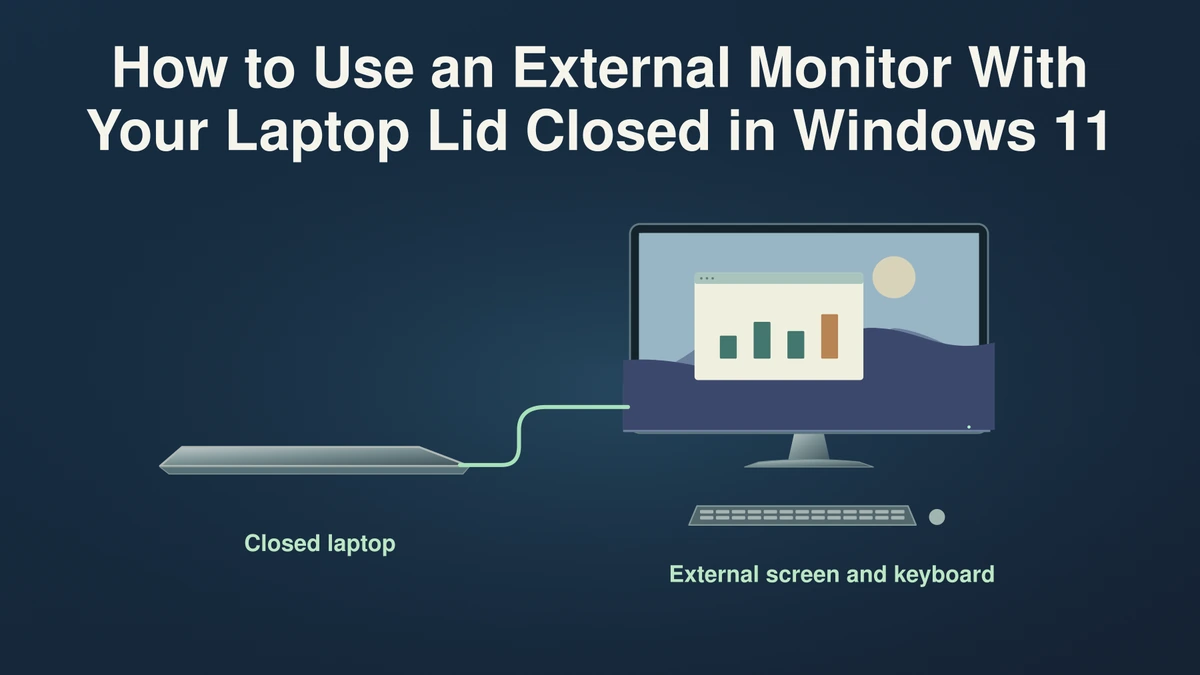
Keep your external monitor working when you close a Windows 11 laptop. Set the plugged-in lid action, preserve battery sleep, and test wake before you put the laptop away.
Follow these steps at your own pace. Check product terms and prices directly with providers before purchasing.
The monitor works until the last inch of travel. You close the laptop, the monitor announces “No signal,” and the meeting you were about to join disappears. If everything comes back when you open the lid and sign in, verify the lid action before replacing a working cable. Closing the lid can tell Windows to put the entire PC to sleep.
Quick AnswerWith the charger and external display connected, open Control Panel → Power Options → Choose what closing the lid does. In the When I close the lid row, select Do nothing under Plugged in and save. Leave On battery set to Sleep if you carry the laptop closed. Close the lid while watching an ordinary desktop window on the external screen.
1. Prove the monitor works with the lid open
Connect the monitor and choose the input that matches its cable. For instance, if the cable is in HDMI 2, select HDMI 2 on the monitor. Connect the laptop's regular charger or a dock that the laptop recognizes as supplying power. A monitor can receive video over USB-C while supplying too little power, or none at all. Check the battery indicator on the laptop before relying on the plugged-in setting.
Connect the keyboard and mouse you plan to use at the desk. Open a disposable document on the external screen and type a sentence. Leave it open for the first lid test. A moving insertion point and a line you can edit tell you more than a static wallpaper.
Press Windows key + P. Choose Extend if you'll also use the internal screen when the lid is open. Drag your test window to the external monitor. If the two displays appear to trade sides, match the Windows display layout to your desk. If you only ever want the external screen at this desk, try Second screen only while the lid is still open. Verify that the external monitor is the one that stays on.
2. Change the lid action for the power source you use
- Open Start, search for Control Panel, and open the desktop control panel. If the view is organized by category, choose Hardware and Sound → Power Options. In an icon view, select Power Options directly.
- Select Choose what closing the lid does in the left column. Find the row labeled When I close the lid. There may be other rows for the power button and sleep button. Leave those alone.
- Read across that row. Under Plugged in, choose Do nothing. Under On battery, verify the behavior you want away from the desk. For a laptop you carry between meetings, Sleep is a practical choice.
- Select Save changes. On a managed computer the controls may be unavailable. If your organization controls this policy, ask its support team whether closed-lid operation is supported on that model.
Some Windows 11 builds also expose lid controls under Settings → System → Power & battery. The underlying decision is the same: what closing the lid does on each power source. A drop-down labeled Power mode changes the balance between performance and efficiency. Choosing a different performance mode will not select the lid action.
| Desk situation | Setting to check | How to verify it |
|---|---|---|
| Charger connected, working at an external monitor | Plugged in → Do nothing | Close the lid and type a new line in the test document. |
| Packing an unplugged laptop | On battery → Sleep, or your usual travel setting | Put the laptop to sleep explicitly and confirm the expected sleep indication before packing. |
| Lid closed, device idle for a long period | Sleep and screen timeouts on the active power source | See whether the external screen wakes normally when you return. |
| Restarting after shutdown | Manufacturer's power-on or dock controls | Keep the laptop accessible if you need its built-in power button. |
3. Close the lid and test the external desktop
Close the lid slowly. A brief switch in display mode while Windows removes the built-in panel can be normal. When the picture returns, edit your test document, move the mouse, and open Start on the monitor. If all three work, the laptop stayed awake and its external input devices are usable.
If the image stays on but an app seems missing, use the taskbar to select the app. When you reopen the laptop, Windows may put windows back on the display they used previously. Test opening and closing the lid twice before deciding the window has been lost. If you use two active desktops with the lid open, you can show app buttons on both Windows taskbars so an open app is easier to find from either screen.
Try something you actually do at the desk. In a call, closing the lid physically covers the built-in camera. A picture that vanishes from the meeting does not mean the external monitor has failed. Select a separate webcam if you need video and use the meeting app's preview to check its framing. Likewise, a monitor connection may introduce a new audio output. Play a short sound and choose the speaker or headset you want before a real call.
4. Check what happens when you leave and return
An awake session can display everything you were working on. Press Windows key + L to lock it when you walk away. Closing a lid that you configured to do nothing no longer serves as your usual cue to lock or sleep the computer.
Give the laptop its normal airflow. Use the model's recommended orientation and leave its intake and exhaust openings clear. Before choosing a vertical stand, check the manufacturer's closed-lid guidance for that model, the stand's fit, and whether cables can sit without strain. A stand is optional. A closed laptop configured to stay awake belongs on its working surface while in use.
To carry it, save your work and deliberately select Start → Power → Sleep or Shut down as appropriate. Changing from AC to battery after you have already closed the lid is a different event from closing the lid on battery. Unplugging the charger alone is a poor way to test whether a closed laptop is ready for a bag.
If the external monitor still goes blank
It goes black immediately in either power mode. Reopen the lid and confirm that the external screen still displays an independent window. Recheck the selected input and, on the PC, press Windows key + P to inspect the projection mode. A laptop set to use only its built-in screen can remain awake with no picture going to the external monitor.
It works on the laptop charger but fails on the dock. With the lid open, connect the dock exactly as you use it each day. Check whether Windows reports that AC power is present. Then try the same lid test with the laptop's normal power supply connected, if the manufacturer supports that combination. A different result directs you toward dock power delivery, its cable, or which laptop port supplies the dock connection.
It works at first and then goes dark a few minutes later. Time the change. A screen or sleep timeout acts after inactivity. Press a key on the external keyboard. If the display returns to the sign-in screen, the wake path is working. Adjust only the plugged-in timeout that conflicts with your workflow. There is usually no reason to disable sleep for battery use just to keep the laptop running during a presentation.
The keyboard worked before sleep but can't wake the laptop. USB and Bluetooth wake support varies by computer, dock, and power state. Open the lid or use the laptop's power button to resume, then check the manufacturer’s supported wake options. A dock's power button may only work with particular laptop families.
Questions that come up at a shared desk
Does the external screen have to be the main display? No. With the lid open, setting a main display can make a familiar desk layout more convenient. It addresses a different choice from whether closing the lid puts the computer to sleep.
Will this wake or start a powered-off laptop? The lid action applies to an already running system. A keyboard that wakes a sleeping laptop may do nothing after a full shutdown. Test the starting method you will actually need.
How do I undo the change? Return to the same lid-action row, choose the previous Plugged in action, and save. Check the battery column too if you changed it during testing.
Final desk check
- The external monitor shows the desktop with the lid open and closed.
- Windows recognizes the intended charger or dock as a power source.
- The external keyboard, mouse, sound output and meeting camera work as expected.
- You have tested a normal wake and chosen how to secure or sleep the laptop when leaving.
If you plan to use two desk screens while the laptop is closed, test the two external display connections with the lid open before changing a power setting.
Bottom Line
Get a working picture and keyboard first. Then change the plugged-in lid action and test it with a real window. The separate battery setting lets the same laptop behave like a desktop at work and a portable computer on the way home. Microsoft's guide to sleep and lid actions explains the other available power choices.
Comments
Read or join the discussion.