
Plugable USB-C to USB-C Cable for Video, Data and Charging (USBC-240W-1M)
For a USB-C data peripheral that works on another computer, use a known-good data cable to rule out a damaged or charge-only cable.
Check current price
View on Amazon ↗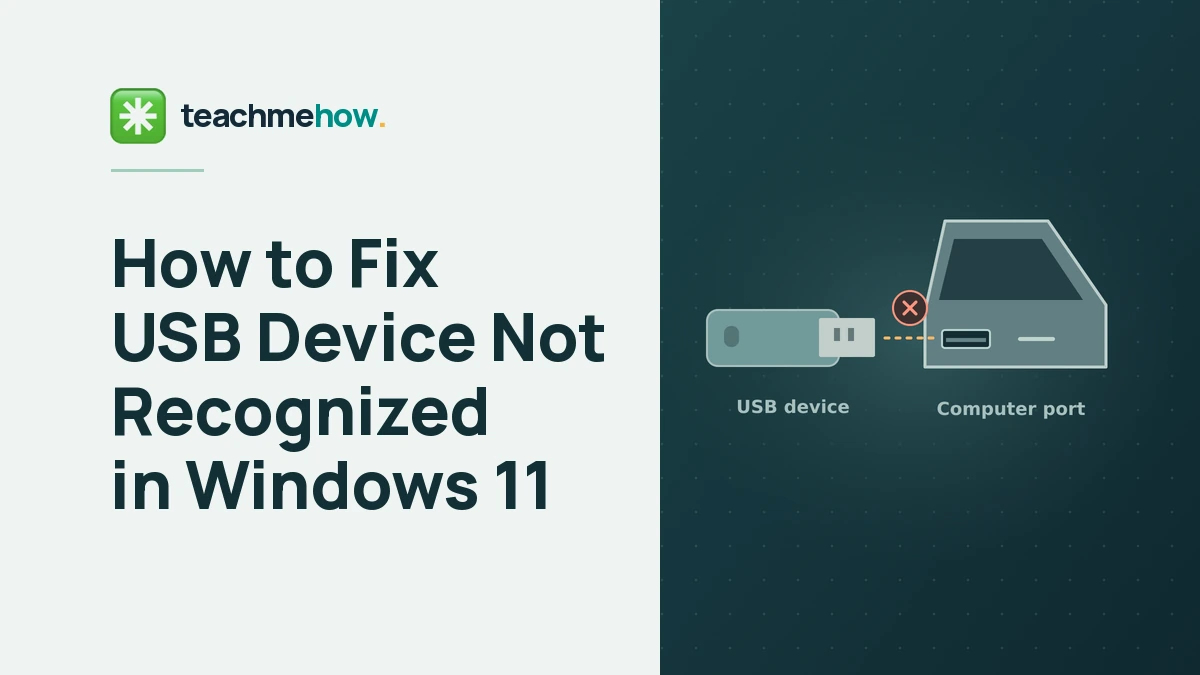
Fix USB Device Not Recognized in Windows 11. Test a known data cable and port, inspect Device Manager, and protect files on an unreadable drive.
Follow these steps at your own pace. Check product terms and prices directly with providers before purchasing.
A phone can charge, a drive can light up and a microphone can glow while Windows still says it cannot recognize a USB device. Those lights establish that power is present. They do not show that the computer exchanged the information it needs to identify the device. The most useful first test is a proven data connection with as few parts as possible.
Quick Answer. Disconnect the affected accessory and reconnect it directly to a supported PC port. Use a cable known to carry data and the accessory’s specified power supply if needed. Compare a working device on the same port, then inspect Device Manager → Properties → Device status. If a storage device is visible there or in Disk Management but missing from File Explorer, protect its contents and investigate the storage issue separately.
What was the device supposed to do? A USB keyboard should type, a phone should offer an appropriate transfer mode, and a flash drive should expose a readable volume if it contains one. Record the exact message Windows displayed when you connected it. “USB device not recognized” is different from a phone asking permission to share files or a drive requesting a recovery key.
Try to connect only the suspect accessory while watching the system. If an alert appears before you plug it in, another connected device may be the source. For a busy dock, write down what is connected. Disconnecting a dock to test a mouse can also interrupt a drive transfer, remove an external display and disconnect Ethernet. Finish any transfers and safely eject portable storage before changing that shared connection.
| What Windows or the device shows | Where to investigate |
|---|---|
| Power light comes on, but Windows reports an unknown device | Test a direct port, known data cable and another host. |
| Device Manager identifies the device by model | Look at its device-specific function, configuration or application. |
| A disk appears in Disk Management, but File Explorer shows no usable volume | Stop USB pairing-style tests and investigate the disk, volume or access method. |
| Multiple devices fail through the same hub, then work directly | Check the hub, its host connection and power requirements. |
| A phone charges but does not offer files | Unlock it and check the phone’s USB mode and authorization after proving the cable can carry data. |
On a laptop, start with a built-in port when the device and computer have matching connectors. Remove nonessential hubs, extension leads and adapters from this test. If an adapter is necessary, keep one documented compatible adapter and note that it remains part of the test. Connect the device, allow it to start and watch for the Windows message again.
For a detachable cable, use one that has successfully transferred files or operated that device type. A charging result alone is not evidence of data capability. Some cables support different data speeds or alternate functions even when the connectors look alike. Check both ends and the role of each socket. A hub’s charging or power-delivery input can look like its host data port. Use the labels and manufacturer’s connection diagram.
If a device requires external power, use the power supply specified for it. Some desktop drives and powered hubs cannot operate reliably from the laptop port alone. Do not try an arbitrary power adapter that happens to fit. If several USB-C accessories are involved, compare the upstream and downstream functions on a USB-C hub to identify which connector should go to the PC.
Leave the same port and device in place and change only the detachable cable. If the device now works, repeat the original and replacement cable once while the device is idle. A repeatable change is stronger evidence than a single successful reconnect. Use a little slack so the cable does not pull sideways on the connector. If contacts appear bent or the port is loose, stop using the suspect connection.
Next, try a known-working low-risk device of the appropriate type on the original port. Then try the original accessory on another supported computer, if you have one. Keep a short log: “Mouse works on laptop USB-A; drive fails on that port and works on desktop with a different cable.” That example has two variables between hosts, so the next test is to bring the proven cable back to the laptop.
A demanding drive failing through a hub even though a simple keyboard works on it does not clear the hub for every use. Test the device using the speed, power source and cable it actually requires. Once you find a working cable, label both ends of USB cables if several similar cables share the desk. A small removable label on the tested lead helps prevent the same swap next week.
Right-click Start and open Device Manager. Expand Universal Serial Bus controllers and any relevant category, such as Disk drives, Cameras, or Sound, video and game controllers. Plug the device in once and watch for the matching entry. An unknown device with a warning symbol is useful evidence, but it may not yet provide a meaningful product name.
Open the suspected entry’s Properties → General and read Device status. Record the exact text and any code. Avoid assigning a specific hardware fault from the code alone. For example, a reported device problem can arise along the cable or controller path, and a code does not establish that every USB port is defective. If the item appears only briefly, use the stable onboard keyboard and screen for the next test.
Restart Windows after saving work if the problem appeared suddenly and no installation is in progress. Check Windows Update, including relevant optional driver updates where offered, and the manufacturer’s support page for the exact computer or accessory. Some devices require a supplied application or specialized driver after Windows recognizes them. Removing every USB controller can also disconnect your keyboard, mouse and other equipment. A single symptom seldom justifies that broad change.
If Windows recognizes the physical disk but it is absent from File Explorer, right-click Start and open Disk Management for inspection. Match the disk by reported capacity and device details. A drive letter, recognizable volume, encryption prompt, unfamiliar file system and a disk shown as unallocated point to different next steps. This is a read-only observation while you establish what the drive contains.
If the drive may hold important files, decline unexpected Initialize, Format or Create a new volume prompts. Those commands change the disk. First identify which device originally wrote the files, whether it uses encryption and whether an independent backup exists. If a readable copy appears on another trusted computer, preserve important files before deeper diagnosis. For a drive that repeatedly disconnects or makes unusual mechanical noises, stop repeated attempts and seek appropriate recovery assistance if the files matter.
A new, empty flash drive that has never contained data is a different case from the drive holding last year’s photos. For acquiring a replacement after testing genuinely implicates the old device, compare USB flash drive capacity, connectors and intended workload. A newer drive does not recover the contents of the old one.
A phone charges through a short cable plugged into a dock, but no file-transfer option appears. Test a cable known to transfer data directly between that phone and a compatible laptop port. Unlock the phone and choose its file-transfer mode if the phone requests it. If files then appear, put the dock back using that same proven cable and the correct downstream data port. Losing files only with the dock points to a different problem from losing them with only the original cable. No Windows controller changes were necessary to reach that conclusion.
No. The plug shape does not specify all supported features. Match the requirement to the computer port, cable and accessory. For recognition, a direct connection with a cable already proven for that task is the cleanest test.
Repeat the test on the first PC with the same working cable and power arrangement. If it still fails while another device works on that port, record the Windows error and model-specific driver requirements for support.
Formatting changes storage contents and requires a recognizable storage path. It neither establishes that a cable carries data nor identifies a failing port. If you need the files, preserve them before any formatting decision.
Separating power, USB identification and device function makes the error easier to trace. Prove the connection with a controlled swap, read what Windows actually detected and protect storage contents before making changes.
Sources: Microsoft’s USB-C connection guidance, Device Manager status codes, and recommended Windows hardware drivers.
As an Amazon Associate, TeachMeHow earns from qualifying purchases.
For a USB-C data peripheral that works on another computer, use a known-good data cable to rule out a damaged or charge-only cable.
Prices may change. Check the retailer for the current price and availability. We may earn a commission from qualifying purchases at no additional cost to you. Learn more.
Comments
Read or join the discussion.