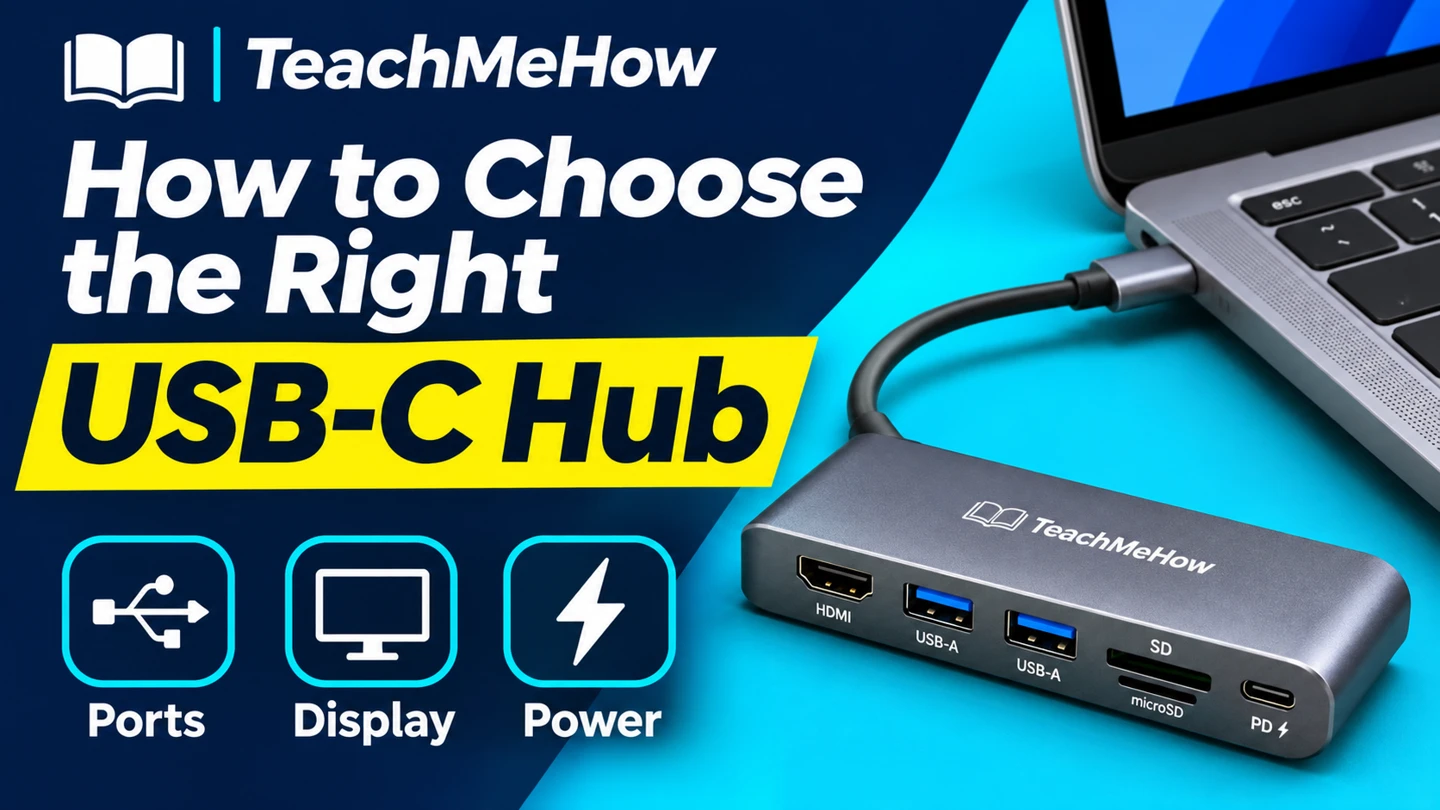
Compare USB-C hubs by port layout, display support, data speeds, and pass-through charging before buying one for your laptop.
A USB-C hub can add the ports your laptop leaves out. Start with the devices you need connected at the same time, then check whether the laptop port supports video, data, and charging.
Quick AnswerChoose a compact hub for a mouse, flash drive, or card reader. If you need a monitor or charger, verify the laptop’s USB-C capabilities and check the hub’s resolution, refresh rate, and delivered charging power.
Compare USB-C Hub Types
| Hub type | Useful for | Check first |
|---|
| Data-only hub | Keyboards, flash drives, and printers | Port types and speed |
| Multiport display hub | A monitor plus desk accessories | Host video support and HDMI output |
| Pass-through charging hub | A laptop that needs power while connected | Power delivered to the laptop and charger requirements |
1. List Everything You Plug In Together
Count USB-A and USB-C accessories separately. Include a card reader, wired network, or display only if you use it regularly. Check whether a USB-C socket on the hub carries data or serves only as a charging input.
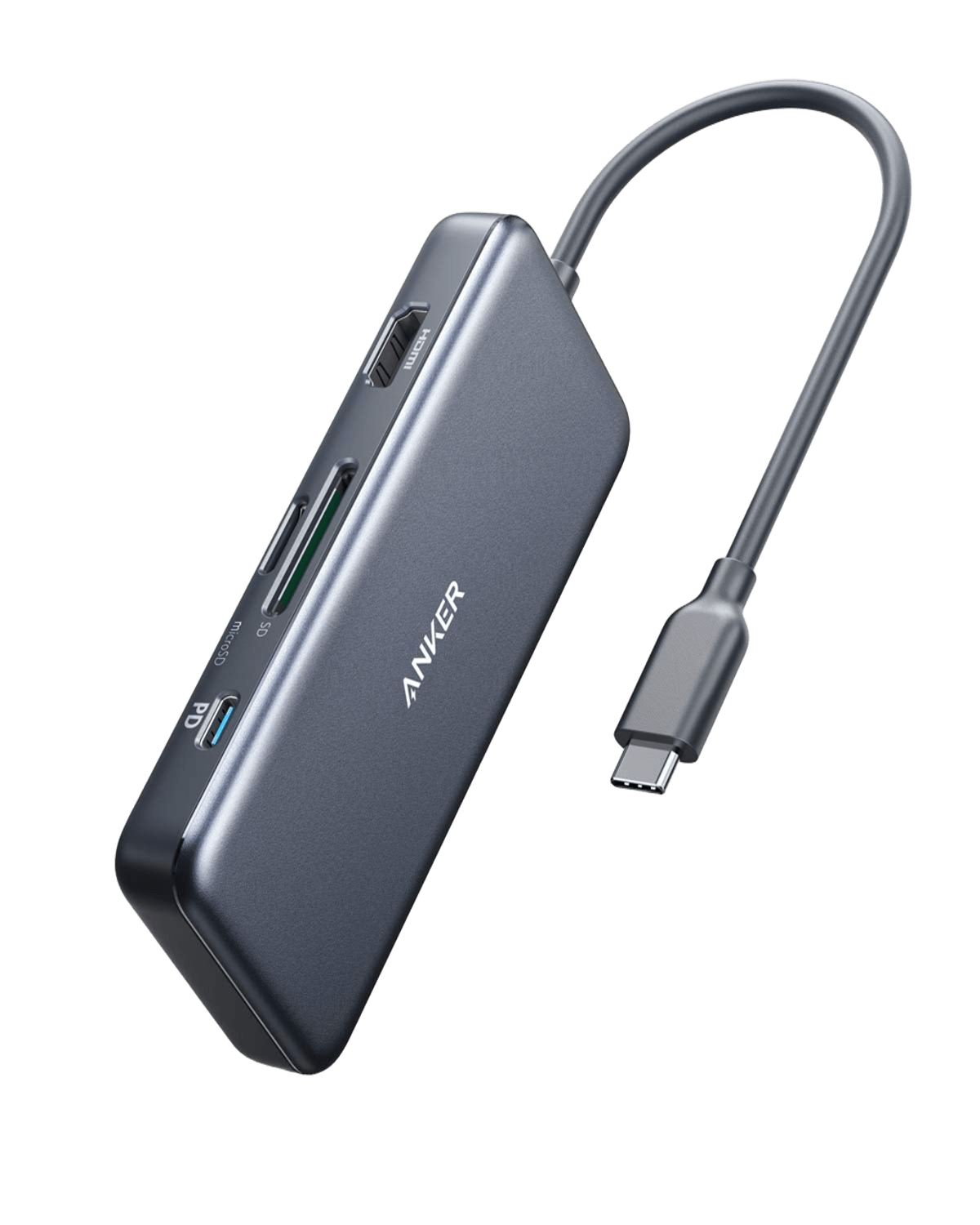
Buying tipLook at photos of the port spacing. A wide flash drive or stiff HDMI cable can block the socket beside it.
2. Verify Display Support on Both Ends
Check the laptop manual for video support on the specific USB-C port. Match the hub’s stated resolution and refresh rate to your monitor. If you need two extended displays, confirm the exact hub and computer combination supports that mode before buying.
3. Check How Much Charging Power Reaches the Laptop
Compare the hub’s power input rating with the power it can deliver to the computer. The hub may reserve some power for its own operation. Check whether the charger is included and whether the delivered wattage is appropriate for your laptop.
4. Choose Data Ports for the Work You Do
A mouse and keyboard need little bandwidth. An external SSD benefits from a faster port. Compare the published speed of the exact socket you will use, and check the cable and laptop port for matching support.
Which Hub Fits Your Setup?
| Setup | Prioritize |
|---|
| Travel with a mouse and memory cards | Compact body and the right card slots |
| Laptop with one external monitor | Verified display output and refresh rate |
| Desk with wired networking | Ethernet and enough ports for other accessories |
| Large files on a portable SSD | A data port with a speed rating that fits your drive |
Common Mistakes
- Assuming every USB-C port outputs video.
- Reading a maximum resolution without checking refresh rate.
- Counting the charging input as a usable data port.
- Comparing input wattage when the laptop needs a specific delivered wattage.
Before You Buy
- Check the laptop’s exact port specifications.
- List all devices you connect simultaneously.
- Verify display mode, charging power, and the needed data speeds.
- Measure cable reach and space around the plugs.
Bottom Line
Buy the hub that covers your real connections. Start with the laptop port, confirm the display and charging requirements, and choose a layout that leaves each socket accessible.

Comments
Comments are reviewed before they become public.
Sign in with Google to leave a comment.
Sign in with GoogleNo approved comments yet. Be the first to start the discussion.