How to Take Burst Photos on iPhone and Keep the Sharpest Frame
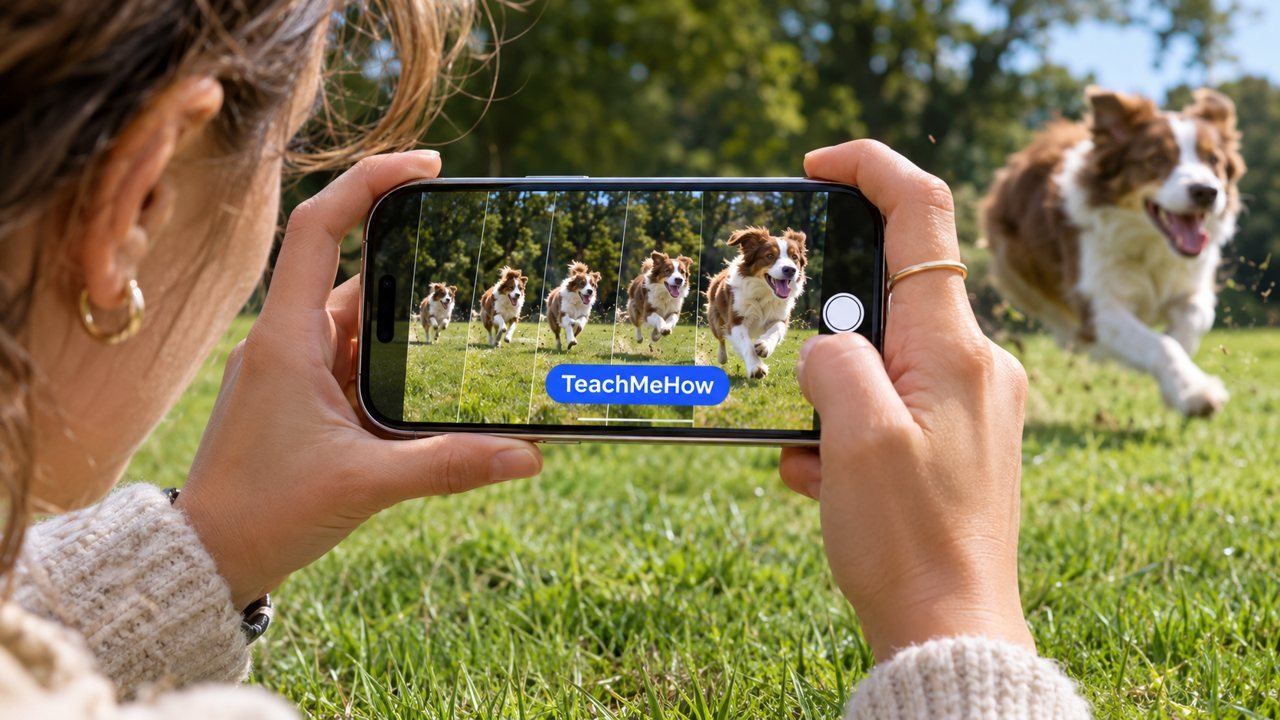
Capture action with the shutter gesture or volume button, compare individual frames, and save the moment you meant to catch.
Follow these steps at your own pace. Check product terms and prices directly with providers before purchasing.
In Photo mode on a recent iPhone, drag the on-screen shutter to the left in portrait orientation and hold it there. Release to stop the burst. Open the thumbnail, open the burst’s frame selector, and mark the pictures you want to keep individually. For a physical control, enable Use Volume Up for Burst in Settings under Camera.
Plan for the moment, not just the highest frame count
A dog catching a ball gives you several different pictures. Before the leap, the ears lift. At the peak, the paws may be clear of the ground. A fraction later, the ball and muzzle overlap. A burst gives you those choices, but it still needs enough light and space in the frame. If you start only when the dog catches the ball, the frames before the catch are already gone.
1. Set up a repeatable path
Choose a bright area with an uncluttered background and leave space on the side the subject is moving toward. Stand where the action crosses your view rather than heading directly toward the lens. That keeps subject distance more consistent. Take one still and check that the dog will fit with its ears and paws inside the frame.
2. Start with the shutter gesture
Open Camera and confirm Photo mode. In portrait orientation, touch the shutter and drag left immediately, holding it as the counter advances. Lift to stop. Holding it in place can start a QuickTake video on supported models. Practice the gesture on a stationary subject once so your first attempt is not during the catch.
3. Try Volume Up if touching the screen moves the phone
Go to Settings, Camera, and turn on Use Volume Up for Burst if offered. Back in Camera, press and hold Volume Up during the action, then release. A brief press takes a single picture. Test your grip so pressing the button does not tip the horizon or push a fingertip in front of a lens.
4. Open the frames before choosing
Tap the thumbnail, then Burst followed by the frame count, or Select on older layouts. Scrub through the individual frames. Suggested dots can help you begin, but inspect the details that matter to you. Mark each desired frame and tap Done. If Photos asks what to keep, keep the whole burst while you are still comparing.
Compare three neighboring frames
Find one promising frame, then compare the picture immediately before and after it. Check the nearest eye, the shape of the paws, whether the ball is separate from the face, and whether anything is clipped at the edge. The frame with the highest jump can still lose to the previous frame if the eye is blurred. A second keeper might show the landing and tell a different part of the story.
| Result | Adjustment for the next pass |
|---|---|
| Every frame is soft | Move to stronger light and reduce camera movement. Taking more frames does not cure uniformly poor light. |
| Action is cut off on one side | Frame a little wider and start following the subject earlier. |
| Camera records a video | Begin the leftward drag sooner, or enable the volume-button method. |
| You need the sounds and motion together | Use QuickTake to record the event as a clip. |
Keep exactly what you need
Open one chosen frame outside the burst and check it at full size before removing the other candidates. For a sequence of takeoff, catch, and landing, save those three and put them in a personal album in the intended order. If you captured a Live Photo instead, choose its key frame using the Live editor. It has a different set of controls.
On the next run, change one thing. Try starting a beat earlier or backing up enough to leave a little more room. Comparing two deliberate short bursts usually tells you more about timing than sorting a long roll of nearly identical frames after the dog has gone home.
Select frames for different uses
For a small announcement image, the silhouette of the dog against the grass may matter more than tiny detail in its fur. For a large print, open the candidate at higher magnification and look closely around the eyes and whiskers. Save different frames when the uses justify it. If a family member will choose the final picture, keep the original burst until they have compared the candidates. A contact sheet of three choices can communicate the differences more clearly than a message thread full of almost identical pictures.
Comments
Read or join the discussion.