How to Choose a Better Key Photo From an iPhone Live Photo
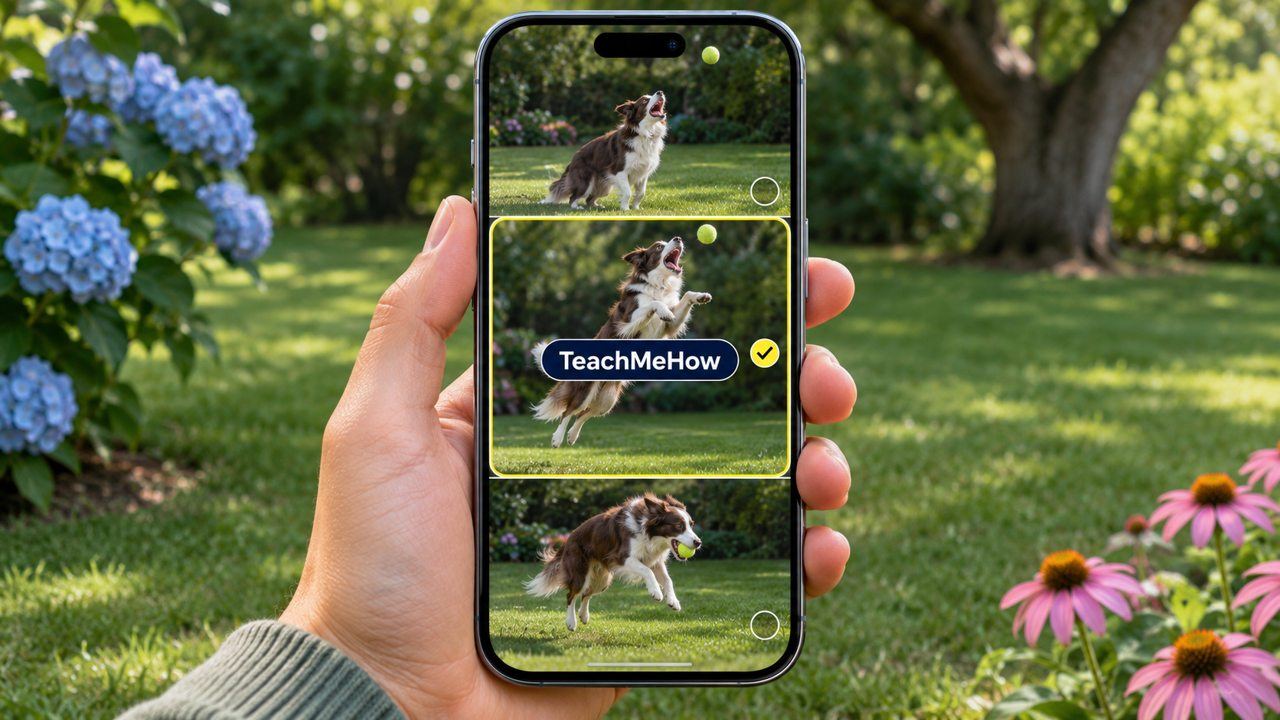
Rescue a blink or a missed expression using the frames already in a Live Photo. Compare frames, keep the motion, or share just the still.
Follow these steps at your own pace. Check product terms and prices directly with providers before purchasing.
Open the original Live Photo in Photos, tap Edit, and select the Live Photos control. Slide the white frame along the strip under the picture, stop on the expression you want, tap Make Key Photo, then Done. The selected frame becomes the still you see while browsing. You can keep the motion and sound with it.
Check what the camera actually captured
Touch and hold the picture in Photos. If it animates and has the Live indicator, there is a short sequence available to inspect. A regular still, a screenshot, or a JPEG saved from a message may resemble the original but contain only one frame. Ask the photographer for the original Live Photo if the editor offers no sequence.
1. Open the frame viewer
Tap Edit, then the concentric-circle Live Photos button. Look for the horizontal frame strip. Its ends control the length of playback. The white selector within the strip is the one you move to choose a still. If the whole strip gets shorter as you drag, cancel that edit and start again with the selector.
2. Compare the frames around the moment
For a dog catching a toy, find the instant immediately before the catch, the instant of contact, and the next instant. The highest jump may have motion blur. At full size, compare the eyes, outline of the muzzle, and whether the toy obscures the face. For a group portrait, check everyone’s eyes before choosing the apparent smile in the thumbnail.
3. Set and save the key photo
Tap Make Key Photo while the selected frame is visible, then tap Done. Go back to the grid, look at the new thumbnail, and reopen it. Hold it again to confirm motion still plays if that is part of the result you wanted.
Decide whether the recipient should get the motion
| Goal | Action |
|---|---|
| Keep the new still and the short moving moment | Change only the key photo. |
| Send just the still through the Photos share sheet | Open Share and turn off Live for that share when the Live control is available. Check the outgoing preview. |
| Remove the clip’s sound from playback | In the Live editor, use the speaker control, save, and listen to the result. |
| Shorten distracting movement at the start or end | Drag the ends of the frame viewer and replay before saving. |
Changing the key photo cannot bring two expressions from different moments into a single frame. If the child smiles after the dog looks away, choose which subject matters most or keep a second picture. If every frame is blurred, a different frame can change the pose but cannot reconstruct sharp detail the camera missed.
If the change is missing or looks softer
Return to the original item and check the chosen frame again. Tapping Done after scrubbing without choosing Make Key Photo may leave the previous still in place. A copy in Messages, a shared album, or another app may be an earlier export. Send a new copy after making the change and review what the destination actually received.
Before choosing a frame for paper, preview the crop ratio for the print. A moving frame that looks good at thumbnail size may reveal softness when enlarged. If you are sending a moment captured at home, you can also exclude its location from the outgoing share. Check the visible surroundings and the audio as separate choices.
Check one actual delivery before sending a group
Send the finished picture to yourself or to a test device using the same app you plan to use. Look at the preview before opening it, then open it full-screen. If the thumbnail shows the right expression but holding the picture reveals a moment you would rather leave out, go back and send the still version. If movement is essential, test that it actually plays at the receiving end. A still image on an unsupported destination does not establish that the original was damaged.
Keep the original Live Photo until you are happy with the delivered result. If a relative wants a different expression for a second print, reopen the original and inspect its available frames. If you need two finished versions side by side, work on a duplicate rather than replacing your first choice and wondering which file the printer received.
Comments
Read or join the discussion.