How to Share an iPhone Photo Without Sending Its Location
Turn off location for one outgoing photo or a selection, keep your own map information, and verify the received copy before sharing more.
Follow these steps at your own pace. Check product terms and prices directly with providers before purchasing.
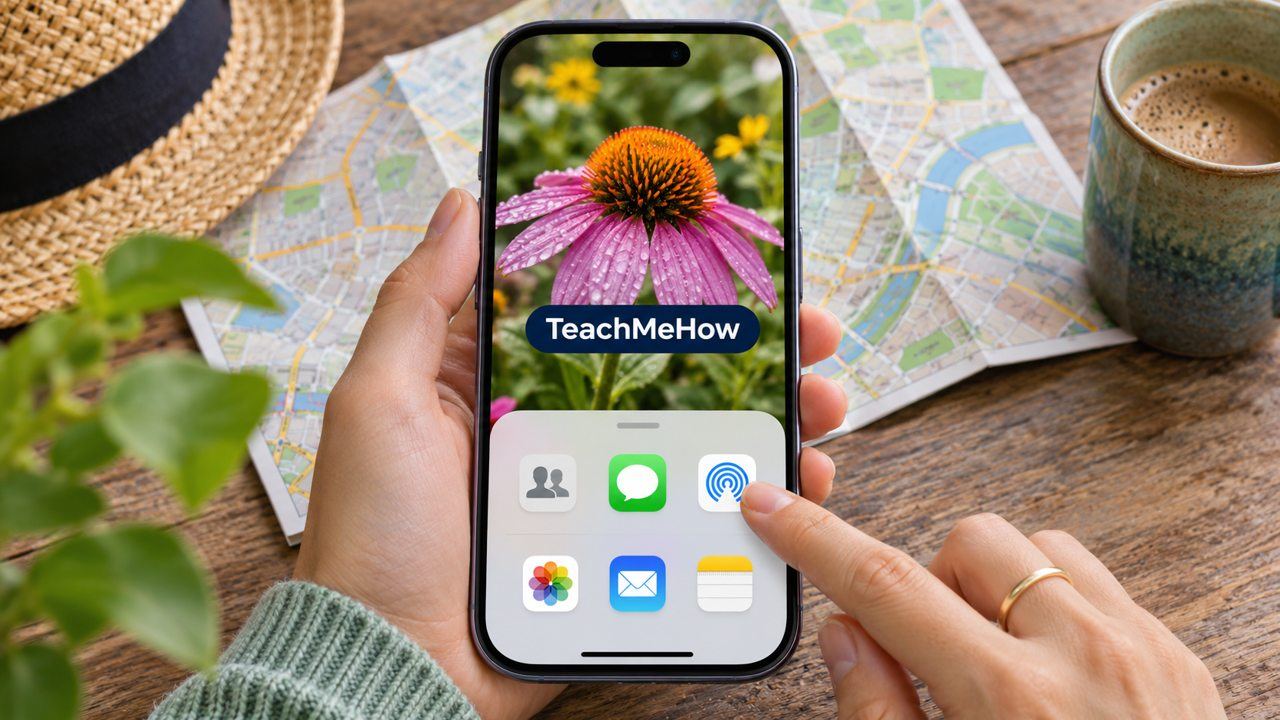
In Apple Photos, open the picture, tap Share, then Options. Switch Location off, tap Done, and choose the destination from that share sheet. This lets you send a copy without its location data while keeping the location on the picture in your own library.
Start the share in Photos
A florist wants to post a close-up taken in a customer’s garden. The flowers are fine to show, but the recipient does not need the coordinates of the house. Starting from an upload button inside a social app may skip Apple’s Photos sharing options. Open the original in Photos and use its Share button when you want control over what Photos includes.
1. Check whether the source has a location
Open the image and swipe up or tap Info. A place name and map are clues that location information is present. If no location was recorded, there may be no location to remove. The original information panel provides a useful reference for the later check.
2. Choose exactly what will travel
For several images, start in the grid, tap Select, and mark the intended thumbnails. Open Share and review the preview or count. Tap Options near the top of the share sheet. Turn off Location, confirm with Done, then choose the app or recipient. Repeat this check on future shares rather than assuming the last setting carried over.
3. Keep the outgoing choice simple
Leave All Photos Data off when you only intend to deliver the finished image. That option is intended for sharing the original with additional metadata and editing information through supported methods. Changing the format to Most Compatible is a different decision. A JPEG file can still carry location data.
4. Test the received copy
Send a harmless sample using the same route to a device or account you control. Save or open the received file and examine its information for a location. On a second iPhone, the photo’s Info panel is a convenient check. On the sending phone, seeing a map on the original is expected. Make sure you really opened the received copy.
What this switch can and cannot remove
| Clue | How to handle it |
|---|---|
| Coordinates recorded by the camera | Use the Location switch in Photos sharing options. |
| House number visible in the image | Reframe, crop the image deliberately, or choose a different picture. Inspect the exported result. |
| Location written in the message | Review the message and album title before sending. |
| Store name visible in a mirror or window | Enlarge the preview and inspect reflections and background details. |
A screenshot of a map still shows a map even if its file contains no coordinates. A Live Photo can also show movement or carry audio outside the instant represented by its thumbnail. For an ordinary still delivery, choose the Live Photo’s key frame and share the still if that better suits what you intend to disclose.
If Options does not appear
Back out of the recipient app without sending. Return to the Photos library, open the actual photo rather than a message attachment preview, and tap Apple’s Share button. If the intended app accepts images only from its own picker, verify an exported copy using an independent receiver before uploading that copy. Keep the original identifiable so you do not pick it accidentally.
For recurring listings, try one ordinary object from the same shooting location and inspect the delivered file and the visible image. If a platform displays a place name even on a file without GPS, check whether you added a post location or the app filled one into its own form. Those labels can exist separately from the picture’s metadata.
Keep an original and an outgoing copy easy to distinguish
When you need to upload through a web form, give the reviewed export an unmistakable filename if the destination allows it, and keep it in a dedicated folder in Files. A copy called garden-flowers-for-listing is easier to distinguish in a picker than three files with nearly identical camera names. Choose it from the reviewed folder, then check the web form’s thumbnail and location fields before submitting.
This distinction matters when the same picture is useful internally. A landscape designer might need the original map pin to revisit a particular garden. There is no need to change the library’s location just to make a single delivery. Verify the exported file independently and keep the map on the internal source when that is the intended outcome.
Comments
Read or join the discussion.