How to Record QuickTake Video Without Leaving iPhone Photo Mode
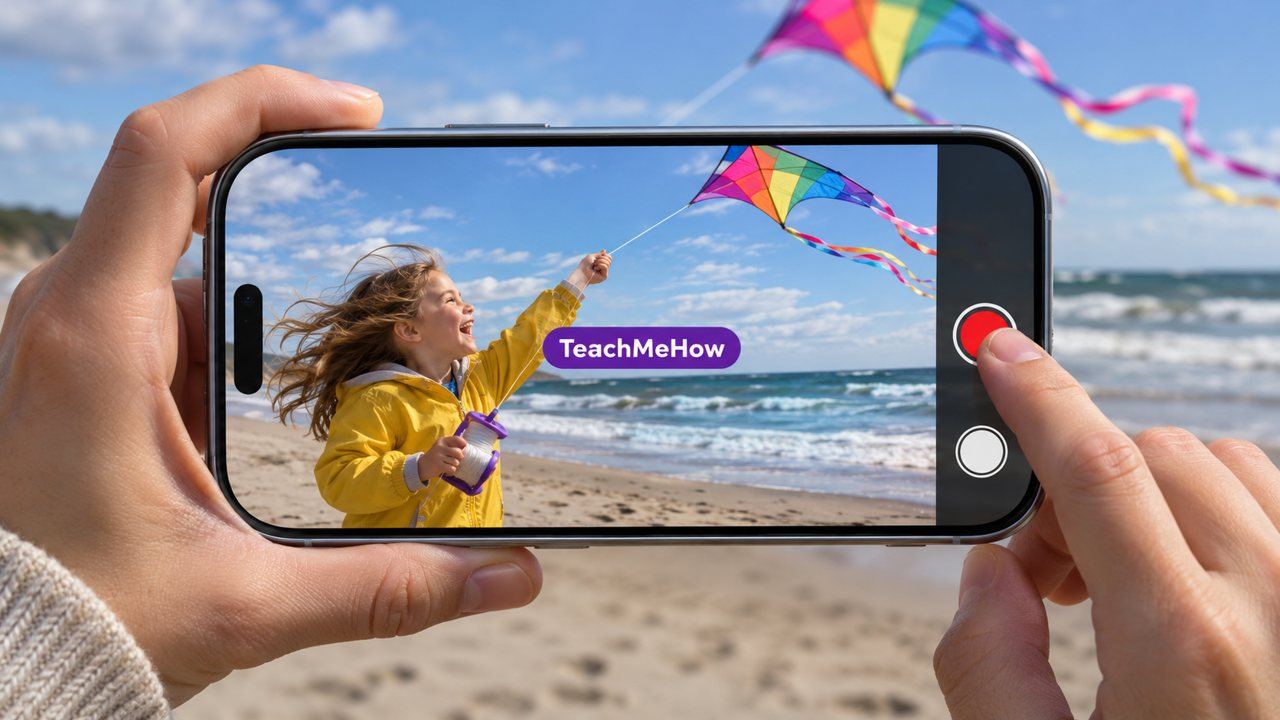
Start a clip from the photo shutter, lock recording, take a still during the clip, and avoid starting Burst by accident.
Follow these steps at your own pace. Check product terms and prices directly with providers before purchasing.
On a QuickTake-capable iPhone, stay in Photo mode and touch and hold the shutter to record video. Release to end a short clip. For a longer clip, keep holding and slide the shutter toward the lock on the right in portrait orientation. Release over the lock, then tap the stop button when finished. Recording is active only when the timer and recording controls confirm it.
Pick QuickTake for an event already unfolding
You are taking stills of a kite on the sand when the wind catches it. By the time you switch modes and compose again, the launch may be over. QuickTake starts recording from the Photo view you already framed. It is useful for a spontaneous clip. If the assignment specifies a recording format, frame rate, or specialized video mode, set up dedicated Video mode ahead of the event and check those controls there.
1. Begin from ordinary Photo mode
Open Apple Camera and identify the main on-screen shutter. Frame a subject with a little space for movement. Touch and hold the shutter without immediately dragging left. Confirm that the recording timer advances. A quick tap simply takes a still, and a fast leftward drag can start a burst on supported phones.
2. Use a short hold for a brief event
Keep your finger down as the kite leaves the ground, then release after the action settles. Start a little before the moment you expect and leave a beat at the end. This gives you something to trim later and usually feels more natural than a clip that stops precisely when the subject reaches the edge of the frame.
3. Lock recording when you need to reposition your grip
While recording from the held shutter, slide toward the displayed lock and release over it. Watch the timer for another second. If it keeps advancing, you can take your finger away and steady the phone with both hands. If it stops, the release happened before the lock engaged. Practice on an unimportant scene before relying on the gesture.
4. Take a still while the clip continues
With recording locked, tap the separate still-photo shutter when it appears. The stop control ends recording. Keep the two controls distinct and glance at the timer after taking the still. Finish deliberately with Stop, then open the thumbnail and check that you have both the clip and the separate still you wanted.
Know which capture to use
| Desired result | Fastest route |
|---|---|
| A single photograph | Tap the shutter once in Photo. |
| A choice of individual action frames | Drag the shutter for a burst and select the sharpest pictures afterward. |
| The sound and movement of a short surprise | Hold the shutter for QuickTake. |
| A longer planned recording with chosen video settings | Use dedicated Video mode and confirm your format before recording. |
For the kite example, follow the moving subject at a comfortable distance. If you swing abruptly from the kite to the child and back again, the result may be difficult to watch. Take one wider clip that includes both, then a separate closer shot when the action repeats. A still taken during recording is convenient, but make a dedicated Photo-mode image too if its composition or print quality is central to the job.
Troubleshoot a missing clip or abrupt ending
If Photos shows several individual frames, you likely started Burst by dragging toward its side of the shutter. If it shows one picture, start the next test with a longer hold and check for elapsed time. If the clip cuts off the moment you lift a finger, look for the lock and slide all the way to it before releasing.
Play the saved clip from beginning to end with sound before deleting practice takes. Check its orientation and whether your fingers covered the microphone in your recording grip. For a still scene where the sequence is more about a wide landscape than motion or audio, make a panorama with a guided sweep instead. It produces one still image that can be explored across the frame.
If you recorded the kite launch and landing separately, combine the QuickTake clips into one movie on iPhone to show both moments in order.
Practice the transition once without looking away
Set a moving object on a table and make two five-second practice clips. Record the first with a continuous hold. On the second, slide to lock, take a still, and tap Stop. Compare the first and last seconds of each clip. If locking causes a jolt, support the phone with your other hand before sliding. If stopping tips the horizon, continue holding the frame until after the stop tap. This rehearsal gives you a grip you can repeat when something genuinely unexpected happens.
Comments
Read or join the discussion.