How to Remove Tracked Changes and Comments from a Word Document
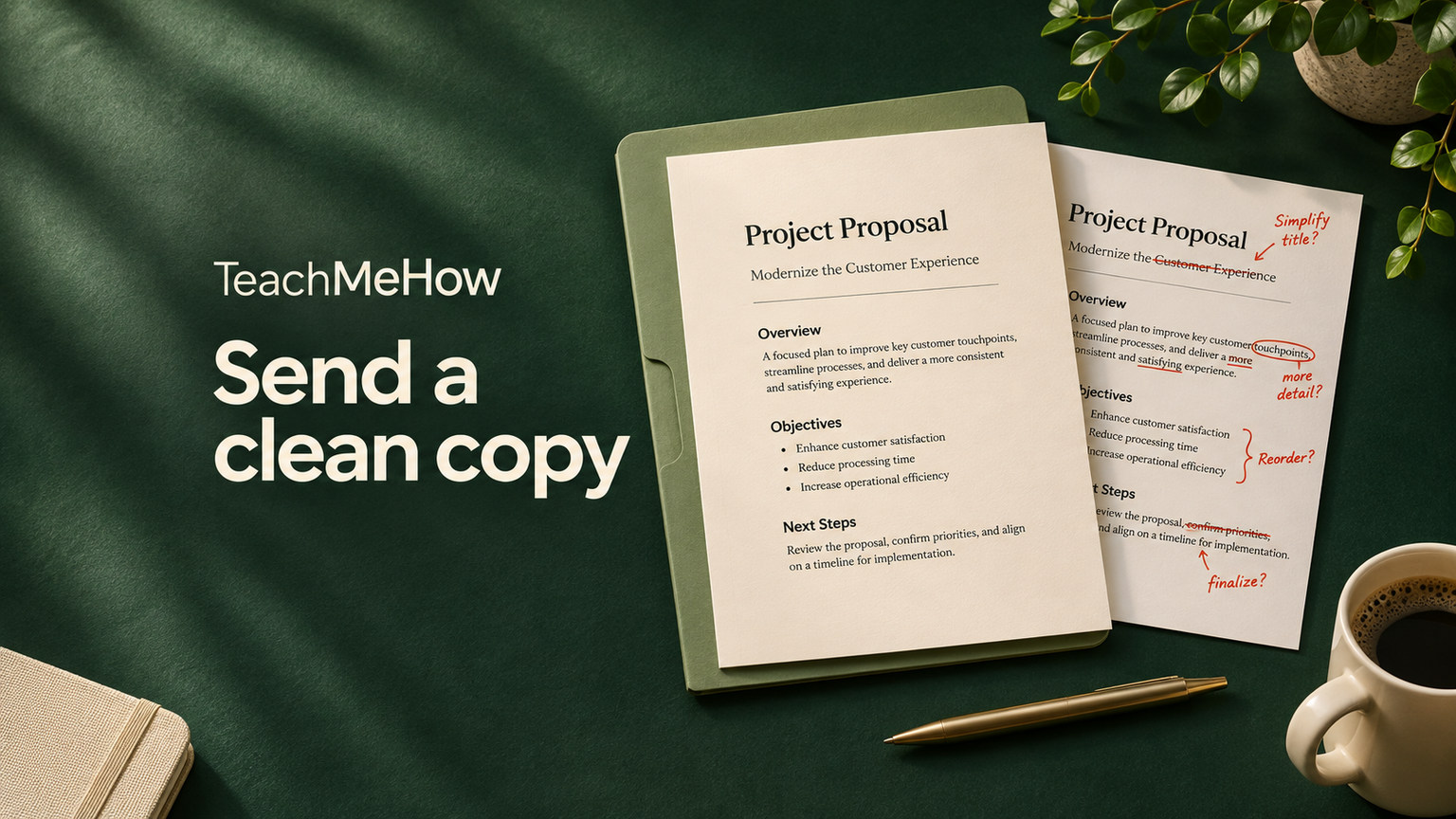
Prepare a clean Word file for delivery. Resolve edits, delete comment threads, and inspect the saved copy for leftover review markup.
Follow these steps at your own pace. Check product terms and prices directly with providers before purchasing.
Quick answer
Make a delivery copy. In Word for Windows, accept or reject the outstanding revisions, turn off tracking, and delete the comments. Then inspect the saved file before sharing it. The No Markup display can make an annotated document look ready even while the recipient can still reveal the edits.
Preserve the review record
Keep Proposal-reviewed.docx for your team and save a second file named Proposal-delivery.docx. If you normally share a link to a live working document, check which file that link opens. A separate clean attachment or a link to the delivery copy takes readers to the version you prepared.
Settle the words before removing the notes
- Open the delivery copy. Under Review, switch to All Markup. In Show Markup, include all reviewers and revision types so filters do not obscure a contributor’s edits.
- Start at the beginning. Use Accept for wording you approved and Reject to discard a proposed edit. For example, rejecting a reviewer’s deletion of a sentence keeps that sentence in the document. Read the resulting paragraph.
- Use Accept All Changes only when every pending change has already been approved. Finish by turning Track Changes off so a last-minute typo correction does not create a fresh revision.
- Open the comments pane. Transfer any unresolved action item to your team’s working file first. On the delivery copy, use the thread menu to delete individual threads, or the Delete menu on the Review tab to delete all comments in the document. Resolving a thread can leave it available in the comments list.
Inspect and reopen the delivery file
Save the copy. Choose File → Info → Check for Issues → Inspect Document. Include the review-related inspection category and run the inspection. If revisions or comments remain, go back to Review and handle them deliberately. Read each finding before using a removal option. Headers, footers and other content may be intentional.
Close the file and reopen it from the same folder or link you plan to send. Show All Markup and open Comments. Check a sentence that previously carried a disputed edit, confirm the agreed wording remains, and check that its old discussion is gone. A quiet margin alone does not establish that the recipient has the right file.
If the review commands are unavailable
A file shared with review restrictions or locked tracking may need the owner’s help. Ask for an editable delivery copy or have the owner finalize it. If feedback is still spread across attachments, merge the reviewers’ Word copies before preparing the release.
When the delivery format is PDF, export a tagged PDF from the clean Word copy so the reader can navigate its structure. If the next reviewer receives a PDF proof, they can mark layout corrections directly on the PDF in Acrobat Reader.
Comments
Comments are reviewed before they become public.
Sign in with Google to leave a comment.
Sign in with GoogleNo approved comments yet. Be the first to start the discussion.