How to Mark Up a PDF for Proofreading in Adobe Acrobat Reader
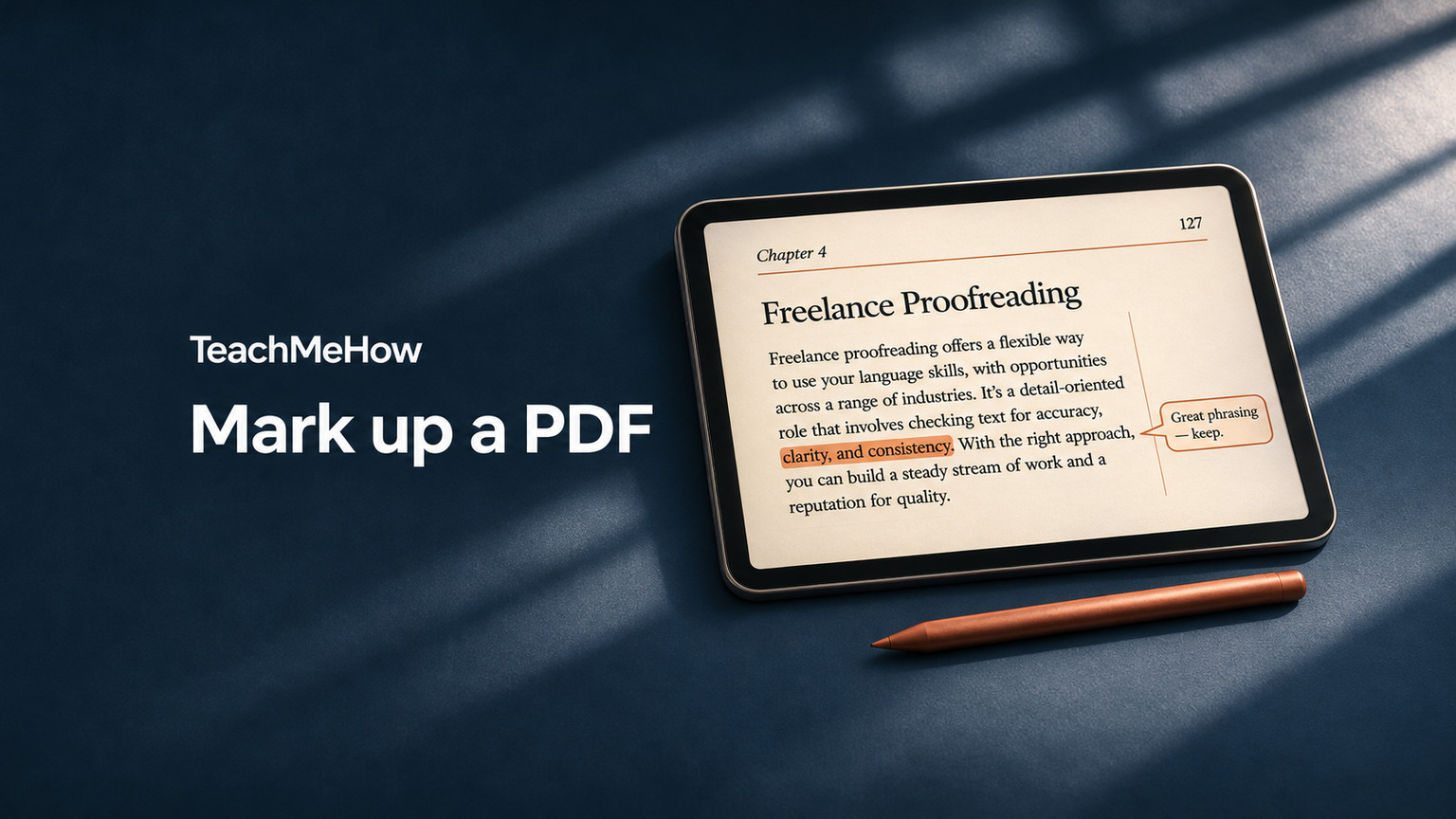
Mark replacements, missing words, and layout problems on a PDF proof. Save an annotated copy and check that the next reviewer can see every correction.
Follow these steps at your own pace. Check product terms and prices directly with providers before purchasing.
Quick answer
Use Acrobat Reader’s comment tools to mark the words or page area that need attention. For a typo, select the text and add the exact replacement. Save the annotated PDF as its own file so the person working in the layout file can apply and check each correction.
Verify the proof version first
Open the downloaded proof in the desktop application and compare its filename, revision label and page count with the client’s instructions. For a local review, save a working copy such as Program-v3-proof-comments.pdf. If the team supplied a shared review link, confirm they want the comments collected in that shared review before starting a separate copy.
Choose a mark a designer can act on
| What you found | How to mark it | Example instruction |
|---|---|---|
| Wrong word | Select the word and use Replace selected text, or attach a comment to the selection. | Replace “form” with “from” in the second line. |
| A missing word | Use Insert text at the insertion point, or anchor a note to the adjacent phrase. | Insert “the” before “north entrance.” |
| A repeated word | Select the second occurrence and apply Strikethrough text. | Delete the second “at” in “meet at at noon.” |
| A layout problem | Place a comment at the object or caption and describe the intended result. | On page 4, move the lower photo’s caption beneath the image. |
Make a replacement on the page
In the current desktop layout, open the Add a comment tools in the quick-action toolbar. Choose Replace selected text, select the error, type the replacement in the note, and post it. You can also select text first and choose Add a comment from the floating tools. Keep punctuation inside the selection only if it belongs to the correction.
When text selection fails
An image-only scan may provide no selectable letters. Place a note beside the line and quote enough words to identify it. If the printed folio differs from the viewer’s page number, include both. If commenting is disabled for the document, ask the sender for a review-enabled proof or agree on a page-and-line correction list.
Check the handoff
Save normally and reopen the marked file in Reader. Open Comments, select a replacement and a layout note, and check that each jumps to the right location. Printing to a new PDF can lose editable comment details. Return the annotated proof with any outstanding style-sheet queries. After the designer applies the corrections and the clean proof is approved, replace the published PDF in Drive while keeping its original link if that is how the client distributes it. Adobe’s instructions for replacement comments.
Comments
Comments are reviewed before they become public.
Sign in with Google to leave a comment.
Sign in with GoogleNo approved comments yet. Be the first to start the discussion.