How to Compare Two Word Documents When Track Changes Was Off
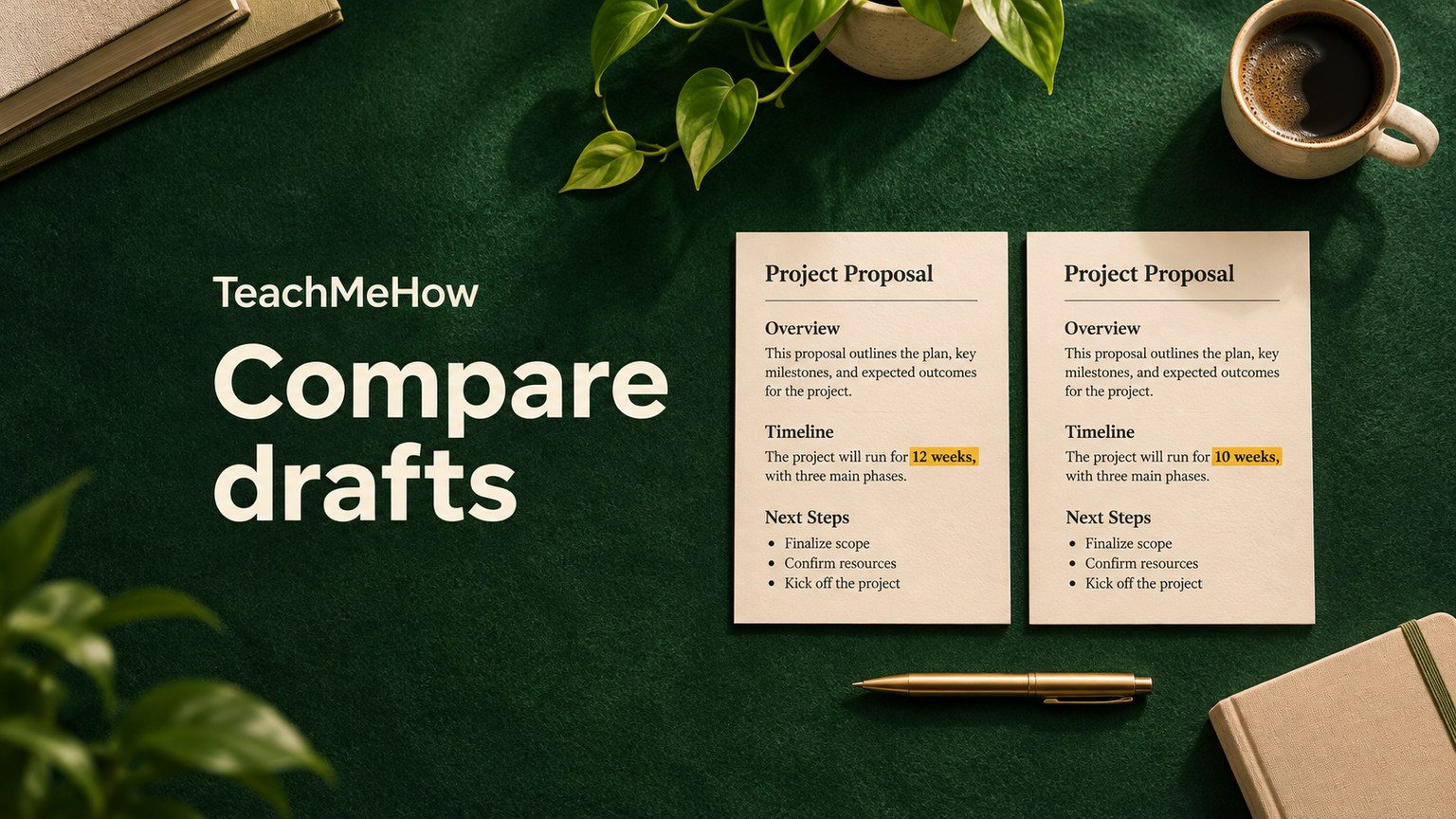
Create a redline from two saved Word drafts, even if nobody tracked the edits. Choose the correct baseline and keep both source files intact.
Follow these steps at your own pace. Check product terms and prices directly with providers before purchasing.
Quick answer
If you have both saved drafts, desktop Word for Windows can reconstruct a redline. Choose Review → Compare → Compare, assign the earlier file to Original and the later file to Revised, and put the results in a New document. Track Changes could have been off in both files.
Establish which draft came first
Suppose a program originally said “Doors open at 6” and the returned file says “Doors open at 7.” Open both files and check a known passage. An attachment downloaded this morning can contain last week’s draft, so a download timestamp alone is a poor way to pick the baseline. If you have just one cloud file, first see whether you can find the earlier Word version in OneDrive.
Build the comparison
- Open the two saved Word documents in the Windows desktop app. On the Review tab, open the Compare menu and choose its Compare command.
- Browse to the baseline under Original document. Under Revised document, choose the returned draft. Expand More to see the comparison settings.
- Use word-level changes for a prose review. Character-level detail can help locate a changed digit or punctuation mark. If a new template has produced pages of noise, clear Formatting while keeping the text comparison enabled.
- Under Show changes in, select New document and confirm. If Word asks about existing tracked edits, pause if you need the original reviewer history. For separate reviewers’ marked copies, combine their revisions in Word instead.
Read the result in the right direction
Find the opening-time example. The redline should show 6 removed and 7 added. If it says the reverse, run the comparison again with the inputs swapped. Save the new output with the baseline and revision in its name, such as Program-v2-to-v3-redline.docx.
When the result looks wrong
If nearly every line changes, compare the same section in each source. Look for a different template, a pasted block, or the wrong edition. If no differences appear, reopen the two inputs and locate one sentence you know differs. A reconstructed redline shows how the saved texts differ. It cannot tell you who typed an untracked edit or reconstruct intermediate drafts.
For the next round, turn on Track Changes before proofreading so the author can review each correction as you made it.
Comments
Comments are reviewed before they become public.
Sign in with Google to leave a comment.
Sign in with GoogleNo approved comments yet. Be the first to start the discussion.