How to Organize Apple Notes With Tags and Smart Folders on iPhone
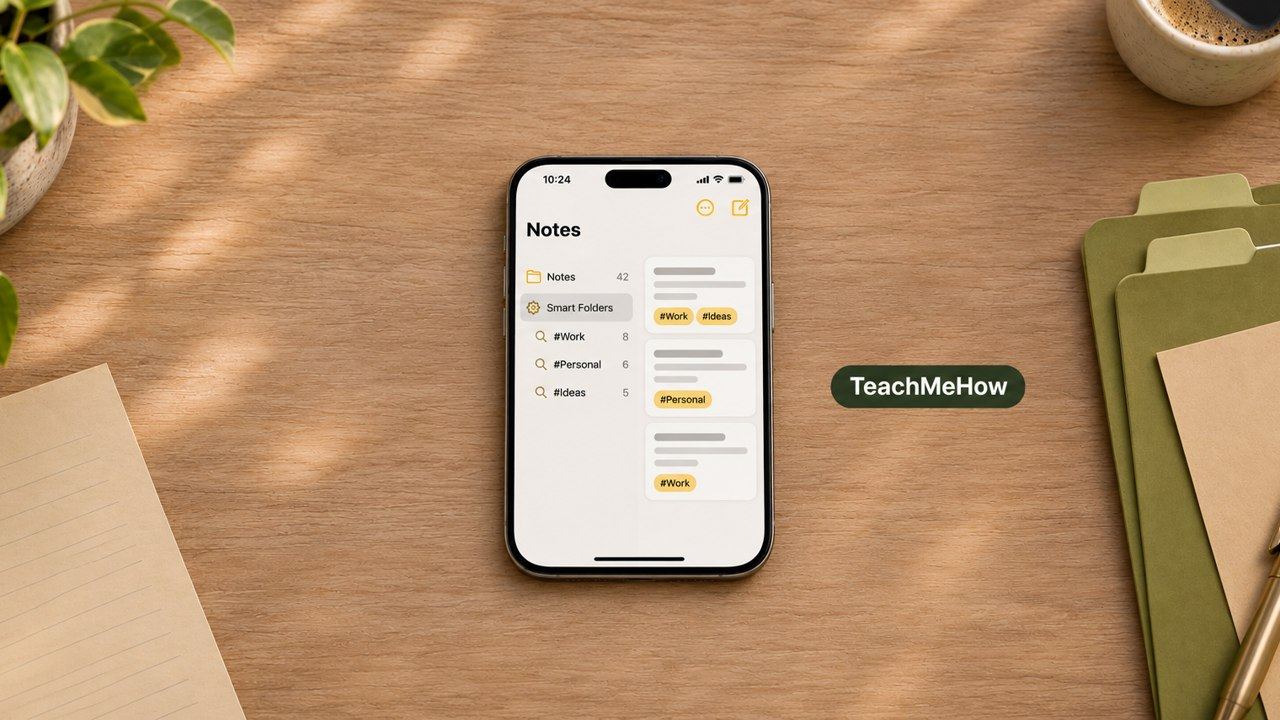
Build a filtered folder that gathers tagged notes across projects and fix the most common reasons a note is left out.
Follow these steps at your own pace. Check product terms and prices directly with providers before purchasing.
Type a tag such as #receipt in an Apple Note and follow it with a space so it becomes active. In the Folders list, create a new folder and choose Make Into Smart Folder. Select the tags or other filters you want. Matching notes appear there while remaining in their original folders.
Start with a question you regularly ask
Suppose you keep receipts in separate Notes folders for home, work, and travel. Once a week you ask which receipts still need filing. A Smart Folder can gather notes labeled #receipt and #to-file. Put the note in the folder that describes where it belongs and use tags to describe what it is or what you still need to do. Start with one or two names you’ll remember the next time you make a note.
Two sample records make the filters easier to check. Give your first note both tags and give the second only #receipt. A view set up to require both tags should include the first note and leave out the second. A view that accepts either tag can include both. This small test catches a rule error before you add dozens of tags.
Build the filtered view
1. Create an active tag in a note
Put the tag in the note body, such as #receipt, and follow it with a space. Look for its highlighted appearance. Tags use one word. Use a dash or underscore within a name such as #to-file. Apply the same spelling to the other note you want to test.
2. Confirm the tag in the browser
In Notes, go back to Folders and scroll to the Tags section. Tap the tag to see what matches. If a note is missing, reopen it and check that the tag was activated and that you’re viewing the intended account or notes.
3. Create a Smart Folder for an ongoing question
Tap New Folder from the Folders screen and choose an account if prompted. Name the view “Receipts to file” and tap Make Into Smart Folder. Choose Tags and pick the tags you want. Other applicable filters can include dates and mentions.
4. Choose how the rules combine
Read the Any or All setting at the top of the filter screen. If selecting multiple tags within the Tags filter, also check how that filter combines the selected tags. Review the results against your sample records. If an unrelated note appears, see which tag or filter allowed it.
5. Make the view part of your routine
When a receipt is filed, remove the #to-file tag from the note and reopen the Smart Folder. The receipt should disappear from the pending view and still be present in its ordinary folder. Use a PDF scan of the receipt alongside the tags if you need a copy of the original layout.
Pick the organization method that fits the job
| Goal | Use |
|---|---|
| Keep a permanent home for one project’s records | An ordinary folder. |
| Show receipts from different projects while they need action | A Smart Folder filtered by tags. |
| Keep one note at the top of a folder | Pin the reference note. |
| Go from a project summary to its exact supporting notes | Add links between the notes. |
When the rules suddenly stop matching
Open the Smart Folder’s edit controls and check the filters before changing notes in bulk. A date window can exclude an older receipt even when its tags are correct. Renaming or deleting a tag also affects your filtered views. If a note needs to be locked, check Apple’s restrictions because tagged notes aren’t eligible for locking.
There’s a separate option to convert an existing folder. Apple says conversion moves its contents into Notes and tags them with the new Smart Folder name. If you want to keep the old filing arrangement, create a new filtered view from scratch. Use a trial tag on a few notes and verify where they live before reorganizing a large folder.
Apple’s guide to creating and renaming Notes tags
Keep the number of tags manageable
Choose #receipt as your general label before also creating #receipts, #proof-of-purchase, or #purchases. If two terms represent the same records, select one spelling for new notes. Try it with only a few existing records and after filing them check both their ordinary folder and the Smart Folder.
Comments
Read or join the discussion.