How to Recover Deleted Apple Notes on iPhone
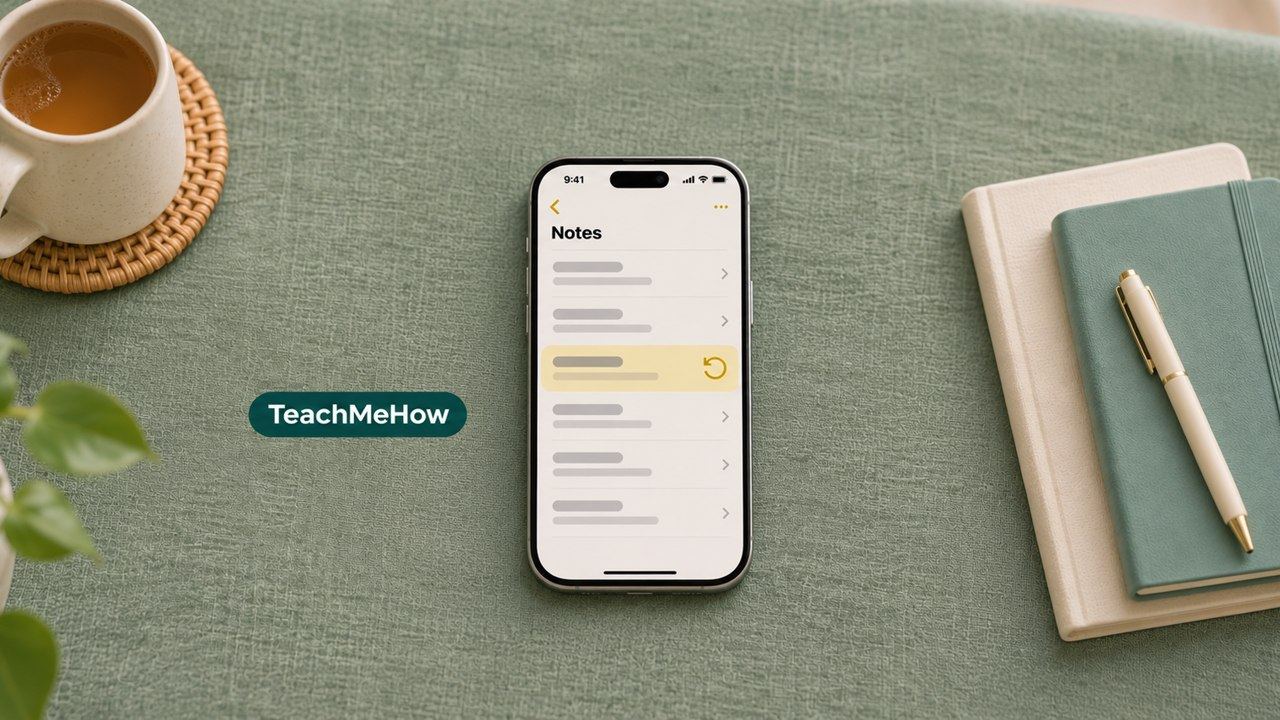
Find a note in Recently Deleted, move it back to a regular folder, and check the account if it isn’t there.
Follow these steps at your own pace. Check product terms and prices directly with providers before purchasing.
Open the Folders screen in Apple Notes and tap Recently Deleted under the account where the note was stored. Move the note back to an ordinary folder. iCloud Notes normally keeps deleted notes for up to 30 days unless they were permanently removed sooner. If Recently Deleted is missing, check which account held the note and whether the note was shared.
Determine what went missing
If you remember tapping Delete and the note vanished, start with Recently Deleted. If an entire folder disappeared after changing iPhones or email accounts, first check account settings and search. Searching for one unusual phrase from the note is often more effective than searching a generic title like “Ideas.” If it still appears on a Mac or on iCloud.com, diagnose Notes sync on the iPhone before assuming the content has been deleted.
If a single paragraph vanished while the note stayed open, try the Undo control as soon as you notice. Recently Deleted stores deleted notes. A missing line inside a note is a different problem, even when the note can still be found.
Restore a deleted note
1. Go back to the main Folders list
Open Apple Notes and use the back control until you can see iCloud, other mail accounts, or On My iPhone as applicable. Look under the account where the missing note lived. You may have more than one folder with a similar name.
2. Open Recently Deleted
Tap Recently Deleted and look for the intended title and preview. The folder can be absent if there are no recoverable deleted notes in that account. Check whether the deletion was recent enough and whether you shared the note or only received an invitation.
3. Move the note to a regular folder
Swipe left on the note and choose Move where offered. You can also tap Edit, select the note, and tap Move. Choose a destination under the account you want. If two projects used similarly titled notes, restore to a folder where you will recognize and review it.
4. Verify the recovered content
Open your chosen folder and tap the restored note. Check the first and last lines, then open any attachments you need. For a reference you want to keep visible through the rest of a project, pin the restored note once you’ve confirmed it’s the right version.
Find a note that isn’t in Recently Deleted
| Situation | Next check |
|---|---|
| One iCloud note is missing on the phone | Compare the list on iCloud.com and check the account and sync settings. |
| The note was stored in Gmail or Yahoo | Look in that account’s Trash or Bin in Mail. Copy any recovered text into a new note after verifying it. |
| Someone else owned the shared note | Try the original invitation if it’s still shared, or ask the owner to check the note’s shared access. |
| A deleted note exceeded the recovery window | Look for a separately saved copy, an exported attachment, or a version someone shared with you. |
Prevent restored notes from getting misplaced again
For a note containing a school handout or signed document, consider saving the underlying PDF separately to a clearly named folder in Files. If you recover an important note from a mail account and copy its contents to a new note, verify that formatting and attachments followed the text before treating it as complete. A moved iCloud note will be easier to find if you give it a descriptive title and keep track of the account.
Apple’s usual 30-day window is a recovery opportunity. When you have the option, restore the note as soon as you locate it and open it from the destination folder. Try a search for a distinctive phrase or attachment name afterward so you know how to find it if the folder arrangement changes.
Apple’s account and search checks for missing notes
Make a temporary recovery note easy to spot
When a title shows up in email trash or as a shared copy, use a name such as “Recovered – workshop handout” until you’ve compared it with the original. If you later find a newer version, check the date, concluding lines, and attachments in both before combining their content. Keep both while you work through the differences.
Comments
Read or join the discussion.