How to Scan Multiple Pages Into One PDF in Apple Notes on iPhone
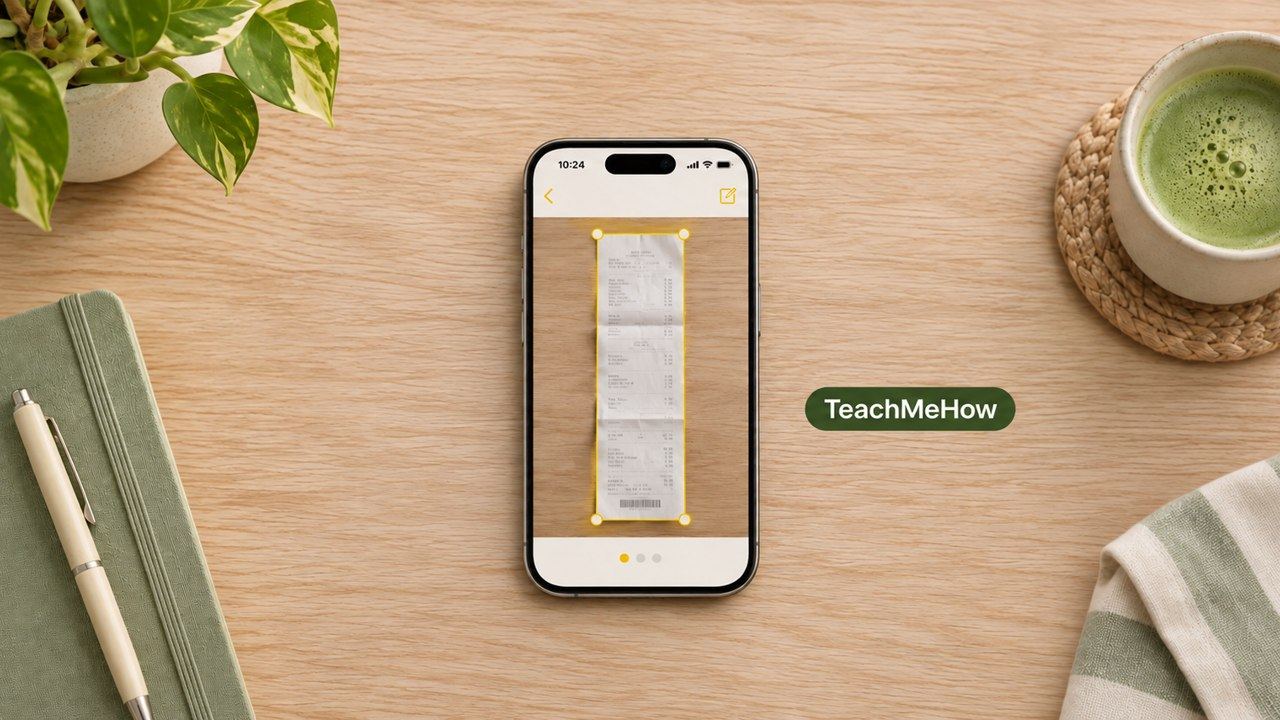
Scan several sheets in one session, check the page order, and save the finished PDF to Files without sending the entire note.
Follow these steps at your own pace. Check product terms and prices directly with providers before purchasing.
Open a note on your iPhone and choose Attachments, then Scan Documents. Capture all related sheets before ending that scanning session. Notes saves the group as one PDF attachment. To send only the scan, open the PDF’s own menu and use Share, then Save to Files or pick your recipient.
Set up the pages before opening the camera
Lay the pages in the order the recipient should read them. For a warranty claim, that might be the claim form first, the purchase receipt second, and the service report last. Put light paper on a darker, matte surface and leave a little space around each edge. If the sheets overlap, the camera can include a second sheet in the scan or crop a line of text.
Make a note with a title you can search later, such as “Kitchen mixer warranty claim – March.” Use the exact model number in the note or PDF filename if you handle several similar appliances. A note title and the name on the outgoing PDF can be different. Keep the original paper organized too if a return or service center requires it. File warranty papers by appliance model number.
Scan and save one document
1. Start Scan Documents inside the note
Open Apple Notes and tap into the body. Choose the Attachments button and then Scan Documents. On older versions the scanner may be under the camera icon. Pick the document scanner when the recipient needs a copy of the page layout. Use Scan Text for an editable excerpt.
2. Capture the first page and inspect the edges
Hold the iPhone above the first sheet, with all four corners in view. In automatic mode, hold steady and let the phone take the scan when it recognizes the borders. Inspect the preview. Use manual capture if the auto mode keeps jumping to a fold, shadow, or table edge. For a manual scan, drag the corner points to the paper's boundaries and keep the scan.
3. Add the remaining pages in the same session
Swap in the next page after each capture. Keep scanning until every required sheet is included, then tap Done or Save, depending on the version. Finishing after each page makes separate attachments. For a double-sided sheet, scan the back while the same session is open if it contains instructions, signatures, or relevant terms.
4. Check the PDF before sharing
Open its preview and look at the thumbnails. Count the pages and zoom in on fine print on the first, middle, and last sheets. Check receipt totals, signatures, and identification numbers. Use the scan’s page controls for corrections such as rotating a sideways page. If the scan is incomplete, a new scan of the packet may be faster than assembling several separate PDFs on the phone.
5. Share the PDF attachment
Use the menu on the PDF itself, select Share, then choose Save to Files if you want a standalone copy. In Files, open the saved PDF and confirm the page count. When submitting to a portal, select that file. Sharing from the note’s top-level Share button may instead share or send the note.
Fix a scan that looks fine at thumbnail size
| Problem | Adjustment |
|---|---|
| The print looks faint at full size | Use brighter indirect light and compare the color and grayscale filters. |
| A corner is missing | Retake from above and use the manual corner controls. |
| The receipt repeats twice | Check the thumbnail sequence. Watch for an automatic capture before pressing the shutter manually. |
| Pages are in several attachments | Rescan the sheets in one continuous capture if an upload accepts a single PDF. |
Know when a phone scan is enough
For a three-page packet, the main quality check is whether someone can read each page without guessing. A curled receipt may need gentle pressure on the edge outside the printed area. For long stacks or steady daily scanning, compare a feeder scanner’s capacity and duplex options with the time it takes to flatten and capture each sheet. Choose a scanner for larger batches.
Apple’s guide to previewing, renaming, and sharing PDFs in Notes
Before sending the file
- Open the copy from Files and verify the page count and order.
- Check legibility at full size, especially the bottom line and right margin of each receipt.
- Rename the PDF for the recipient, such as “Mixer warranty – receipt and service report.”
- Keep the paper originals until you have confirmed the recipient can use the scan.
Comments
Read or join the discussion.