
Plugable USB-C to USB-C Cable for Video, Data and Charging (USBC-240W-1M)
Choose the full-featured cable when your compatible USB-C devices need display output or data as well as charging.
Check current price
View on Amazon ↗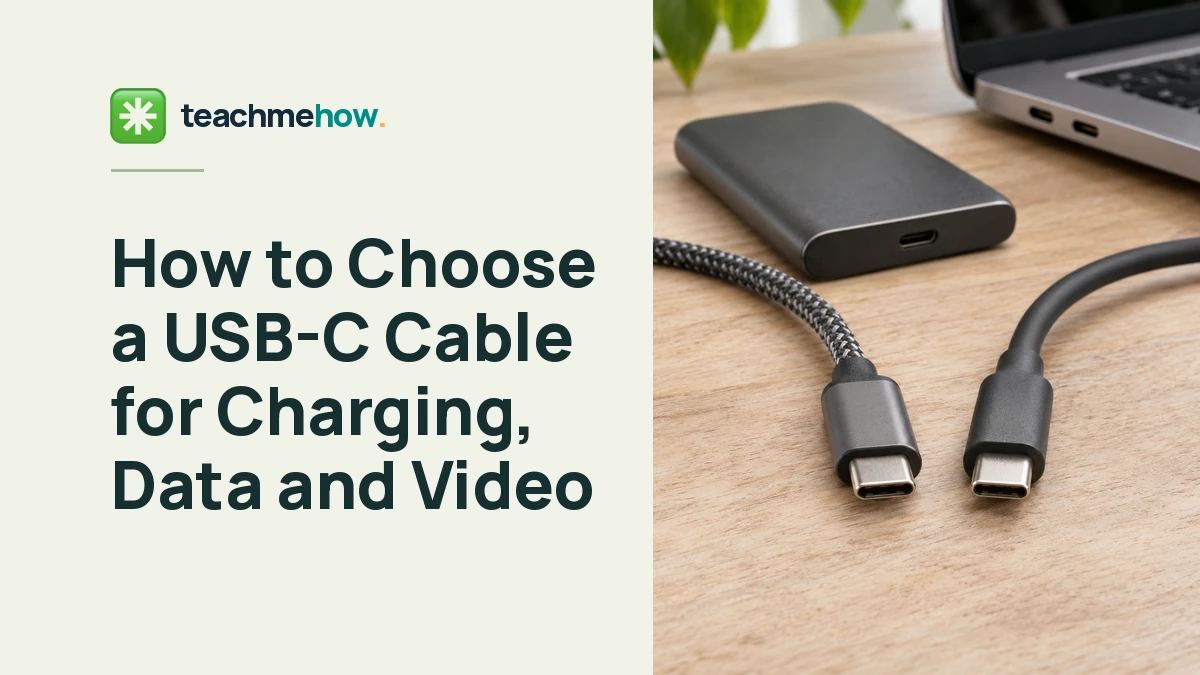
Choose a USB-C cable by watts, data speed and video support. Decode cable markings, check both ports and test a monitor or SSD before the return window closes.
Follow these steps at your own pace. Check product terms and prices directly with providers before purchasing.
The cable from your laptop charger may fit your portable monitor perfectly. The monitor’s power light comes on, but the screen stays black. Move the same cable to a portable SSD and the drive might appear immediately, then take several minutes to copy a folder you normally move in seconds. Both experiences can be perfectly consistent with the specifications printed on the original box.
Quick AnswerChoose a USB-C cable by recording three separate requirements: the power your device should receive, the data rate both ports support, and any video mode you plan to use. Match those to the specifications for the exact cable and length. For a monitor, check that the computer’s port and the monitor’s input support compatible video. For a fast SSD, look for a numeric data rate. A high wattage on its own answers only the charging question.
Write a sentence that describes what the cable will connect. “Laptop to the USB-C input of my desk monitor, at 2560 × 1440 and 60 Hz, while the monitor charges the laptop” is specific enough to shop with. “Fast laptop cable” could describe several quite different products. If one cable will travel between a phone charger, a dock and a drive, write down all three jobs and buy for the highest requirement in each column.
Find the model numbers for both ends. On a laptop, the manual may describe two identical-looking USB-C sockets differently. On a display, a USB-C socket might be the host video input, a service port or a downstream port for accessories. A clear drawing of the port’s location in the manual is often more useful than the tiny icon beside it. Note which end receives power: a desktop monitor may charge the laptop, while a portable monitor may draw power from it.
If the accessory is a hub, read the description of its host connection. A socket marked PD In often accepts a charger without acting as a second computer connection or a video input. Use the USB-C hub buying guide if you still have to choose the device at the other end.
| Job | What to check and test |
|---|---|
| Charge a laptop at its desk | The laptop’s USB-C charging requirement, charger output on the chosen socket and cable wattage. Test it. Compare charging behavior during ordinary work with the supplied charger and cable. |
| Copy video footage to an SSD | The numeric data rate of the laptop port, drive interface and cable. Test it. Time the same large local file transfer with each cable, using the same drive and port. |
| Connect a USB-C display | Video-capable output and input, published display support for the cable and your intended resolution and refresh rate. Test it. Confirm the chosen mode in display settings after the screen wakes. |
| Attach a Thunderbolt dock | The dock’s specified host protocol, certified cable requirements and available host charging. Test it. Connect display, data and power together and repeat a disconnect/reconnect. |
Start with the laptop maker’s power recommendation or the output information on its supplied adapter. A notebook that accepts 65 W over USB-C may still charge on less, but charge more slowly during a call or lose battery during a demanding task. A cable rated for 60 W cannot provide a 65 W path. Choose a cable documented for at least the required wattage, together with a suitable charger. Some computers have special requirements for peak performance or use a separate power connector. Check the laptop’s own guidance before replacing its charger.
The charger, cable and device negotiate how much power to use. A 240 W marking means the cable can support the specified power when the equipment at both ends can supply and accept it. Plugging that cable into a 30 W charger leaves a 30 W source. Conversely, a compatible high-capacity cable can charge a lower-power device. The phone takes the power it negotiates. It need not absorb the number printed on the cable.
Read the port allocation chart on multiport chargers. A charger’s largest number can apply to one outlet used alone. Plug in a tablet and the laptop’s available share may change. A powered dock can also reserve some input for its own electronics. If you need a single-cable desk connection, check the dock’s published host charging output. Its input limit and what reaches the computer can differ.
Look for a data rate in Gbps or Mbps, separate from watts. USB-IF’s certified cable markings can pair a numeric data rating with a power rating. Its power-only packaging logos can also identify compliant USB 2.0 Type-C cables. These can provide up to 480 Mbps data while advertising a high charging capacity. Apple documents a concrete example: its USB-C Charge Cable described in the comparison with its Thunderbolt 3 cable transfers at USB 2.0 speed and has no video support. USB-IF cable marking guide and Apple’s cable comparison.
Imagine copying a 20 GB folder of video. Ignoring all overhead, 480 Mbps is about 60 MB per second, while 10 Gbps is about 1,250 MB per second. Real copies are slower. Thousands of small files, the drive’s flash cache, encryption and the destination drive all affect the time. The figures explain why a charge cable can feel painfully slow on this job. They do not promise that swapping the cable will make an old drive faster.
If your laptop port and portable SSD are both documented for USB 10 Gbps, a compatible 10 Gbps cable can serve that transfer. Paying for a faster number only helps if another device or future setup can use it. Also match the actual protocol: the headline rates on a USB4 or Thunderbolt port don’t establish that it supports every intermediate USB mode used by a particular drive. Check the external SSD guide when the drive itself is the uncertain part.
For a conventional USB-C monitor, its manual and the computer’s manual should identify compatible video support, such as DisplayPort Alt Mode. Choose a full-featured cable the manufacturer lists for that use. A Thunderbolt-only display or dock may require a compatible Thunderbolt host and cable. A USB-A socket with a simple USB-C adapter does not acquire native DisplayPort video capability from the adapter. A display using a special USB graphics system is a different setup and should follow that product’s instructions. DisplayPort’s connection FAQ.
Look beyond “4K” on the box. A work display running 3840 × 2160 at 60 Hz has a different requirement from a display at the same resolution and a higher refresh rate. Ask whether the exact source, cable, dock and monitor support the full combination. If the desk depends on both high-speed USB peripherals and video on one cable, read the monitor or dock’s mode table. Some setups allocate available lanes differently when a high-speed USB hub is active.
Check length and direction before putting a long active cable through a desk or behind a cabinet. Two lengths sold under the same product-family name may carry different specifications. Some active or optical models mark a source and display end or support only particular operating modes. Measure the route with a little slack, including the distance when a monitor arm is fully extended. A stiff plug wedged against the back wall is a poor trade for unused bandwidth.
Connect directly first, using the exact host port you identified. For video, select the correct monitor input, then look at resolution and refresh rate. For power, compare charging status during the task you bought it for. For data, copy a local, disposable test file rather than timing a cloud download. Change one link at a time. A previous known-good cable on the same ports gives you a much clearer comparison than moving everything to a new hub at once.
Then test the real setup. Run the screen with the drive attached to the dock, wake the laptop, and repeat the file transfer. If the display stays black while the laptop charges, try the monitor’s supplied video cable and the documented host port. If direct video works but docked video fails, the second-monitor detection steps help separate input selection, display mode and dock issues. If only file transfers disappoint, try the documented fast port with one large file before blaming the cable.
Check the manufacturer’s original rating for that exact cable. A documented older 100 W cable may suit a compatible 65 W or 100 W arrangement. A printed power number still tells you nothing reliable about video or high-speed transfers. For an extended-power requirement over 100 W, look for explicit support from the charger, device and cable.
A simple charger or low-speed accessory gains little from extra data bandwidth. Where a Thunderbolt dock specifies a particular cable, follow that requirement and consult its compatibility list. For the drawer, keep a separate cable identified for charging and another identified for your most demanding display or SSD. That makes diagnosis easier when traveling.
After the acceptance test, label the end with a short description such as “desk monitor + 65 W” or “SSD 10 Gbps.” Keep the model and length on the purchase record. If several pass behind the desk, labeling both ends of the USB cables lets you unplug the right one without tracing the entire run.
For a charging bag, buy the wattage and length your equipment needs. For a workstation, ask for the data rate and video support as well, in writing for the exact cable. A cable that passes the actual desk test is worth labeling and keeping with the equipment it serves.
As an Amazon Associate, TeachMeHow earns from qualifying purchases.
Choose the full-featured cable when your compatible USB-C devices need display output or data as well as charging.

A charging-only option for a compatible charger. Choose it only when you deliberately do not want a data or video connection.
Prices may change. Check the retailer for the current price and availability. We may earn a commission from qualifying purchases at no additional cost to you. Learn more.
Comments
Read or join the discussion.