How to Use PowerPoint Presenter View With Two Monitors
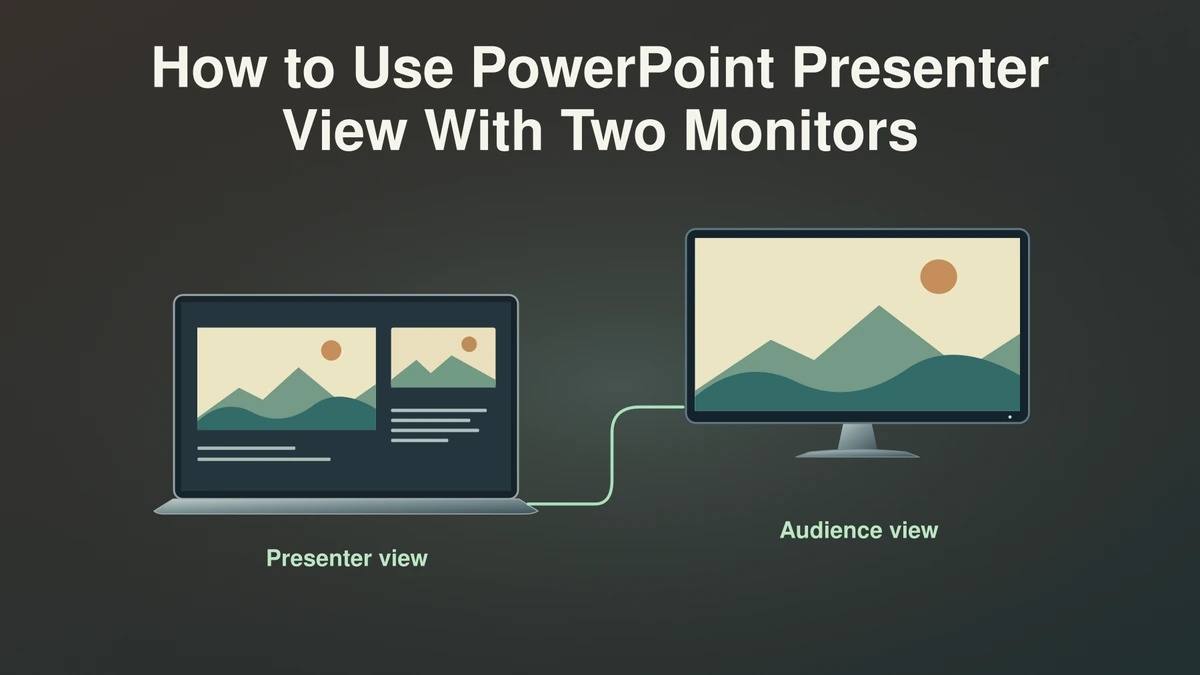
Keep speaker notes on your laptop and slides on the projector. Set up Presenter View in PowerPoint for Windows, swap the displays, and rehearse the audience view.
Follow these steps at your own pace. Check product terms and prices directly with providers before purchasing.
Put one sentence in the notes of your opening slide before you test the room: “Pause here and ask for a show of hands.” In a working Presenter View setup, you can read that sentence on the laptop while someone standing beside the projector sees only the opening slide. That simple rehearsal catches two common problems: duplicate displays and the audience looking at the presenter screen.
Quick AnswerIn PowerPoint for Windows, connect both displays and press Windows key + P → Extend. Open Slide Show, select Use Presenter View, and start From Beginning. Check the audience screen. If it shows your notes or the next slide, use Display Settings → Swap Presenter View and Slide Show in Presenter View. Some versions show Swap Displays directly.
What each display should show
| What you see | Where it belongs | How you recognize it |
|---|---|---|
| Full-size current slide | Projector or audience monitor | Only what is on the slide appears. |
| Current slide, next slide, timer and notes | Laptop or presenter-facing monitor | You can advance, look ahead or enlarge your notes. |
| Thumbnail list, ribbon and editing tools | Editing view before or after the talk | Typing changes the slide rather than controlling the show. |
This guide covers the Windows desktop edition of PowerPoint, including Microsoft 365. A deck open in a browser or presented through PowerPoint Live in Teams uses a different interface. If you are presenting in a room, open the deck in the desktop app so the instructions match the controls in front of you.
1. Prepare both the audience screen and your notes
Connect the monitor or projector before opening the slide show. Give the projector time to select the input connected to the laptop. If it offers HDMI 1 and HDMI 2, select the actual port in use. Start with the laptop open so its built-in screen is available for your notes.
Press Windows key + P and choose Extend. Open Settings → System → Display and select Identify. A number briefly appears on each physical screen. Note which number belongs to the audience display. Check that you can put a harmless window on the projector and leave a different window on the laptop. If both always show the same window, set up an extended Windows desktop before troubleshooting PowerPoint.
Open a copy of your deck and select the first slide. Click Notes near the bottom of the PowerPoint window if the notes pane is closed. Type the test sentence in the notes pane below the slide. It matters where you type: a text box inserted on the slide is part of the audience picture. Select slide two, add a different test note, and save. The second note proves that the notes advance with their own slides.
2. Start the slide show from the intended place
- Select the Slide Show tab. In the monitor controls, turn on Use Presenter View.
- Start with the slide show monitor setting on Automatic. If PowerPoint offers a monitor list and you already know the projector's number, select the audience display for the slide show.
- Select From Beginning for the live opening. From Current Slide is useful when rehearsing the middle of a long deck. Pay attention to which slide is selected before starting.
- On the presenter-facing screen, find the current slide, the next-slide preview and the private notes. On the audience-facing screen, verify that the current slide fills the display.
- Advance once and ask a colleague to read the new slide title from the audience position. Check that your second note appears only on the laptop.
PowerPoint can switch Windows into an extended configuration when a show starts. Setting it deliberately beforehand gives you a chance to position other apps and inspect the room before a participant sees your desktop. When the presentation ends, Windows' display arrangement may look different depending on the PowerPoint version and previous settings. Check it before handing the room to the next presenter.
3. Swap the views if the projector shows your notes
In Presenter View itself, look along the top for Display Settings. Choose Swap Presenter View and Slide Show, or choose Swap Displays if it appears by itself. Look at the projector again. Swapping flips the two presentation surfaces while keeping the show running.
If the swap control is hard to find and private notes are already visible in the room, use the room's display blanking control if available, or end the show and switch the projector to a neutral input while you correct the arrangement. Afterward, start with the neutral opening slide and confirm which surface each person sees. Clicking through slides while trying to diagnose the issue can expose more notes.
With three displays, swapping two views may still leave the audience monitor blank. End the show. Use Identify to map all three screens, then return to PowerPoint and choose the intended slide show monitor explicitly. On a desk with a laptop, a confidence monitor and a projector, the display directly in front of the presenter may be neither the Windows main display nor the projector.
4. Set up Presenter View for the way you speak
Enlarge the notes with the notes font-size controls. This changes the working view for the speaker. It is a good way to make a short prompt legible without making the audience's slide text larger. Scroll through the longest note while rehearsing. If a full paragraph runs beyond the visible pane, divide it into two or three cues you can recognize at a glance.
Practice a nonlinear moment. From the presenter controls, open the thumbnail overview and select a backup slide. Watch the audience display as you navigate, then return to your planned slide. This is more predictable during questions than repeatedly pressing Back while trying to remember how far you skipped.
Try pausing on a chart while looking at the next-slide preview. Can you read the axes on the actual projector from the back of the room? A graph that fills the presenter preview can still be illegible at audience distance. Adjust the slide itself in editing view if the problem is graph labeling. Increasing the font in your notes only improves what you personally can read.
Worked example: a meeting that includes a live demo
Suppose slides one through four introduce a sales report. Slide five is a cue to demonstrate an Excel workbook, followed by two closing slides. Before the meeting, open a sample workbook without private tabs. Rehearse the switch on the audience monitor, then bring the slide show back and advance to the closing slide. Keep a neutral slide ready if the workbook takes longer to load than expected.
If the pointer must travel to the projector's far edge before it appears on the laptop, align the numbered screens with your desk. If selecting the wrong PowerPoint window from the taskbar keeps interrupting your rehearsal, choose where Windows displays running app buttons. Neither change requires adding a copy of the notes to the deck.
If remote attendees are also watching, the room projector and their meeting feed are independent outputs. Start the slide show first, then share the slide show window or the display that contains the audience slide. Ask one remote attendee to describe what they see. A perfect local projector picture does not prove that the meeting is sharing the same surface.
Frequently asked questions
Both screens show the slide, but the notes seem to have vanished. Confirm that Windows has two active desktops and that Use Presenter View is selected. Then inspect the intended presenter screen. If the private controls appear but the note pane is empty, check that this particular slide has notes saved in its Notes pane.
Why did the presentation begin halfway through? You probably started from the selected slide. End the show, choose Slide Show → From Beginning, then confirm slide one is visible in the room before you invite the audience to follow along.
Can I send the audience the original PowerPoint file afterward? The notes are part of that file. Presenter View controls the live display, not which content travels with an attachment. Review a separate distribution copy before sharing it if your speaking cues should stay private.
Will this work if I close the laptop lid? With just one external projector, closing the built-in screen removes the presenter's second surface and can put the laptop to sleep. Keep the laptop open or connect and test a separate presenter-facing display.
Before the audience arrives
- A test note appears on the presenter screen and nowhere on the audience slide.
- The correct opening slide is visible, and advancing updates both the slide and its associated notes.
- Any app switch or remote meeting share has been rehearsed from the audience's perspective.
- You can end the show and return the room display to a neutral screen.
For a remote audience, check which screen Microsoft Teams is sharing after you confirm that the projector shows only the slides.
Bottom Line
Check two separate things before you speak: which physical display gets the slide show, and which surface your audience can see. Once those match, the notes, next-slide preview and timer become genuinely private presenter tools. Microsoft illustrates the controls in its Presenter View walkthrough.
Comments
Read or join the discussion.