How to Make an Apple Notes Checklist That Moves Completed Items to the Bottom
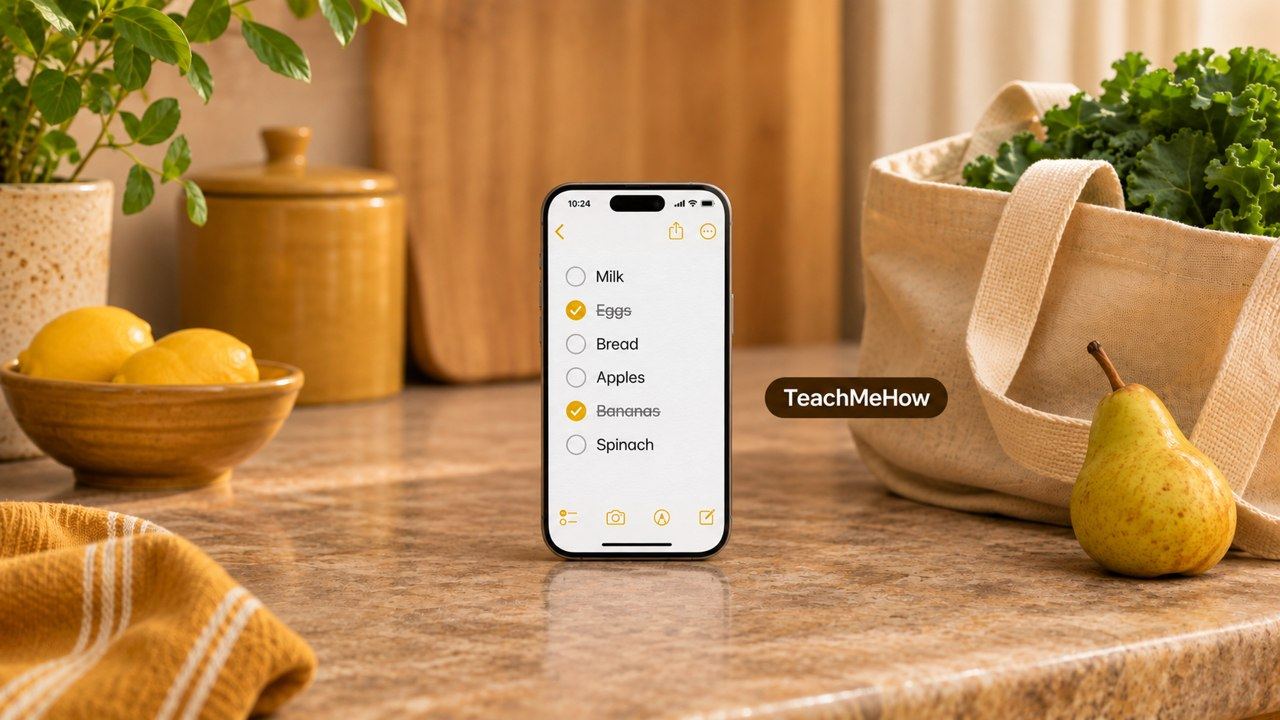
Create a checklist on iPhone, make finished items sort to the bottom, and reset a recurring list without retyping it.
Follow these steps at your own pace. Check product terms and prices directly with providers before purchasing.
In Apple Notes on iPhone, tap the Checklist button to make a list with tappable circles. To move finished items down, open Settings, then Apps, Notes, Sort Checked Items, and choose Automatically. Use Manually if your list has a fixed order that should stay visible after items are checked.
Pick a list that benefits from automatic sorting
Think of a grocery run with items you can pick up in any order. When apples and rice are checked, they can move down so milk, bread, and beans remain visible. The same feature can make an ordered procedure harder to follow. If the steps are “turn off equipment,” “remove cover,” and “inspect filter,” keeping their original sequence matters even after the first step is complete. Use manual sorting for procedures whose order carries meaning.
Give a recurring checklist a title that describes the situation, such as “Weekend trip – final bag check.” Use one action or object per row. “Charge power bank” and “Pack charging cable” should be separate if either can be finished independently. Put a list of useful reference links in the same note or connect the checklist to another note if the details are long.
Set up the checklist and test the sort
1. Create a real checklist
Open a note and place the cursor where the list should start. Tap the Checklist control and type the first entry. Press Return for the next item. An empty circle at the start of each row is what lets you mark it finished. Pasted bullet characters or square brackets are only text until the formatting is applied.
2. Arrange the unfinished items
Drag a checklist item to move it higher or lower. Swipe an item to the right to indent it, or left to reverse the indent. Use indentation where a short subtask belongs with a parent line, and test the result with a few sample entries before building a long list.
3. Enable automatic sorting
Open Settings, select Apps, then Notes. Tap Sort Checked Items and choose Automatically. Some older versions put Notes on the main Settings page. This setting applies to how checklists behave in your Notes app, so test an existing ordered list too if you use both types on the same phone.
4. Check and uncheck a row
Return to the note and tap the circle beside a test entry. It should move to the completed area. Tap the marked circle again and check where the item returns. If the list must preserve a particular order every time, switch back to Manually and arrange the entries in the desired sequence.
5. Reset a recurring list intentionally
After a trip or routine, keep a record of completed work if you still need it. Then untick the items you will need next time. Where Notes offers an Uncheck All action in the list controls, use it for a complete reset and review the first few rows afterward.
Diagnose an unexpected checklist
| Result | What to check |
|---|---|
| Tapping a square selects text | The entries may be ordinary bullets. Apply Checklist formatting to the intended lines. |
| Completed items stay in place | Look for Manually under Sort Checked Items. |
| A timed procedure loses its sequence | Use manual sorting and keep important steps in a fixed order. |
| A second person cannot tick boxes | Follow the guide to share the note with editing rights. |
Keep a recurring list easy to restart
Put items required every time near the top and keep optional lines separate. On a packing list, “keys,” “phone,” and “glasses” can come before extras for the destination. If the checklist is the note you reach for most often, pin it above the rest of the folder. Test your finished setup with three objects you can gather from around the room. After checking two, the remaining item should be easy to find without rereading the whole list.
Keep descriptive lines outside the list
Put context such as “Pack tonight for the early train” above the list as regular text. Only turn the items you want to tick into checklist rows. Otherwise a checked instruction can move away from the items it describes. If you duplicate a list for another date, check whether the duplicate already contains completion marks and reset them before using it.
Comments
Read or join the discussion.