Built-in memory
Handheld label makers
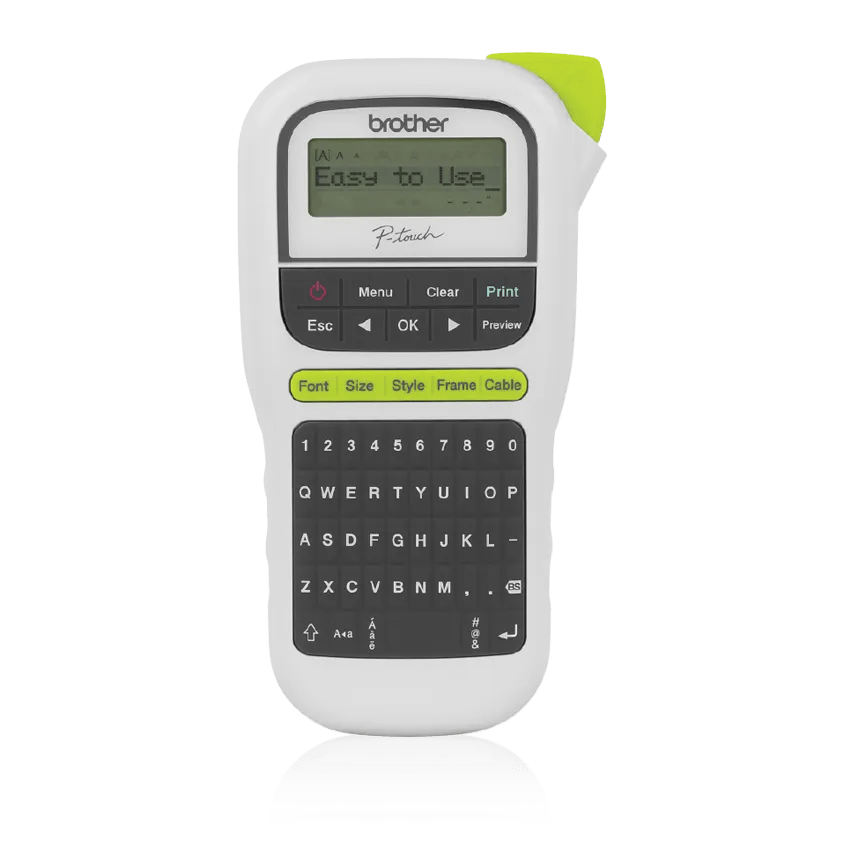
Brother P-touch PT-H110 Easy Portable Label Maker
Its 15 numbered slots support recurring text labels without a phone or computer.
Check current price
Check current price (paid link) ↗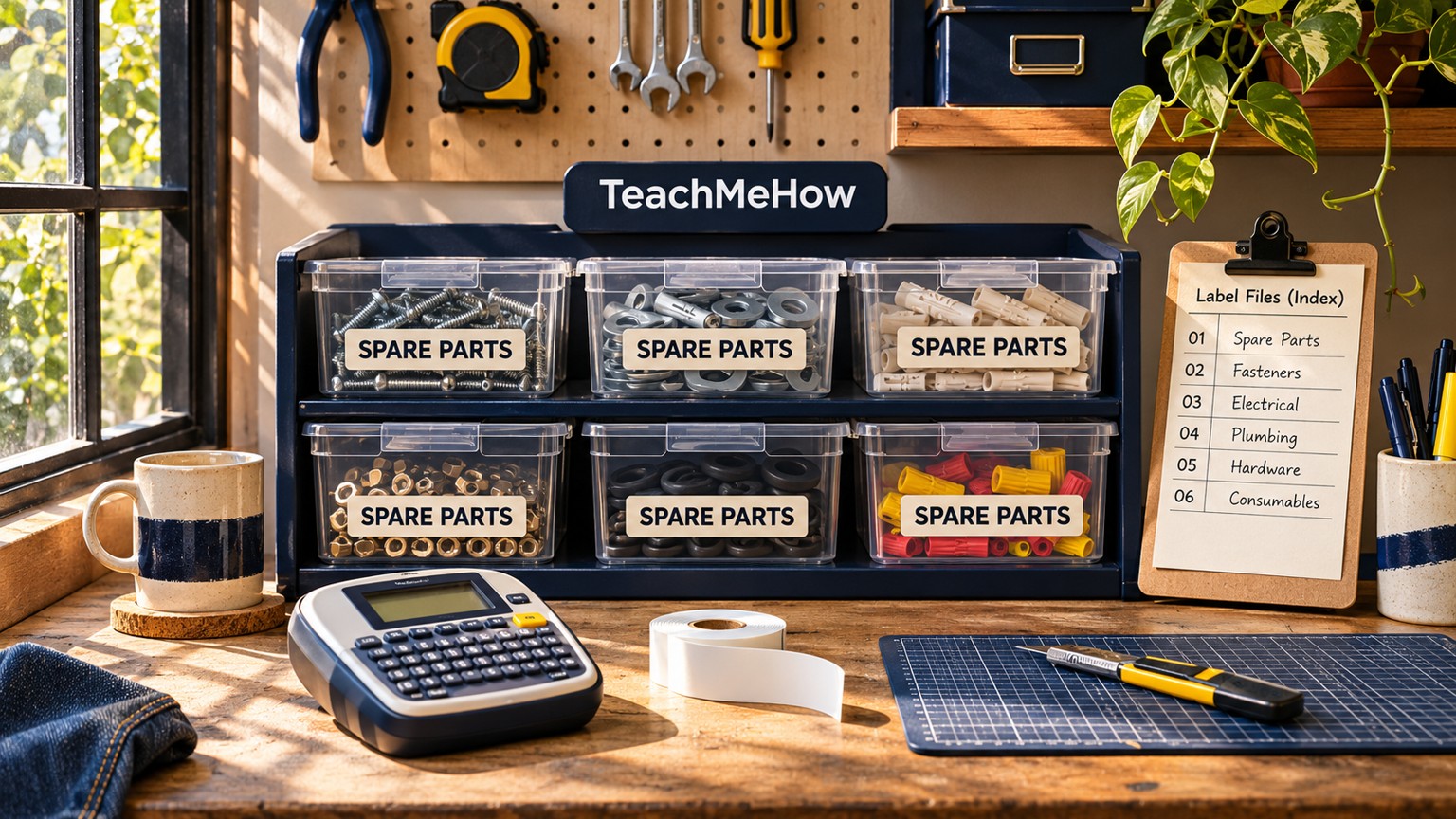
Store frequently used labels in numbered files, reprint them unchanged, and edit a copy without overwriting your original layout.
Follow these steps at your own pace. Check product terms and prices directly with providers before purchasing.
The US PT-H110 stores up to 15 ordinary text labels. Type the label, then use Menu, File, Save and choose a slot. To make an unchanged replacement, choose File and Print. To change the wording while keeping your original, choose File and Open, edit the text, then save in a different empty slot.
Start with wording you actually print repeatedly. SPARE PARTS is useful if more bins appear every few weeks. A label naming one specific box you will never replace is a poor use of limited memory. Brother allows up to 80 characters in a file and 1,200 characters across the 15 slots. These are local numbered files on the labeler.
Keep a short index with the printer. Record the slot, wording, tape width, and color. For example, “01 – SPARE PARTS – 12 mm black on white” tells the next person both what to open and which cassette to load. Recalling a file cannot change the physical tape already in the printer.
Type SPARE PARTS in the ordinary editor. Check the spelling, use Preview, and print one copy. Hold it on the bin before allocating a file slot. If the longest word is hard to read, fix the design now so the same fault is not repeated on future bins.
Open Menu and select File, then Save. Scroll through the numbered slots and choose an unused one. Confirm with OK and record the number on the index. If you see Overwrite OK? at this point, press Esc and choose again unless replacing that particular master is intentional.
Open Menu, choose File, then Print. Select the numbered entry, confirm it, and choose the number of copies you need. Start with one if the installed cassette has changed since your original proof. Inspect the printed result beside its neighbor.
Use File and Open to bring slot 01 into the editor. Change SPARE PARTS to RETURN PARTS. Use File, Save and pick an empty slot such as 02. Open each slot in turn and check the text before changing your paper index.
| Situation | Command | Result |
|---|---|---|
| One more identical bin | File → Print | Prints the stored entry without editing it. |
| A similar bin with different contents | File → Open, then Save to an empty slot | Gives the new wording its own entry. |
| A spelling correction for every future copy | Open and edit, then save over the same slot | Replaces the old wording after the overwrite prompt. |
If Save is unavailable or the printer reports no text, enter actual characters in the normal editor. Built-in templates have their own limits. For example, a label made with the Cable template cannot be saved as a file. Keep the cable IDs in your project list so you can re-create those labels even if they are not in a slot.
Keep a written copy of important wording and settings before a reset or extended period without power. File memory is convenient for reprints, but a paper or digital index also lets you reconstruct the job on a replacement printer. When replacing batteries, have the new set ready and follow Brother’s instructions.
Before relying on a stored file, put the printed sample away and return the labeler to its ordinary text screen. Use only your index to retrieve the file and print one copy. Compare the output with the original on the same bin. This catches a wrong slot, an unrecorded cassette change, and a name that looked obvious only while you were setting it up.
If two people share the unit, reserve a few empty slots for variants and write the date beside changes to the index. You can then distinguish a routine reprint request from an instruction to replace the permanent shelf name.
For a family of bins with changing numbers, print sequential IDs from the starting entry. For recurring labels with two pieces of information, proof a two-line label before saving the master.
Use the same cassette width and finish to match the original label file.
Its 15 numbered slots support recurring text labels without a phone or computer.
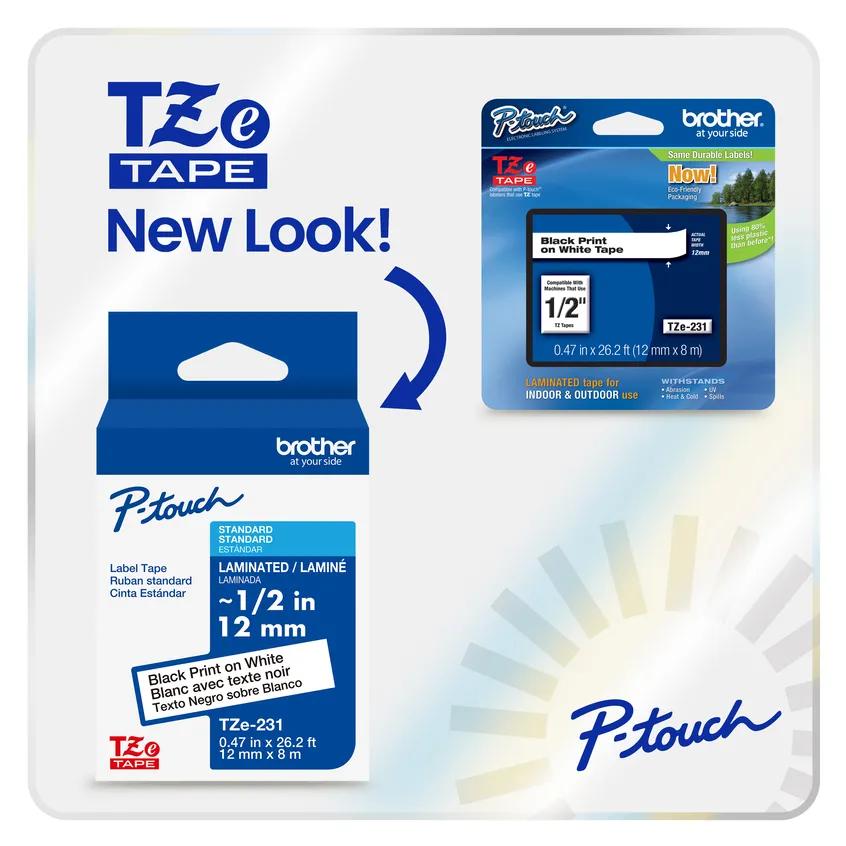
Keeping the same width and color on hand helps replacement bin labels match the originals.
Prices may change. Check the retailer for the current price and availability. We may earn a commission from qualifying purchases at no additional cost to you. Learn more.
Comments
Comments are reviewed before they become public.
Sign in with Google to leave a comment.
Sign in with GoogleNo approved comments yet. Be the first to start the discussion.