How to Print All Excel Columns One Page Wide in Windows 11
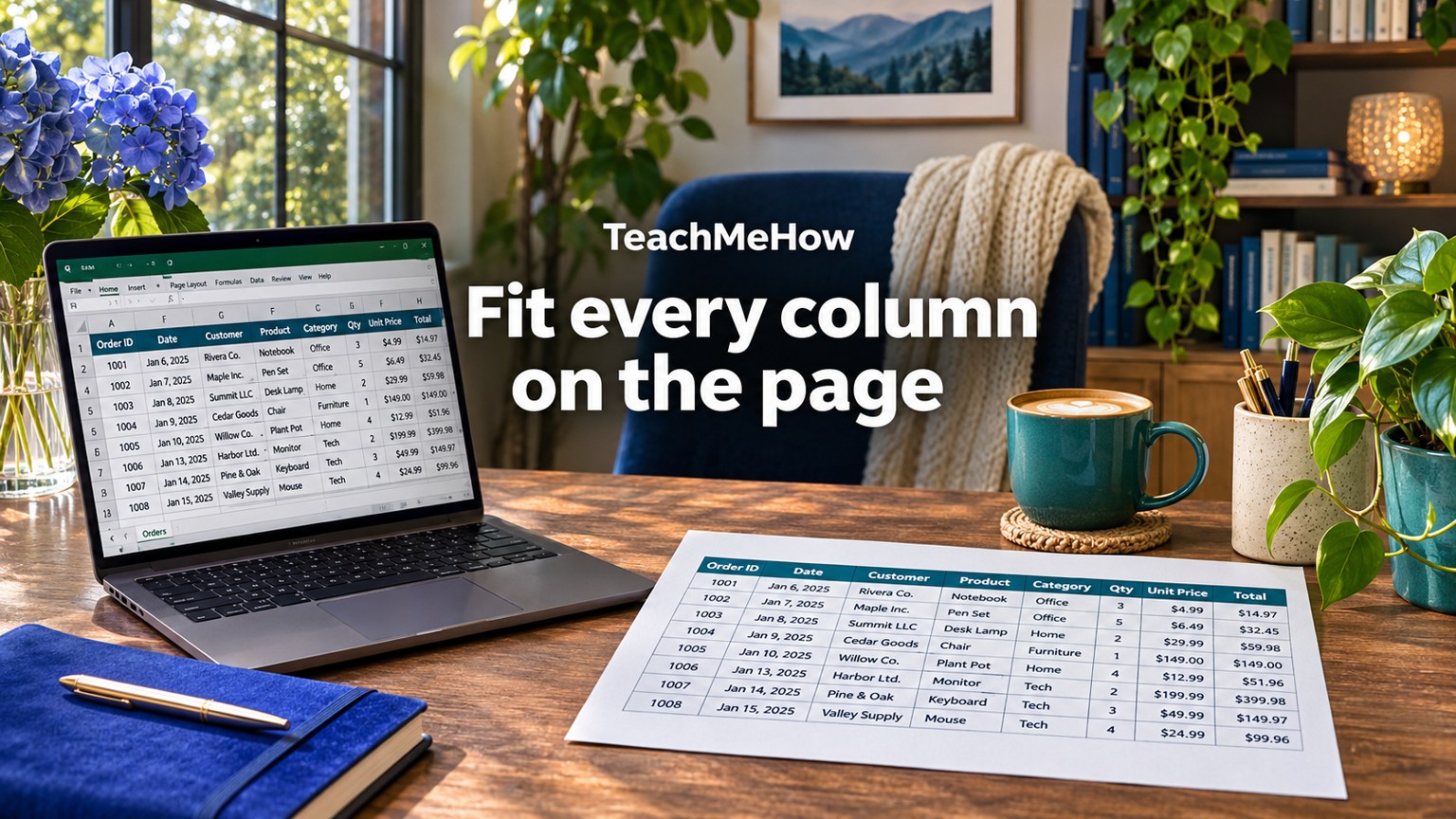
Keep the last column on the same sheet as the first, let rows continue to later pages, and check the resulting text size before printing.
Follow these steps at your own pace. Check product terms and prices directly with providers before purchasing.
Quick answerIn desktop Excel for Windows, select the worksheet and open Page Layout → Scale to Fit. Set Width to 1 page and Height to Automatic. Open File → Print and check that the first and last columns appear together while extra rows continue on later pages.
Identify the real print area
Imagine a stock list running from item number in column A to reorder quantity in column J. When the last two columns spill to a separate horizontal page, a reader has to match quantities back to rows on another sheet. The goal is to keep A through J together while allowing as many pages of rows as necessary.
Click the sheet you mean to print and check that other sheet tabs are not grouped. Look to the right and below the report for old notes, unused helper tables or a chart far from the data. If the printout should contain only a particular continuous range, select that range and use Page Layout → Print Area → Set Print Area. If an old print area excludes the last column, adjust or clear it before relying on scaling.
Choose the destination and set the width
Open File → Print and confirm the printer and paper size. Return to Page Layout. Consider landscape when many short columns compete for width. Check the margins and select a reasonable paper size that the intended printer can use. A preview prepared for Legal paper can change when the real tray contains Letter.
In the Scale to Fit group, change Width to 1 page and Height to Automatic. Allowing the height to continue gives a long list more physical space for its rows. Selecting one page for both dimensions can turn a 400-row inventory into one unreadably small sheet. Excel’s print-preview scaling menu may also offer Fit All Columns on One Page. Recheck the preview after choosing either route.
Check the report as the reader will use it
| Preview symptom | Adjustment to try |
|---|---|
| The rightmost column appears alone on another sheet | Verify Width is 1 page on the active sheet and the correct range is selected. |
| All columns fit but the type is tiny | Limit the print area, shorten or wrap headings, and compare landscape orientation. |
| The final column is completely absent | Inspect the print area, hidden columns and whether Print Selection is active. |
| The second sheet begins with unlabeled rows | Set repeating heading rows in Page Layout → Print Titles if the report needs them. |
Use the preview navigation to examine the second vertical page as well as the first. Verify that an item number, description and quantity remain on the same physical row. If the far-right column contains totals, read a sample value rather than assuming the visible border means the full number survived.
Improve legibility before increasing the page count
Trim genuinely unused space first. A wide notes column with a few short comments can consume more room than several data columns combined. Wrap its text or create a reporting copy with sensible widths. If formulas or layout matter to other users, work on a copy instead of changing the shared workbook just to make this printout fit.
Print the first page of the report and read it at the distance someone will use it. If it is too small even after layout changes, choose larger supported paper or split the report into meaningful groups with repeated identifiers. For a packet printed on both sides, first test which duplex edge keeps the pages upright.
Avoid squeezing an entire workbook with one setting
If a workbook has a narrow summary sheet and a wide transaction sheet, inspect them separately. The summary might look fine in portrait while the detail needs landscape. Before printing the entire workbook, use the preview arrows to find the transition between sheets and confirm both layouts. A page-count change at that boundary can be perfectly reasonable when the sheets serve different purposes.
Keep paper and PDF versions consistent
Save the workbook with the intended sheet settings when they should be reused. For a PDF handout, choose the PDF destination, inspect its new preview, then reopen the saved file and check its page count and last column. If you subsequently need just a few of those pages, save a page range as its own PDF. Microsoft illustrates the width and height choices in its worksheet scaling guide.
Comments
Comments are reviewed before they become public.
Sign in with Google to leave a comment.
Sign in with GoogleNo approved comments yet. Be the first to start the discussion.