How to Print a Folded PDF Booklet in Windows 11
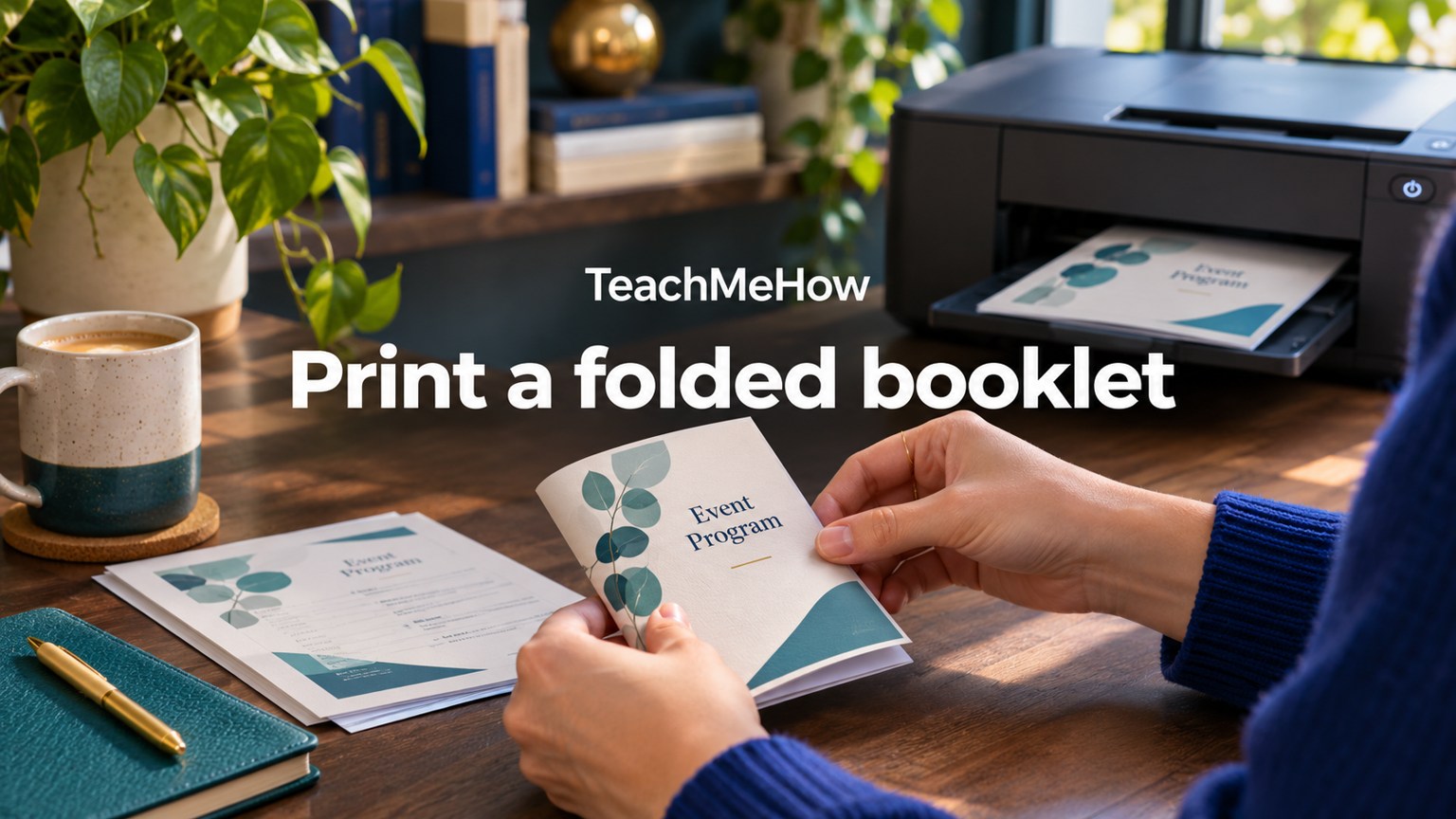
Arrange PDF pages for folding, choose automatic or manual duplex, and use a short proof to check page order and back-side orientation.
Follow these steps at your own pace. Check product terms and prices directly with providers before purchasing.
Quick answerIn desktop Adobe Acrobat Reader, open the PDF in normal reading order, select Print → Booklet, and choose the binding direction. Choose Both sides for an automatic duplex printer. For manual duplex, use the front-side and back-side subsets as separate passes. Fold a short proof to test the page order.
Understand what one folded sheet contains
Fold a blank sheet in half. You now have four page faces: front cover, two inner pages and back cover. For a four-page left-bound booklet, the outside spread pairs page 4 with page 1. The inside pairs page 2 with page 3. Reader calculates these pairings for the chosen document, so give it PDF pages 1, 2, 3 and 4 in ordinary reading order.
For eight pages, the outer sheet has page 8 beside page 1. The inner sheet carries the center spread. If the designer already supplied double-page printer spreads, applying Booklet again can shrink and rearrange them a second time. Ask for single pages in reading order or follow the designer’s printing instructions for the imposed file.
Set paper, binding and duplex
Select the physical printer in Reader’s Print dialog. Match the paper size to the loaded sheets. A Letter sheet folded across its center makes a booklet roughly 5.5 by 8.5 inches before trimming. Check whether the original text will still be readable when reduced to that finished page size.
Under Page Sizing & Handling, select Booklet. Use left binding for a typical English-language program that opens from right to left around its left spine. Use right binding when the document calls for it. On an automatic duplex printer, choose Both sides. Leave printer-driver booklet layout or extra pages-per-sheet settings off when Reader is doing the arrangement.
Make a four-page physical proof
Print a four-page sample containing large page numbers or four recognizable headings. Fold it with the cover outside. Read the front, open the middle, then turn to the back. You should read 1, 2, 3 and 4 upright with the fold on the intended side. Looking only at the flat outer sheet can make a perfectly correct booklet appear out of sequence.
Check the back-side orientation, center margin and smallest type. If one side is upside down, review the printer’s flip-edge setting in relation to the orientation of the physical sheet. If the reader must rotate the booklet to read the inside, fix the duplex setting before producing the full batch. See choosing the right flip edge for double-sided printing for a marked-paper test.
Use manual duplex when the printer needs two passes
| Pass | What to do |
|---|---|
| Front side only | Print the booklet fronts for one copy. Keep all sheets in their output order. |
| Reload | Follow the printer’s tray diagram or your marked-sheet test for face, feed edge and stack order. |
| Back side only | Print the matching backs of the same document, with the same sheet range and binding. |
| Fold and read | Nest the sheets, fold them and turn every page before making more copies. |
For a larger booklet, the Sheets from control refers to physical sheets. A page range refers to source PDF pages. Restricting the source range can change the booklet Reader imposes. To test the outer sheet of the final arrangement, keep the full source range and use the sheet control if available.
Keep several copies from becoming one tangled stack
For a short event run, make one complete booklet at a time until you know whether the printer collates sheets in the order you need. Lay the correct first copy aside as a reference. Compare the outer cover and center spread of the next copy before folding it. An accidentally nested outer sheet from another copy can produce duplicate pages while the total sheet count still looks correct.
Account for blank faces and small type
A folded set makes room for multiples of four page faces. A six-page program requires two sheets and leaves two faces unused. To control exactly where blank pages appear, place them deliberately in the source document, export it and inspect the folded proof again. For an excerpt that will become its own program, make a PDF containing the selected pages before laying it out. Adobe illustrates both printing passes in its booklet printing instructions.
Comments
Comments are reviewed before they become public.
Sign in with Google to leave a comment.
Sign in with GoogleNo approved comments yet. Be the first to start the discussion.