Compare removable, slide-tab, and adhesive laptop privacy screens, and learn how to match your screen size, aspect ratio, and workspace.
Quick AnswerMatch the filter to your laptop’s visible screen width and height first. Choose a removable filter if you switch between working alone and sharing your screen. Choose an adhesive or slide-tab filter if you keep it on most of the time. If you use a touchscreen, confirm that the specific filter supports it.
Compare Laptop Privacy Screen Types
| Type | Best for | What to check |
|---|
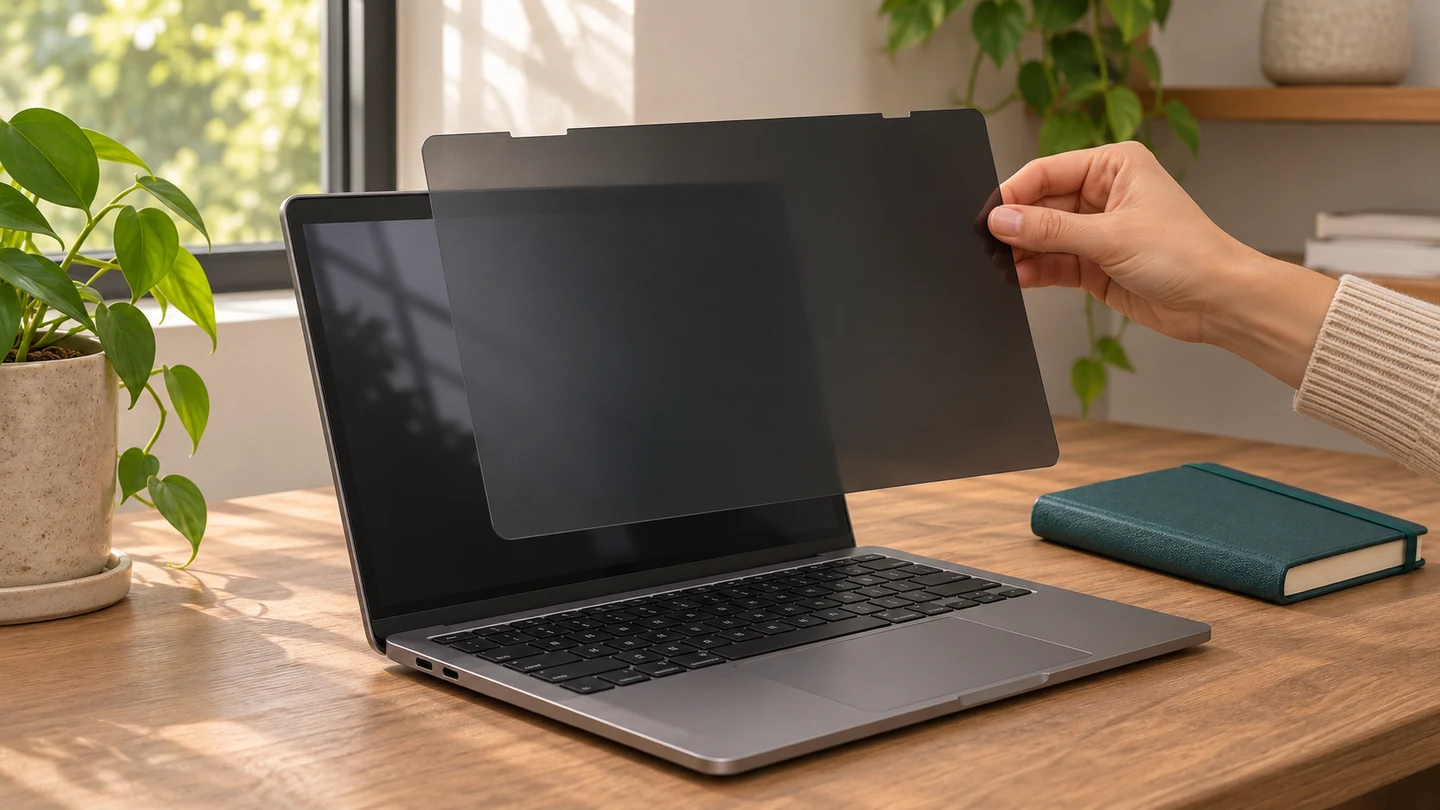
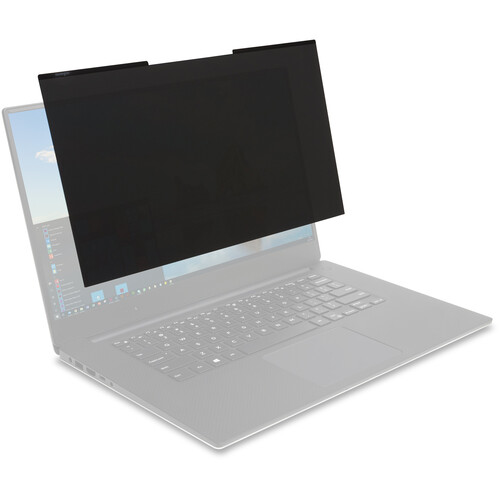
| Magnetic or removable | Working in public and sharing your screen at home | Compatible laptop models, attachment style, and lid clearance |
| Slide-tab | Daily use on a laptop with room on the bezel | Tab placement and whether you can slide the filter out easily |
| Adhesive strip | Keeping the filter in place while traveling | Touch support, surface finish, and replacement adhesive |
1. Measure the Viewable Screen
Measure the width and height of the area that lights up, excluding the frame. Compare those measurements with the filter manufacturer’s fit chart. A 14-inch 16:9 screen is shorter and wider than a 14-inch 16:10 screen, so buying by diagonal size alone can leave a gap or cause overhang.
2. Pick an Attachment That Fits Your Routine
If you share presentations or do color-sensitive work, choose a filter you can remove quickly and keep a sleeve handy for it. If you mostly work solo, slide tabs or adhesive strips can keep the filter in place. Check how the filter fits near the webcam and whether the laptop can close with it installed.
3. Check the Privacy Direction
Many laptop filters narrow visibility from the left and right. If people often stand behind you, change your seating position or angle the screen away from the aisle. A side-view filter still leaves a view for someone looking straight at the display.
4. Consider Brightness, Glare, and Touch
A privacy filter can make the screen look dimmer. A matte surface can help with reflections near windows or overhead lights. If your work depends on accurate colors, choose a removable filter and take it off while editing. Verify touch compatibility before buying.
Buying tipAfter installing the filter, open a sample document at your usual brightness and look at it from the next seat over. Repeat the test after tilting the screen to the position you actually use.
What to Buy for Your Setup
| If you work here | Look for |
|---|
| Airplanes or trains | A removable side-view filter that packs flat between trips |
| Shared office | A secure everyday mount with a matte finish for overhead light |
| Meetings and presentations | A quick-release filter you can take off before coworkers gather around |
| Touchscreen laptop | A filter listed for touch use with matching panel dimensions |
Common Mistakes
- Ordering by diagonal size and overlooking aspect ratio.
- Expecting a side-view filter to block someone looking over your shoulder.
- Closing a tight-fitting laptop lid over mounting tabs without checking clearance.
- Assuming a matte finish also guarantees touch compatibility.
Before You Buy
- Measure the viewable width and height.
- Match the aspect ratio or exact laptop model.
- Check which viewing angles the filter covers.
- Confirm touchscreen, webcam, and lid clearance.
- Decide where you’ll store a removable filter.
Bottom Line
Start with exact screen dimensions, then choose how often you want to remove the filter. For an everyday setup, check how it looks under your usual lighting and test the view from the seats around you.

Comments
Comments are reviewed before they become public.
Sign in with Google to leave a comment.
Sign in with GoogleNo approved comments yet. Be the first to start the discussion.