How to Set Up a Recurring Reminder on iPhone
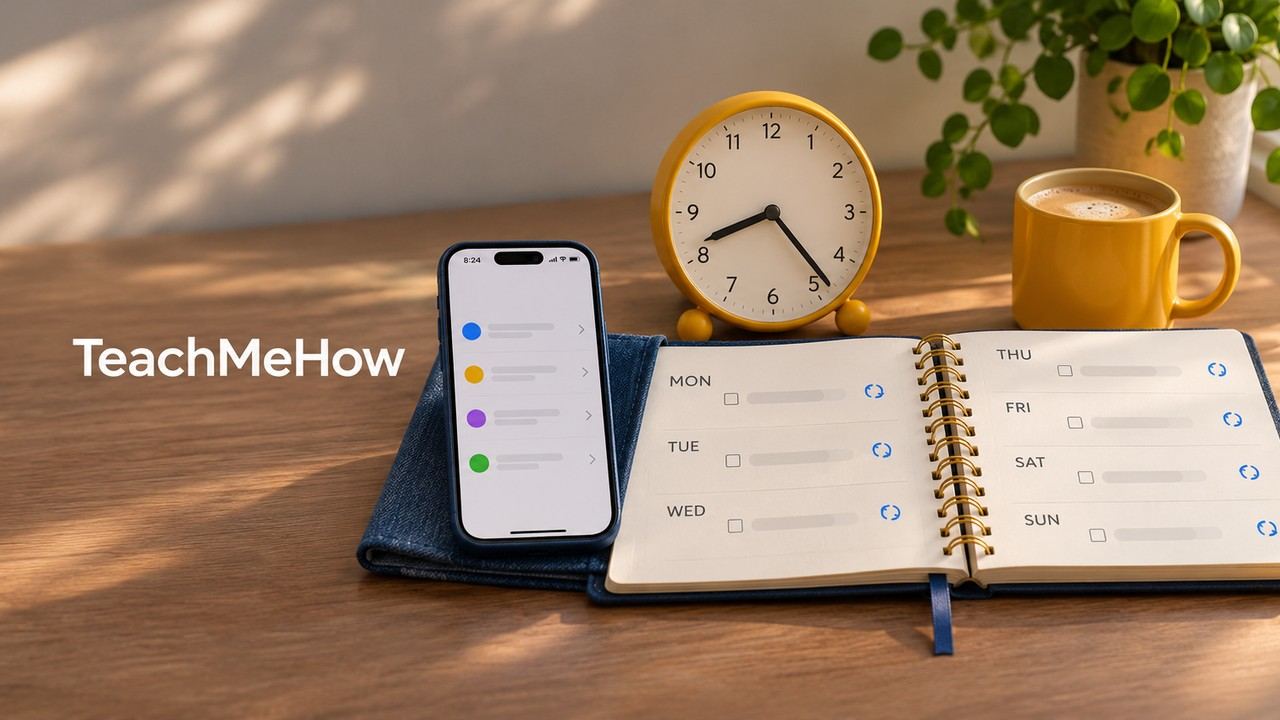
Schedule a task to repeat on iPhone, choose its first due date, and check that the next occurrence lands where you expect.
Follow these steps at your own pace. Check product terms and prices directly with providers before purchasing.
Open a task in Apple Reminders, tap Edit Details, set its first due date and time, then tap Repeat and choose the frequency. Finish editing and check the date on the saved item. For a weekly task, the weekday of the first due date matters just as much as the Weekly setting.
Start with the next real occurrence
Say the recycling truck comes every other Friday, and you need to put the bins out on Thursday evening. Find the next actual pickup on the collection calendar. The first due date for the task is the Thursday before that pickup. Starting one week too early produces a perfectly regular reminder on the wrong weeks. Include the action in the title, such as “Put blue bin at curb,” so you know what to do when the notification appears.
For a task that happens monthly, check what the schedule actually promises. The first Friday of each month can fall anywhere from the first through the seventh. Repeating every four weeks gradually shifts the task away from the first Friday. A quick comparison with the next two dates on the original schedule can catch a mismatch before you save it.
Create the repeating task
1. Choose the list and enter the action
Open the list that should own the task and add a new reminder. Use a short title that will still make sense months from now. Put changing details, such as a link to the collection calendar, in the note or URL field. If the weekday also appears in the title, remember to change it whenever you change the schedule.
2. Set the first due date
Tap the task, then open Edit Details using the information button. Turn on Date and choose the first day you actually need to act. Turn on Time if the hour matters. For bins that must be outside overnight, 7 p.m. the previous evening leaves time to act while you are home.
3. Choose the repeat pattern
Tap Repeat. Choose the matching frequency, or use Custom if you need a different interval. For alternate weeks, select an interval of two weeks when offered. Review the first date again after choosing the frequency. If a task runs only during a course or season, use an end date where available, or make a separate reminder to review the schedule after the last session.
4. Verify the next two occurrences
Save the task and reopen its details to check the date, time, and repeat rule. If your Calendar app shows Scheduled Reminders, inspect the next dates there. Apple displays future occurrences dimmed until the current occurrence is completed. Check the present task off when the work is done and confirm the next occurrence has the expected date.
Pick the timing that matches the work
| Task | Practical schedule |
|---|---|
| Put out the recycling before alternate Friday pickups | Begin on the correct Thursday evening and repeat every two weeks. |
| Send one weekly inventory report | Choose the first reporting day, set the deadline, and repeat weekly. |
| Get ready before a recurring deadline | Keep its actual due time and add advance notice to the reminder. |
| Collect supplies during an unpredictable store visit | Use an arrival reminder at the store. |
Fix a schedule that keeps behaving oddly
If the task appears twice, inspect both entries before changing either. A copy in another list and a weekly reminder with the same title can generate separate alerts. Also check whether you see the same scheduled reminder in Calendar and in Reminders. Opening both views can show the same underlying task. Rename one suspected duplicate temporarily and see where the change appears.
If an old occurrence remains overdue, open that occurrence and decide whether you actually completed it. Dismissing its notification just clears the alert. For a task you did complete, tap its circle and inspect the next due date. If you later need to establish what was marked done, review completed reminders in the original list.
For one holiday exception, compare the following two dates before changing the series. A one-off reminder can handle an unusual early pickup while you retain the normal schedule for later weeks. Keeping the true schedule in the reminder and its source in the notes field makes the next exception easier to check.
Comments
Read or join the discussion.