How to Repeat Table Header Rows on Every Page in Google Docs
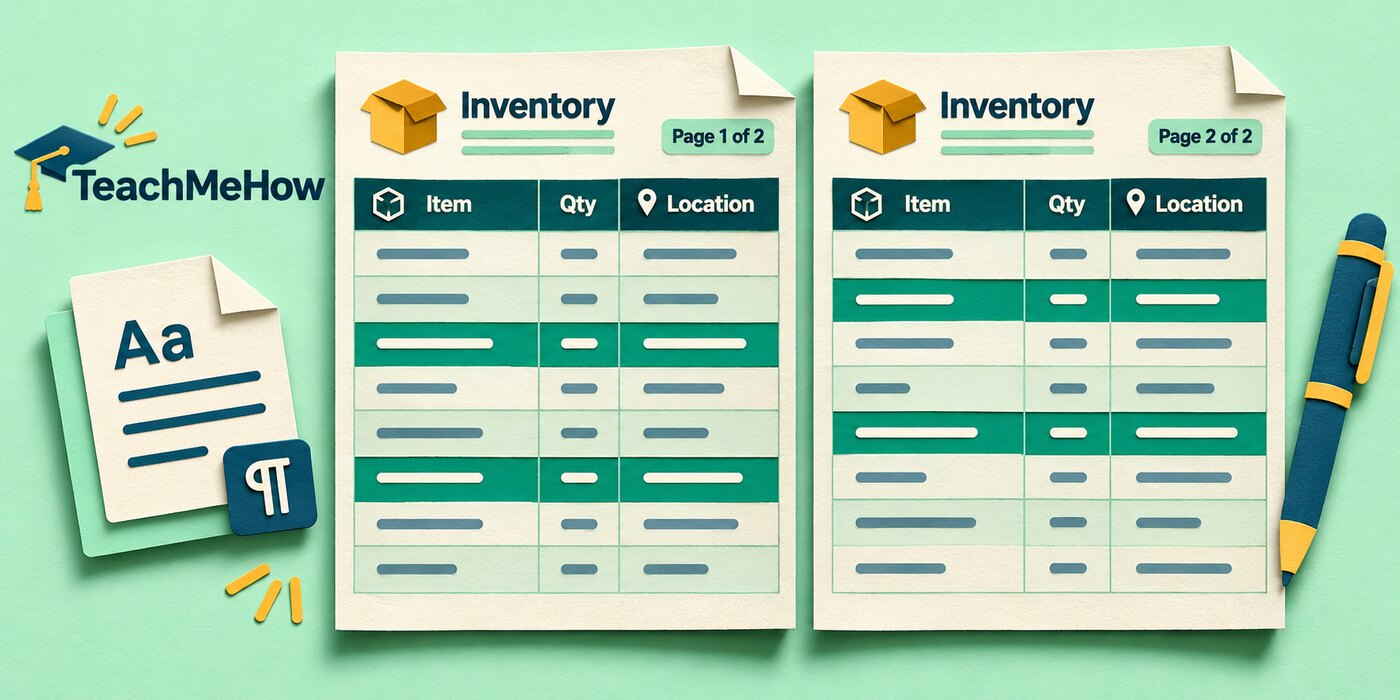
Keep column labels visible when a table runs onto another page. Pin one or two header rows and check the result in print preview or a scrolling document.
Follow these steps at your own pace. Check product terms and prices directly with providers before purchasing.
Quick answer
In Google Docs on a computer, right-click the top row of your table and choose Pin header up to this row. In Pages format, the column labels repeat where that same table continues onto another sheet. In pageless format, pinned rows stay visible as you scroll the table.
Choose exactly what should repeat
Take a three-page inventory with columns for Item, Quantity, and Location. Those labels belong above the data on every sheet. The first stock entry, “Packing tape / 12 / Shelf B,” belongs only once. Pinning through that entry would make it look as though every page begins with another 12 rolls.
- Click in the original table at its beginning. Count its header rows. Most inventories need one. A schedule with a top row for weekdays and a second row for morning and afternoon may need two.
- Right-click in the last header row and choose Pin header up to this row. For two header rows, do this in row two. The command includes the rows above it.
- Alternatively, click in the table and open Format → Table → Table options. Under Row, enable Pin header row(s) and enter the count. Confirm the change.
- In print preview, go to the page where the table continues. Check that the labels appear once and that the first data row below them follows the last entry on the previous page.
When the second page looks wrong
| What you see | What to check |
|---|---|
| The labels are there twice | A manually copied label row may remain in the body. Verify the original pinned header before removing the duplicate. |
| The labels stop after a paragraph of text | You may have two separate tables. Set a header on the second table as well. |
| A label needs correcting on every page | Edit the label in the first header row of the original table. Recheck its repeated appearance in preview. |
| The last column is squeezed | Pinning controls vertical repetition. For extra width, give the table a landscape section. |
When sharing a corrected printed inventory, check the exported PDF at the first page break. If a previous copy is already online, update the existing Drive PDF without changing its link.
Comments
Comments are reviewed before they become public.
Sign in with Google to leave a comment.
Sign in with GoogleNo approved comments yet. Be the first to start the discussion.