How to Paste Text Without Formatting in Windows 11 With PowerToys
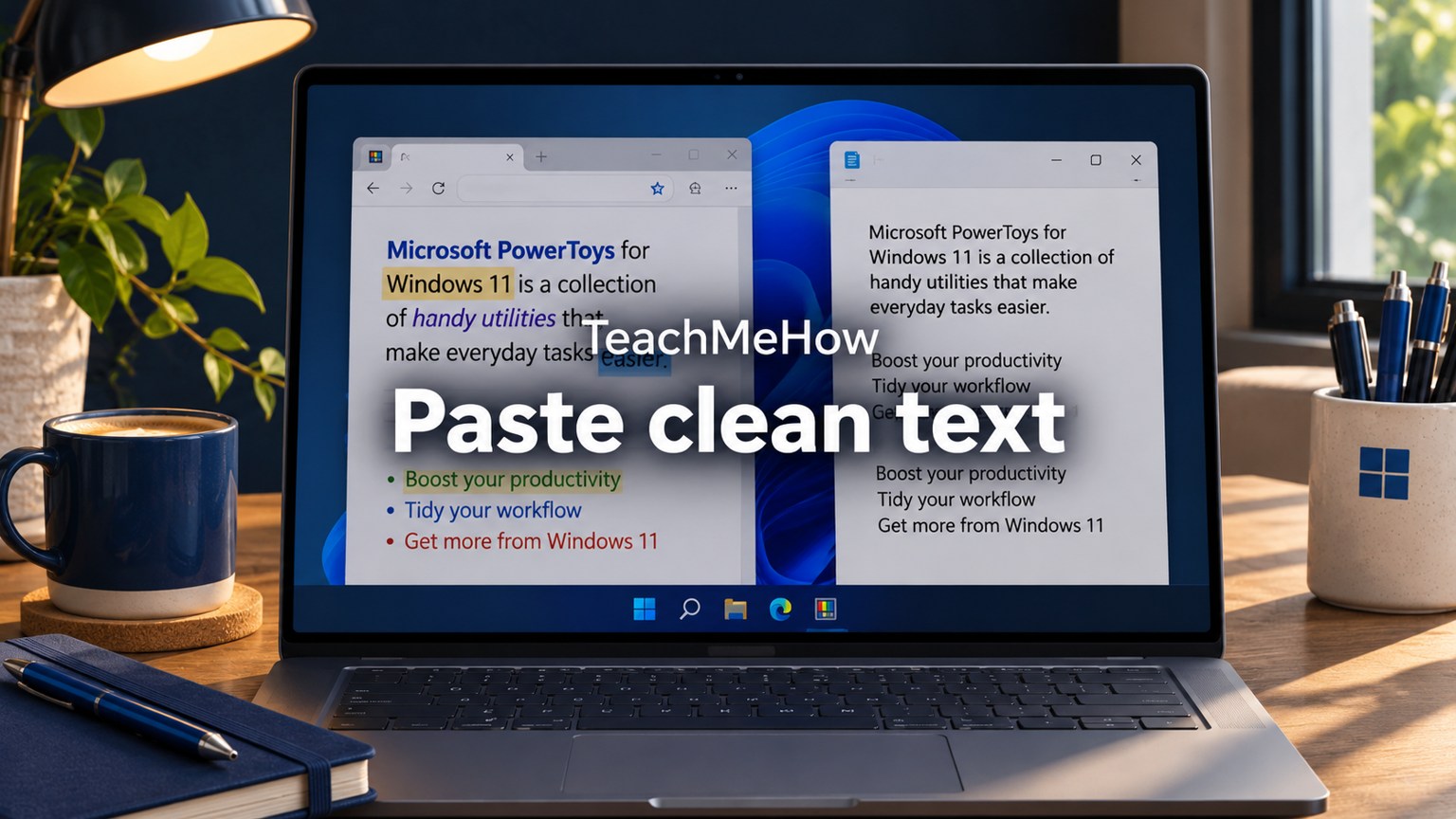
Paste the words from a webpage or document without its fonts, colors, or embedded links. Set up PowerToys Advanced Paste and verify the result.
Follow these steps at your own pace. Check product terms and prices directly with providers before purchasing.
Quick answer
Copy the text, click the destination, press Windows key + Shift + V, and choose the plain-text action in PowerToys Advanced Paste. To skip the menu, the default direct shortcut is Ctrl + Windows key + Alt + V. This strips source formatting and lets the destination apply its own style. The built-in plain-text action runs locally and needs no AI setup.
Choose what you want to keep from the source
A paragraph copied from a webpage can carry its typeface, background, hyperlinks, and list styling into an email. Plain-text paste keeps the characters available as text. Literal punctuation and line breaks can remain. A clickable word such as “Schedule” can lose its hidden destination address, even though the word still appears. If the recipient needs the address, copy the link target separately and inspect it before sending.
Install Microsoft PowerToys from the Microsoft Store if you do not have it. In PowerToys Settings, select Advanced Paste and enable it. Check the shortcuts listed for opening the palette and pasting plain text directly. Other apps may already provide their own paste-without-formatting command, but the PowerToys shortcut gives you a consistent action across compatible destinations.
Run a comparison in a blank draft
- In a document or webpage, select a short paragraph with a bold word, a colored heading, and one link. Copy it. Use a harmless sample while you learn what the destination keeps.
- Open a blank rich-text draft and click its body. Paste normally once so you have a reference. Move to a separate ordinary paragraph with the styling you want to keep.
- Open Advanced Paste with Windows key + Shift + V. Choose the action labeled as plain text. Compare the second copy with the first. The words should match while the source’s font, color, and embedded link styling drop away.
- Inspect the insertion point if the second copy is still bold. Plain text can inherit the bold style of the destination paragraph. Turn off the destination’s bold control or move to a normal paragraph, then repeat with the same clipboard item.
Read the result by content type
| Source material | What to verify after plain-text paste |
|---|---|
| A formatted heading | The words remain. The heading level and source typeface may be gone. |
| A list | Check the order, line breaks, and whether numbering was literal text or document formatting. |
| A table | Expect a text representation, often separated by tabs or line breaks. Check row and column boundaries before using it. |
| A visible web address | Some destinations automatically turn URL text into a clickable link again. That is destination behavior. |
Make a reliable shortcut for repeat work
Once the palette action gives the result you want, try the direct shortcut in the same draft. If a different command opens, check the assignment in Advanced Paste and any shortcut set by the destination app. Keep ordinary Ctrl + V available for the times you need images, tables, or formatting. Changing only the dedicated plain-text shortcut makes the two choices easier to predict.
If the wrong passage appears, copy a fresh, distinctive sentence and test it in a plain note. Advanced Paste can optionally use selected text for hotkeys, so inspect that setting if an existing selection in the destination seems to replace what you copied. If a screenshot yields no text, copying the picture itself is a different operation from copying actual characters.
Check a table before pasting it into a form
An invoice line might contain an item name, quantity, unit price, and total. Copy just one row and paste it into a scratch area first. Confirm that the separators survived and that the quantity did not run into the price. If the destination expects four separate fields, paste each value into its own field or use an import format the destination supports. Plain text removes presentation. It does not describe the meaning of the columns.
Verify names, numbers, and structure before sending
For example, paste a short address containing an accented street name and a second-line suite number. Check the accent, line break, and digits. Removing formatting should not silently become an editing pass that changes the spelling. If you need to add an accent, type the accented letter with Quick Accent. If another key combination regularly interferes, inspect your PowerToys keyboard remappings. Microsoft lists the local actions and configurable shortcuts in its Advanced Paste reference.
Comments
Comments are reviewed before they become public.
Sign in with Google to leave a comment.
Sign in with GoogleNo approved comments yet. Be the first to start the discussion.