How to Open Two Folders Side by Side in Windows 11
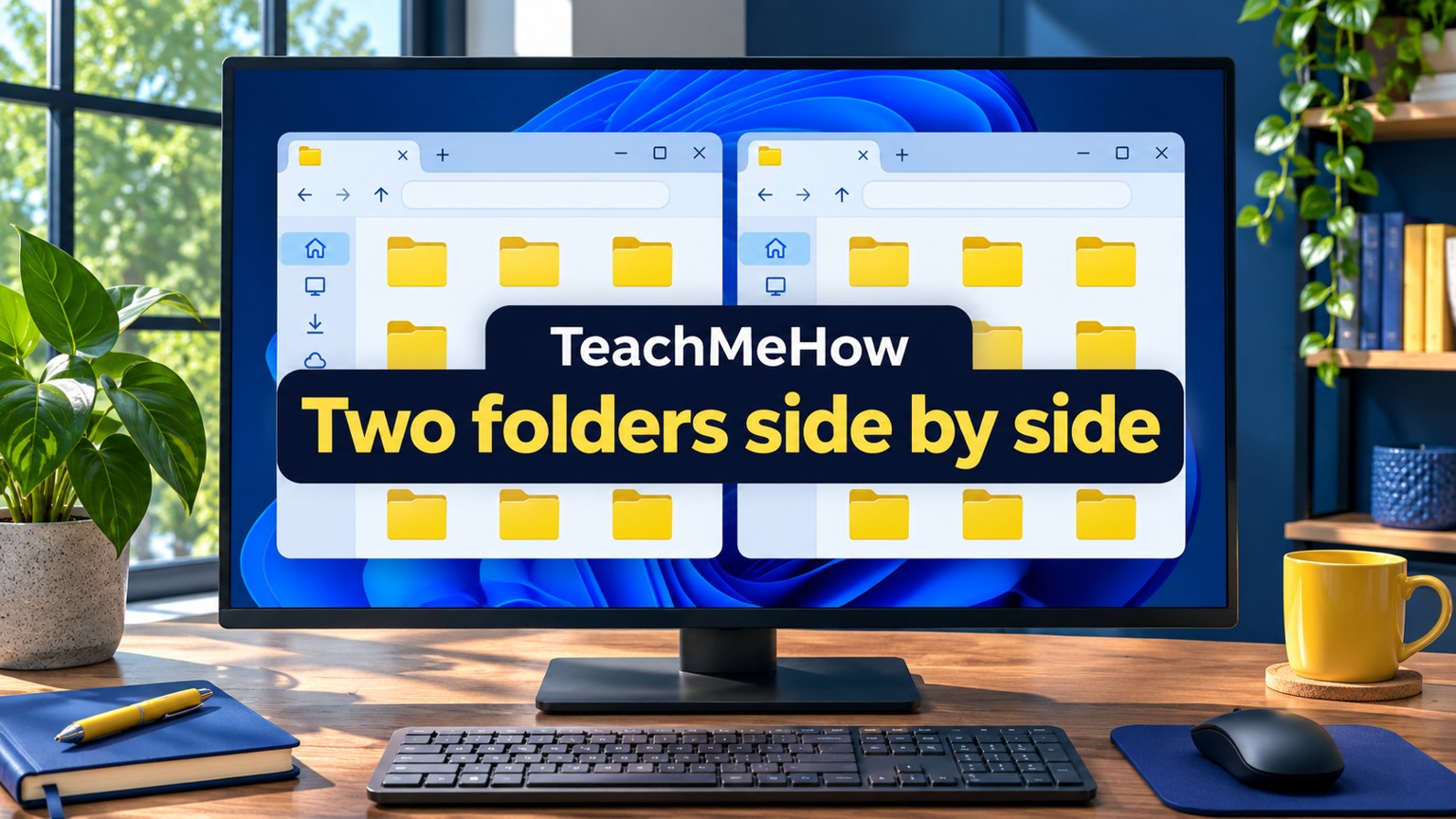
Arrange two File Explorer windows side by side, compare the source and destination, and verify a copy before closing either folder.
Follow these steps at your own pace. Check product terms and prices directly with providers before purchasing.
Quick answerOpen the first folder in File Explorer, press Ctrl + N for a second window, and navigate that window to the other folder. Snap one window left with Windows key + Left Arrow and the other right with Windows key + Right Arrow. Check both address bars before copying anything.
Use two windows when you need to see both lists
Tabs are convenient for keeping folders open, but only the active tab shows its file list. Two separate windows let you keep the source and destination visible. This is useful when copying selected photos, checking the contents of an extracted ZIP against an earlier download, or identifying which of two project folders contains the latest handout.
Open the source with Windows key + E and navigate to it. With File Explorer active, press Ctrl + N. A new Explorer window opens. Navigate that window to the destination. The two windows can initially overlap almost perfectly. Use Alt + Tab or the taskbar previews to confirm there are two. If you accidentally opened a tab with Ctrl + T, leave it intact and use Ctrl + N for the separate window.
If you use two physical monitors, extend your Windows desktop across both screens and place one folder on each for a full-width file list.
Snap the windows to opposite sides
Activate the window you want on the left and press Windows key + Left Arrow. If Snap Assist offers thumbnails, choose the other Explorer window for the open side. If it does not offer the right window, activate that window yourself and press Windows key + Right Arrow. You can also drag each window by its title bar to the left or right edge until a placement outline appears, then release.
Using multiple monitors? Place both windows on the intended screen first. On a small display, maximize the room available by using a compact list or Details view. If the edges do not engage, check Settings → System → Multitasking → Snap windows. You can also manually resize the two windows by dragging their borders if you prefer to keep Snap disabled.
Check the source and destination before transferring
Read each address bar. Imagine Documents / Spring workshop / Photos on the left and Documents / Website / Spring workshop on the right. Both window titles might say Spring workshop or Photos depending on which level is open. Use Alt + D to inspect the active window’s address. If the route will be reused in another application, copy the full file path for the exact item.
For comparison, switch both lists to Details and sort on the same property. Name makes missing files easier to spot. Date modified helps find revisions, but two identical names and similar timestamps do not prove their contents match. Open the candidates and check a recognizable change. A 10-page PDF and its 9-page predecessor might share the same base name.
Copy one item and verify it
| Action | Expected result |
|---|---|
| Select the file on the left and press Ctrl + C. | The original stays where it is. |
| Click empty space inside the right-hand file list and press Ctrl + V. | A copy appears in the visible destination. |
| Open the destination copy. | The title, contents and file size match the item you intended to transfer. |
An ordinary drag can move a file in one situation and copy it in another. Explicit Copy and Paste are easier to verify. Read any existing-file prompt and compare the versions before replacing a destination file. If you need a subset, select the files individually with Ctrl held down and check the count before copying.
Leave the two folders in a usable state
Refresh the destination with F5 if its view is stale. For a large transfer, wait for the copy progress to finish before checking the final count. If the same two folders are part of your regular routine, pin the frequently used destinations. Close each window once the work is verified. Microsoft’s Windows Snap guide and File Explorer keyboard shortcuts explain the window controls.
Comments
Comments are reviewed before they become public.
Sign in with Google to leave a comment.
Sign in with GoogleNo approved comments yet. Be the first to start the discussion.