How to Make Podcast Cover Art for Apple Podcasts
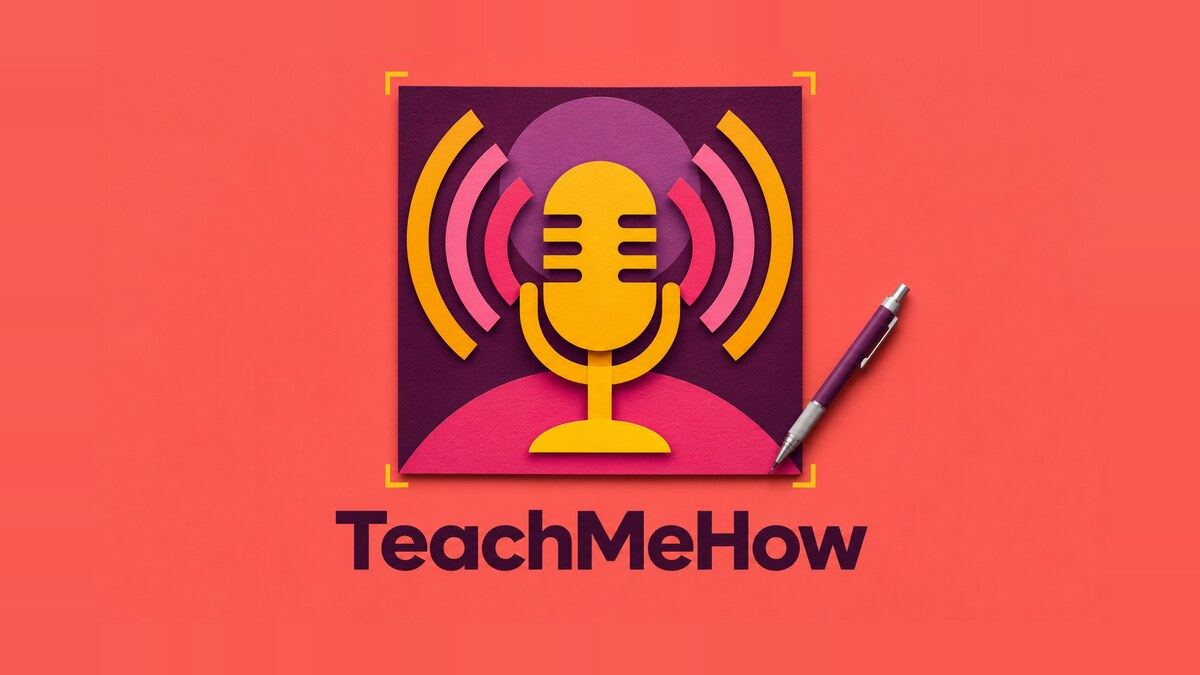
Create a square show cover at the right size, export it without transparency, and check the title at thumbnail size before updating the podcast feed.
Follow these steps at your own pace. Check product terms and prices directly with providers before purchasing.
Quick answer
Build your show cover on a 3000 × 3000 pixel square. Export an RGB JPG or PNG with a solid background and no alpha channel. Apple also accepts square RSS show covers from 1400 × 1400 through 3000 × 3000 pixels. Use Apple’s Show Cover template to place the title where player controls and labels will leave it readable.
Pick the canvas before you design the title
A podcast app reuses the same square as a large show image and a tiny library tile. Decide what should survive at the smaller size. A show called The Repair Bench might use those three words and one clear image of a vise. The host’s biography, release day and a row of social handles can live in the show description.
| Starting artwork | A practical choice |
|---|---|
| A fresh design or direct Connect upload | Start at 3000 × 3000 pixels. Keep an editable master and export a separate upload copy. |
| A sharp 2400 × 2400 square for an RSS-hosted show | Use its native size if the title is clear. It is within Apple’s RSS range. |
| A 3000 × 2000 horizontal photograph | Crop a 2000 × 2000 square for RSS or arrange the photo on a new square background. Forcing the width and height independently will stretch faces and logos. |
| A small social profile icon | Go back to the original photograph or vector artwork. Increasing the pixel count will also enlarge the blur. |
Make the square and check the safe area
- Download the template from Apple’s Show Cover specifications. Extend the background to all four edges. Keep the title and main subject inside the indicated safe area. Remove the template guides from the final export.
- To crop existing artwork in Mac Preview, open a copy, use Rectangular Selection in the Markup toolbar and drag a square around the subject. Use Tools → Show Inspector and the Crop Inspector to check that width and height match, then use Crop.
- If a larger square needs resizing, choose Tools → Adjust Size, select pixels and keep proportions locked. Enable resampling when changing pixel dimensions. Enter 3000 for the width and confirm the height also reads 3000. Add or position your title on the final-size design.
- Put a solid color behind the artwork. Export as RGB JPG, or export PNG and deselect Alpha when available. Give the exported copy a versioned name such as
repairbench-cover-v2.jpg. Reopen that file and verify its actual pixel dimensions.
Test the file listeners will see
Reduce the view until the image is about the size of an app icon. Ask someone to read the show title without seeing the full-size design. If they guess a word, simplify the type, increase contrast, or move it away from a busy part of the image. Avoid Apple logos and pictures of Apple hardware in the design. A sharp, correctly sized file can still have an unreadable title.
For an RSS show, upload the file as the show artwork at your host. An image attached to one episode changes a different field. If you are replacing an old cover, use a new filename and confirm the show’s feed now points to the new image URL. Apple may keep showing its cached copy if the URL stays the same. Check Last Refresh in Connect if it still looks old after 24 hours.
Ready for the first listing? Preview the artwork and submit the show feed to Apple Podcasts. If Connect reports a color-space or alpha error, re-export a fresh file from your master and verify it before uploading again.
Comments
Read or join the discussion.