How to Fix Missing Water Leak Sensor Notifications
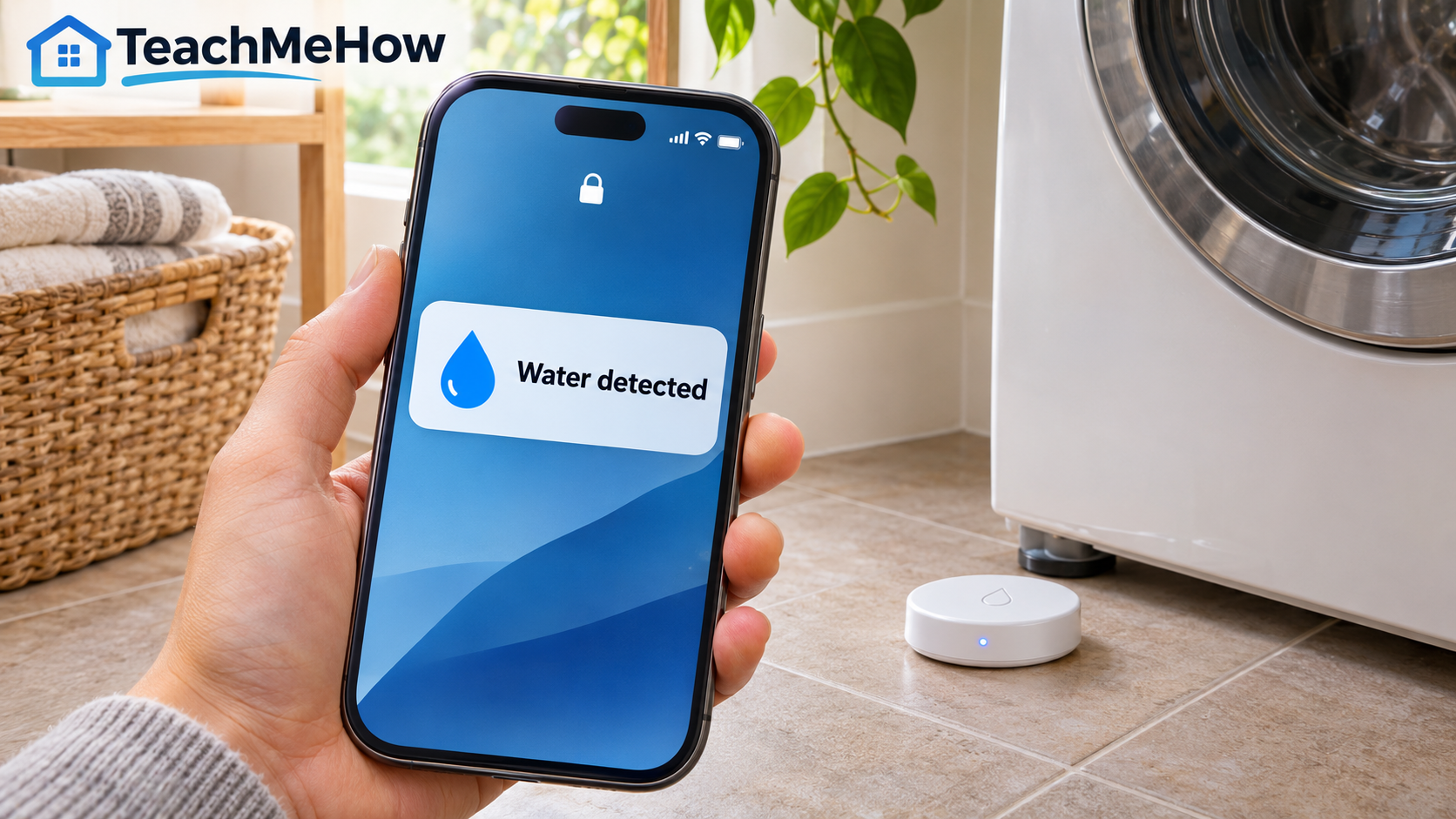
A leak alarm sounds, but your phone stays quiet. Trace the event from the sensor to the app and fix missed, silent, or delayed alerts on iPhone and Android.
Follow these steps at your own pace. Check product terms and prices directly with providers before purchasing.
If your water leak sensor sounds but your phone stays quiet, check the sensor’s event history first. A fresh “wet” event tells you the app received the reading. From there, check the alert rules and phone settings. If the sensor shows offline or still reads dry, start with the sensor.
Find where the alert stopped
If a leak is happening now, check the area from a safe spot and deal with the water before working on notifications. For troubleshooting, start with an event whose time and location you know. Open the smart home app that normally sends the alert and choose the exact sensor. If your model has an activity log, compare the latest leak entry with the time you heard the alarm.
| What you see | What to check next |
|---|---|
| No current event, and the app shows the sensor or hub offline | Restore the water leak sensor’s connection before changing your phone settings. |
| A new wet event appears, but neither phone receives an alert | Check the device’s leak notification switch, schedule, and eligible recipients in the app. |
| Another household member receives it and you do not | Check your account’s access to this home and your own phone’s notification permissions. |
| The banner arrives silently or only appears when you unlock the phone | Review notification sound, lock screen display, and any active Focus or Do Not Disturb mode. |
Check the device’s alert settings
Open the device card for the affected room. Look for Notifications or Alerts and enable water detection. If the app lists separate events, make sure you selected the start of a leak. A “returned to dry” alert is useful, but it arrives after the water has cleared.
Check the active days and times. A sensor can log a leak at noon even when its notification schedule only covers nighttime. For example, the Tapo T300 has a sensor event log and a notification schedule under the device settings. Its alarm volume is a separate control. If you receive alerts through a different home app, check the rule and recipients in that app as well.
Let the phone show the alert
iPhone. Open Settings → Notifications, choose the app that sends the alert, and turn on Allow Notifications. Select Lock Screen or Banners for a visible warning. Enable Sounds if you want an audible cue. If Scheduled Summary is enabled, choose immediate delivery for this app. Check the Focus profile you actually use at night and allow the app there if you want overnight alerts.
Android. Open Settings → Notifications → App notifications and select the smart home app. Menu names vary by phone. If the app offers notification categories, open the leak or alarm category and set it to alert rather than deliver silently. Check your lock screen preferences and the Do Not Disturb settings you normally use. If a leak alert is already in the notification shade, pressing and holding it can take you to the settings for that type of message.
Confirm a fresh alert reaches the lock screen
Allow the sensor to return to dry, note the time, leave the app, and lock the phone. Warn anyone who receives the alert, especially if a leak event operates a shutoff valve. Use the controlled water leak sensor test for your model. A button that tests only the local sounder cannot verify phone delivery.
Look for a new notification with the correct room and time. If alerts matter while you’re away, repeat once with the phone on cellular data and the hub still connected at home. If a fresh event reaches the app but every configured phone still misses it, give manufacturer support the sensor model, app version, phone operating system, and exact test time. That lets support trace a specific missed event.
Reference instructions · Tapo T300 user guide · Apple notification settings · Android notification controls
Comments
Comments are reviewed before they become public.
Sign in with Google to leave a comment.
Sign in with GoogleNo approved comments yet. Be the first to start the discussion.