Best for Bedside Control

Wireless smart buttons
Aqara Wireless Mini Switch (WXKG11LM)
Assign single and double presses to separate lamp actions and place the button within reach.
Check current price
Check current price ↗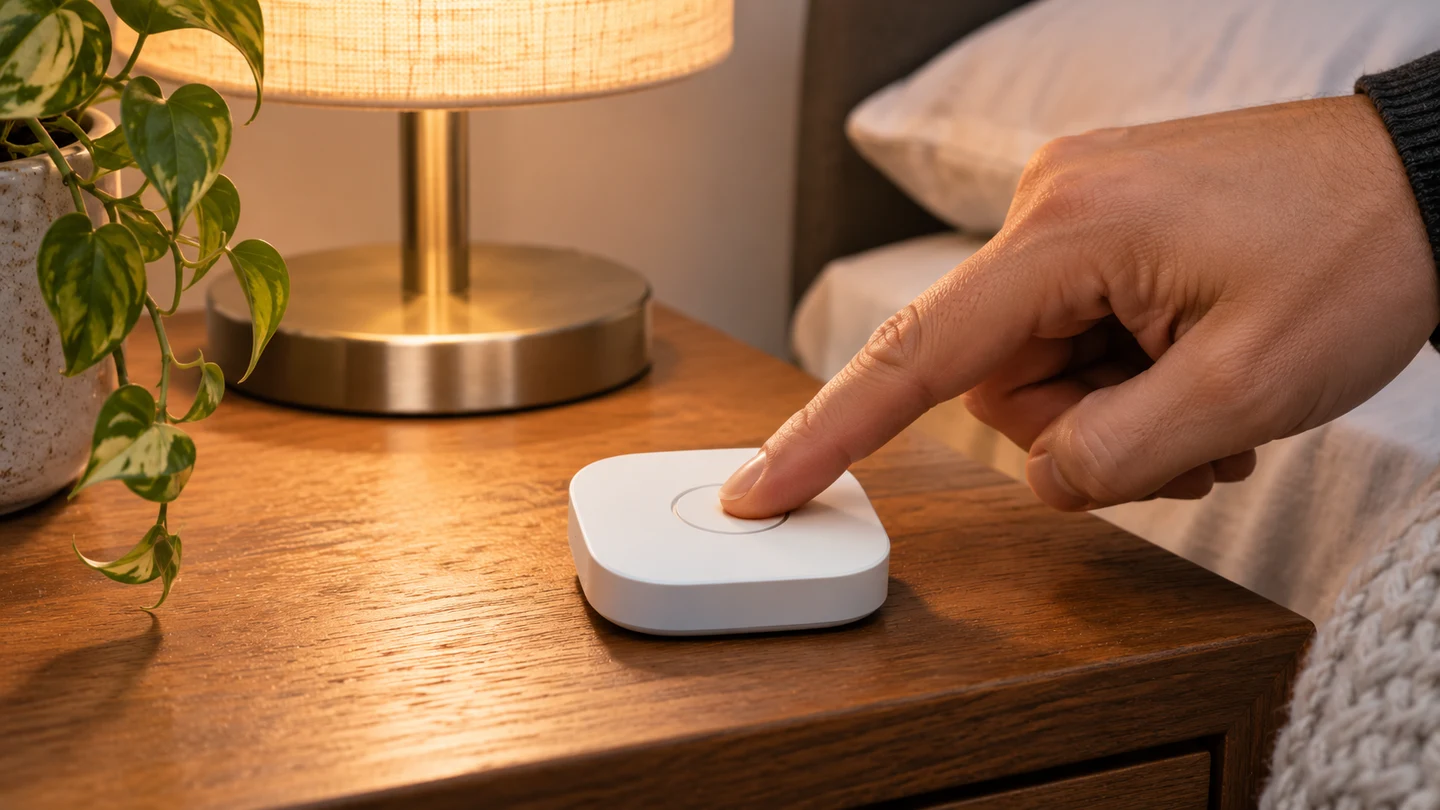
Pair a wireless bedside button with a compatible lamp, give each press a lighting action, and test it before mounting.
Follow these steps at your own pace. Check product terms and prices directly with providers before purchasing.
Start with a lamp you can switch from Aqara Home. Pair a Wireless Mini Switch to your compatible hub, assign one press to turn the lamp on and two presses to turn it off, then test both from the bedside.
| Option | Best for | Trade-off |
|---|---|---|
| Mini Switch with existing compatible smart light | Adding a physical control to an app-controlled lamp | The light needs continuous power |
| Mini Switch with Aqara Smart Plug (US) | Keeping a table lamp with a mechanical switch | The lamp must turn on again when power returns |
Switch the lamp on, unplug it, then plug it back in. If it lights again, a compatible smart plug can switch it for you. A touch-control lamp that stays off after power returns needs another approach, such as a compatible smart bulb in a fixture that supplies continuous power.
With the compatible Aqara hub online, add the smart plug to Aqara Home. Connect the lamp, leave its own switch on, then turn it on and off from the plug’s app tile. If you already have a compatible smart light, use its tile to test the same two actions.
Near the hub, choose Add Accessory and select Wireless Mini Switch. Follow the prompt to pair it using the small reset button. Name it for its final location, such as Bedside Button. The large front button is the one you will use day to day.
Create a rule in Aqara Home with a single press as the trigger and your lamp or plug turning on as the action. Save it. Create a second rule for a double press to turn the same lamp off. Giving each gesture a fixed result makes it easy to use the button from the doorway, even if someone else used the app.
Set the button on the nightstand or hold it at the intended wall position. Try both gestures, switch the lamp from the app, and try again. If the button works next to the hub but misses presses at the bedside, test a different position before sticking it down. Leave the battery cover accessible.
| Use case | What to do |
|---|---|
| Bedside table | Start with on and off. Pick a position you can reach without standing. |
| Entry table | Give the button a distinct name and set a fixed on action so it works even when you cannot see the lamp. |
| Shared room | Tell others which press turns the light off and keep the lamp’s own switch on. |
Test the lamp in the app first. Once that works, adding the physical button is a matter of assigning gestures and checking that they work from the place you will use it.
The Mini Switch sends the command. A compatible smart light or smart plug receives it through your Aqara setup.
Assign single and double presses to separate lamp actions and place the button within reach.

Gives a compatible switch-on lamp an on and off action the Mini Switch can trigger through your Aqara hub.
Prices may change. Check the retailer for the current price and availability. We may earn a commission from qualifying purchases at no additional cost to you. Learn more.
Comments
Comments are reviewed before they become public.
Sign in with Google to leave a comment.
Sign in with GoogleNo approved comments yet. Be the first to start the discussion.