How to Set Different Scaling on Two Monitors in Windows 11
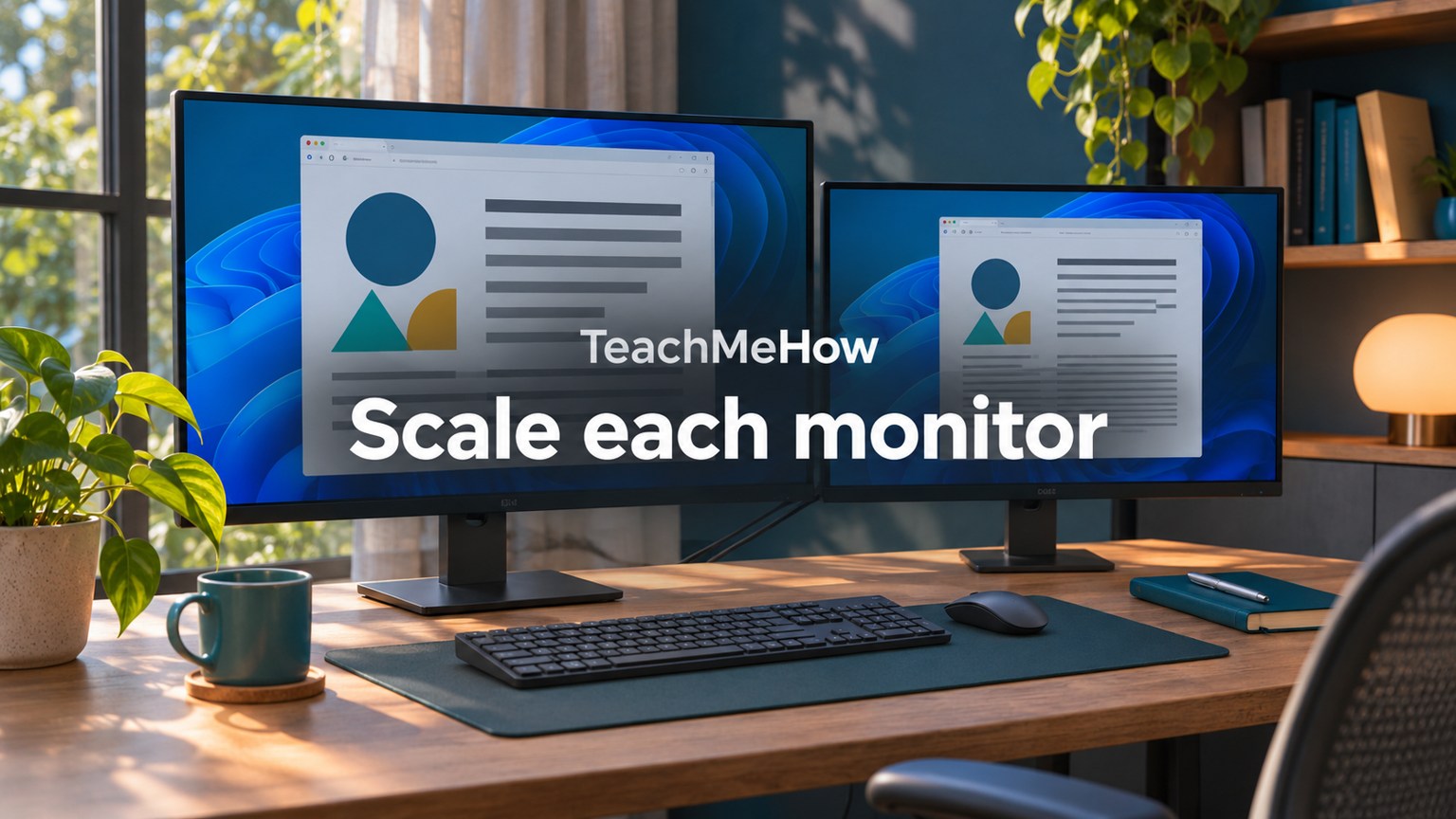
Make apps readable on a high-density laptop screen and preserve working space on an external monitor with per-display scale settings.
Follow these steps at your own pace. Check product terms and prices directly with providers before purchasing.
Quick answerIn Settings → System → Display, select the first monitor and choose a percentage under Scale. Select the other monitor and choose its own percentage. Keep each display at its recommended resolution, then compare the same window on both screens.
Decide what actually needs to grow
A 14-inch high-resolution laptop beside a 27-inch monitor can make the same menu look tiny on one screen. Scale changes the size of interface elements such as menus, icons and text while letting the screen use its normal pixel resolution. Raising the percentage usually makes items larger and leaves room for fewer items side by side.
Start by opening File Explorer on whichever screen feels uncomfortable. Check the address bar, a folder name and the navigation pane. If all three look too small, per-display scaling is a good place to start. If Explorer looks comfortable and only one website is tiny, check the browser’s zoom level first.
Set an independent percentage on each monitor
Right-click the desktop and choose Display settings. Select Identify, then click the number associated with the screen you want to change. Independent choices require an extended desktop. If both panels show the same window and Windows presents a combined tile, switch to Extend mode and return to the display diagram.
In Scale & layout, record the current Scale percentage and check the Display resolution entry. Use the recommended resolution as your starting point. Open the standard Scale menu and choose one of its offered values. Click the second screen’s tile, check that the selection moved, and adjust its Scale menu only if necessary.
Compare useful starting points
| What you see | Try first | What to inspect |
|---|---|---|
| Laptop menus are tiny, external screen looks good | Raise laptop scale by one offered step. | Can you read sidebar labels without leaning in? |
| The external screen wastes space on oversized controls | Lower only its scale by one offered step. | Can two working windows still fit comfortably? |
| Only browser pages look huge | Check the browser zoom menu. | Compare a web page with File Explorer before changing Windows. |
For example, if your laptop offers 150% and your larger screen looks comfortable at 100%, the two values can coexist. Treat these figures as examples. Screen size, resolution, viewing distance and eyesight all affect the best setting. Matching numbers on different panels rarely tells you whether the text is a comfortable physical size.
Test the boundary with the same window
Open Settings or Explorer, move the whole window to one screen, then move it fully to the other. Give the app a moment to redraw its controls. Some older apps stay fuzzy or hold their first size after a move. Save your work, close that app and reopen it on the screen where you use it. If other Windows apps look sharp, keep the monitor configuration and investigate the one app separately.
If the two displays now have different-sized rectangles in the arrangement diagram, test the pointer across their shared edge. You can adjust where the cursor crosses between monitors without undoing your comfortable text size.
Make a fair side-by-side comparison
Use the same document at the same zoom on both screens, viewed from your usual seated position. Comparing a PDF at Fit page on the laptop with the same PDF at 125% on the monitor tests two things at once. Check the application’s menus as a reference. If the menus are comfortable on both displays, tune document zoom independently for that particular file.
Keep a way back to your original setup
Use the normal Scale list for this adjustment. Custom scaling can apply across displays and may require signing out. Accessibility text sizing is useful for making text larger more broadly. If the new layout feels cramped, select the affected monitor and restore the original recorded percentage. Microsoft explains the recommended resolution and sizing controls in its display scaling and resolution guide.
Comments
Comments are reviewed before they become public.
Sign in with Google to leave a comment.
Sign in with GoogleNo approved comments yet. Be the first to start the discussion.