How to Convert Logo Text to Paths in Inkscape Before Sending It to Print
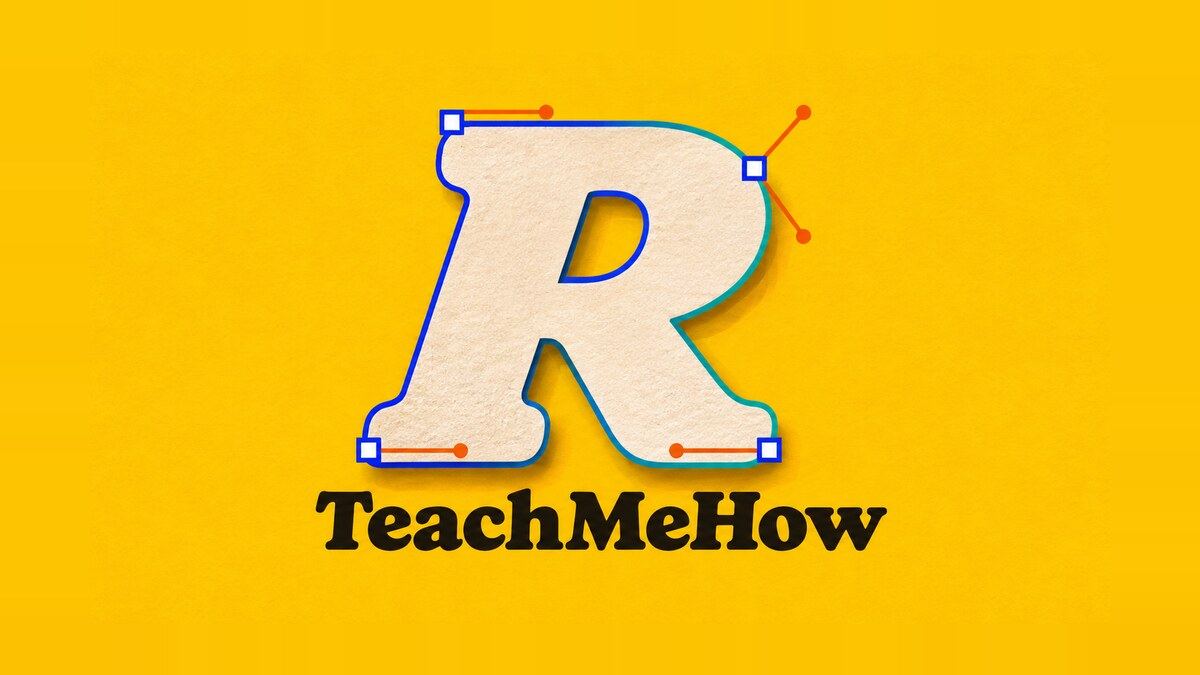
Outline logo lettering in a separate print copy. Check the typeface first, then verify that curved wording, counters, and small symbols survive the handoff.
Follow these steps at your own pace. Check product terms and prices directly with providers before purchasing.
Quick answer
Save the editable SVG, make a separate print copy, select the lettering in that copy, and choose Path → Object to Path. Inkscape converts the glyphs to vector outlines so the print shop can draw them without having your font installed. Keep the original SVG for future spelling, spacing, or typeface changes.
Check the typeface before making outlines
Open the approved logo on the computer with the intended typeface and weight. Compare it with the signed-off proof. Check a distinctive letter such as R, the gap between the last two letters, and any accents. If a word is suddenly wider or a bold tagline looks thin, stop and confirm the font. Inkscape can display a substitute when the font is missing. Converting at that point would preserve the substitute’s shapes.
If someone else designed the logo, ask for an outlined copy from the machine that has the correct typeface, or install the appropriate font before continuing. Zoom in to inspect details, then compare the whole word at its actual print size.
Convert the text objects in a delivery copy
- Save the working file as
logo-master.svg. Choose File → Save As and name the new filelogo-print-outlined.svg. Check the window title before continuing. A later name change is much easier in the editable master. - Switch to the Selector and click the business name. If it selects the whole badge, double-click the group to enter it, then select the lettering inside. Shift-click to add a tagline or a separate text object. An icon already drawn as paths needs no font conversion.
- Choose Path → Object to Path. The default Windows/Linux shortcut is Ctrl+Shift+C. Repeat for other lettering. On a circular seal, convert the curved wording while it still follows its guide. Removing the guide first can straighten the words.
Verify the outlines without moving them
Switch to the Node tool (N) and click the converted lettering. Look for nodes around the outside and inside curves of the glyphs. The openings in an O or R are good places to check. In Inkscape 1.4, an ordinary text object can become a single path for the whole word. Older releases may show a group of letter paths. You can deliver outlined type without running Union across the logo or separating the letters.
Reopen what the printer will receive
Save and reopen the outlined SVG. Compare the curved text, final word of each line, and small trademark symbols against the approved proof. If the printer requests cropped artwork, fit the SVG page to the logo. If the design contains a linked bitmap, embed the image in the delivery SVG.
For a requested PDF, choose File → Save a Copy, select Portable Document Format, and open the resulting PDF in a separate viewer. Follow the shop’s page size, bleed, and color specifications. Include the checked production file when you package the final logo files for the client.
Inkscape’s text-to-path conversion notes · How text follows a path in Inkscape
Comments
Read or join the discussion.