How to Add Processing Time to a Service in Square Appointments
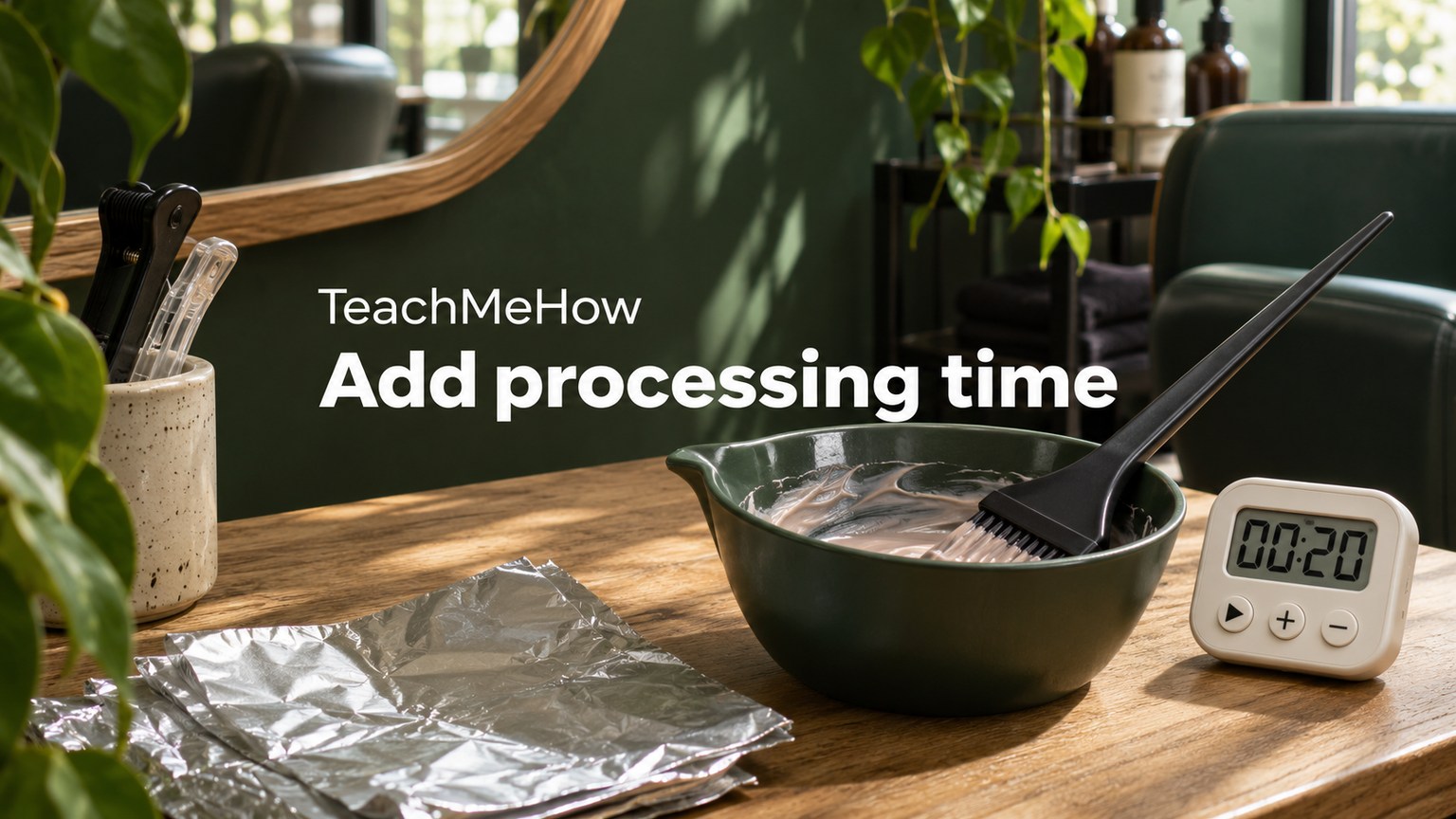
Split a service into hands-on and processing blocks so Square can offer the usable gap without placing a booking over the finishing work.
Follow these steps at your own pace. Check product terms and prices directly with providers before purchasing.
Quick answer
On an eligible Square plan, open the service in Items → Service library. Under Duration, turn on Add Processing time. Enter the hands-on time before and after the gap, plus the processing duration. Square can offer bookable time during that middle block.
Map the actual service before changing the calendar
| Example at 10 a.m. | Duration | What happens |
|---|---|---|
| 10:00–10:20 | 20 minutes initial | The stylist applies color. |
| 10:20–10:50 | 30 minutes processing | A second service can fit only if the stylist has time and can safely step away. |
| 10:50–11:05 | 15 minutes final | The stylist rinses and finishes. |
The original booking spans 65 minutes. A 20-minute appointment beginning at 10:20 can fit within the middle block. A 30-minute service beginning at 10:30 would run into the scheduled finish. Check cleanup, supervision, and shared equipment before opening any of that block.
Save the service and test availability
- Open Service library in Square Dashboard. Create or open the service. Under its Duration settings, enable processing time and enter the three blocks. If options have different lengths, check how they are set up under service variations.
- Save and inspect a future appointment on the staff member’s calendar. Open the public booking page and see what a second client can choose in the middle of that appointment. Pick a date far enough ahead to clear the minimum advance notice.
- If one appointment needs a longer processing period, open that appointment in Square Dashboard. Select its processing block and adjust or remove it before saving. Check the surrounding bookings so a change does not collide with another client.
When processing time is the wrong control
Use a busy block for a protected lunch break, cleanup, or any period when nobody should book the employee. If Add Processing time is missing, check whether your plan includes the feature and whether your account has service and appointments permissions.
Square’s processing-time requirements and calendar instructions.
Comments
Comments are reviewed before they become public.
Sign in with Google to leave a comment.
Sign in with GoogleNo approved comments yet. Be the first to start the discussion.